-
 daniels.danielsassociates
Hello
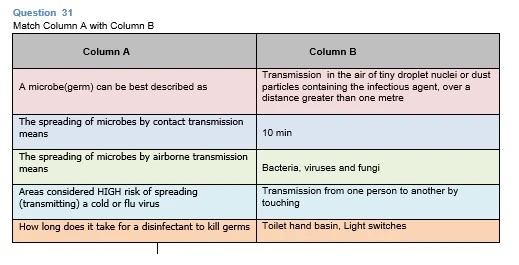
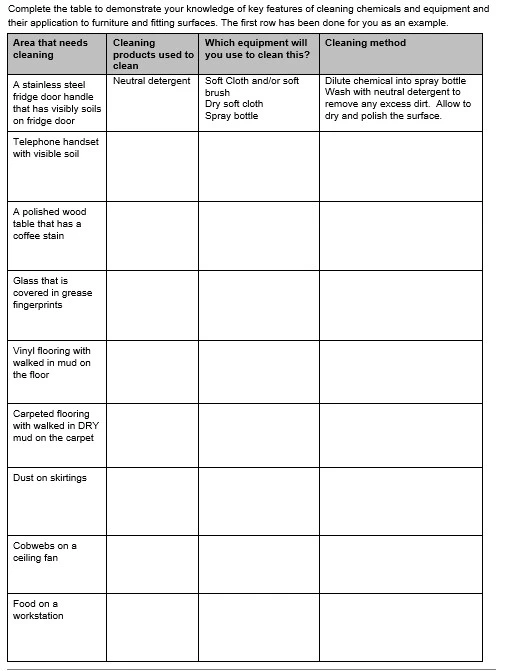
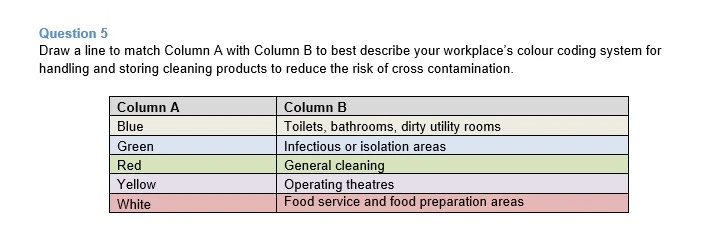
Putting together a form with multiple choice questions, plus also some match the boxes and tables to fill in.
hoping you can assist in which widget would be best for these types of questions
Please screenshots.

-
 Kenneth JotForm Support
Thank you for reaching support,
Unfortunately, we do not have a Match Type field or widget, I will make a feature request for it but could not guarantee an ETA of when it will be developed or implemented.
As for the second image, you may use the input table element:
As for the third image, you may upload an image of the question and draw on it: https://www.jotform.com/widgets/draw-on-image.
Let us know if you have any further questions.
Best.
-
daniels.danielsassociates
Thank you
That looks great
I am trying the 'draw on image' widget, though I am having trouble uploading an image to use.
It is asking for a URL rather than an image upload. Hoping you can assist.
-
Kenneth JotForm Support
Hi there,
You can upload the image to google drive or similar to it, set it to public then copy the link into the widget properties.
You may also try to use our Annotate Picture widget: https://www.jotform.com/widgets/annotate-picture.
Best.
-
 Alara JotForm Data Scientist
Hello,
I’m glad to let you know that we’ve implemented the widget you asked for! The Match Items widget is now live on Jotform, and adding it to your form takes just a few seconds.
Open the Form Builder and follow these steps:
- Click Add Element on the left panel.
- Navigate to the Widgets tab.
- Search for Match Items.
- Click the widget to add it to your form automatically.
After adding the widget, go to the widget settings:
- Enter a title in the Header field.
- Add instruction text to the Matching Instructions field.
- Enter label for the Source List
- Enter a label for the Target List.
- Add the source items in the Source Items field.
- Add the target items in the Target Items field.
After entering headers and items, you configure additional settings:
- Enable Allow multiple targets per source to let one item in the source list connect to more than one item in the target list.
- Enable Allow multiple sources per target to let more than one source item connect to the same target item.
- Turn on Show connection counts to display how many matches each item currently has.
- Choose a Color assignment option to decide how connection colors are applied to matched items.
- Set the Default match color to choose the color used for matches when a single-color option is selected.
Once you finish configuring the widget, click Preview Form to test it.
We hope the Match Items widget proves valuable on every run. Please feel free to try it out and let us know your thoughts. We’d love your feedback!
Best,