-
 MaidCrew
Hello... I could use some help.
I'm trying to get an uploaded IMG to render within a notification email BUT I want the IMG to only render with a width of 400px with a Height=auto. This is to help constrain the picture and keep it from rendering at full size.
How should the HTML be configured within the email's source code when using an IMG tag within the unique name form field {IMG:sayHi}
Thank you for your help.
-
 Podo: Support Specialist
Hi Shawn,
Thanks for reaching out to Jotform Support. Let me help you with that:
To constrain the uploaded image in your notification email to a width of 400px and height auto, use the following HTML in your email source code:
<img src="{IMG:sayHi}" style="width:400px; height:auto;" />
This will ensure the image renders at the desired size without distortion.
Give it a try and let us know how it goes.
-
MaidCrew
Using <img src="{IMG:sayHi}" style="width:400px; height:auto;" /> did not work.
Additional help would be appreciated.
-
Podo: Support Specialist
Hi Shawn,
Thanks for your update. The HTML you used is correct for resizing images, but some email clients may override styles or not support inline CSS fully.
Try this alternative approach in your notification email's source code:
<img src="{IMG:sayHi}" width="400" style="height:auto; max-width:100%;" />
This sets the width attribute directly and uses max-width for responsiveness, which can work better in some email clients.
If this still doesn't work, the email client might be limiting image resizing.
-
MaidCrew
Neither of the prior two AI generated suggestions worked. here is a screenshot of the results.

I would appreciate assistance from tech support.
-
 Aries JotForm Support
Hi Shawn,
You don’t need to modify the HTML code in your email. To set a fixed image size, simply adjust the image tag using the field’s unique name with dimensions directly inside the curly brackets. You can insert it like this:
{IMG:sayHi:400:400}
This will render the uploaded image with a width and height of 400 pixels. Here's the sample result after modifying the unique name directly in the email template:
Give it a ry and let us know how it goes.
-
MaidCrew
Worked great... thank you so much!
-
MaidCrew
Hello ... I am reconnecting because the solution I was provided 10 months ago is no longer working.
I have the following inserted into a table cell within a Notification Email
{IMG:sayChz:280:auto}
The form is found at: https://form.jotform.com/MaidCrew/east-Chester-Enon-Hopewell
I can confirm that the unique name is accurate.
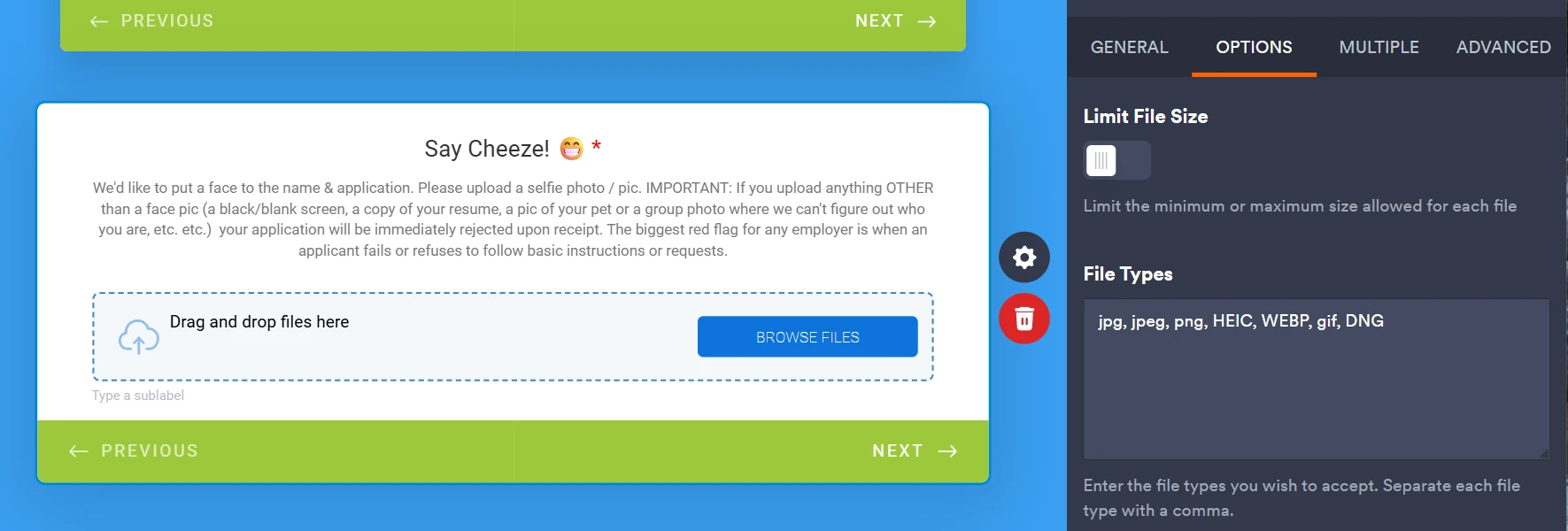
here's an additional pic of file formatting:
I can also confirm that we have older emails from last year that DID (last year) render the IMG file while viewing the Notification Email within our GMail account. Even old emails that once rendered the IMG now no longer render the IMG.
Pls Advise. Thank you.
-
 Rehan Support Team Lead
Hi Shawn,
To keep the conversation organized, I moved your question to its own thread, and someone from our Support Team will help you with it here.
Reach out again if you need any other help.