Finding specific form submissions doesn’t have to take time. With Jotform AI, you can search your submissions using simple, natural language prompts without manually filtering or scrolling through entries.
Just describe what you’re looking for, such as a name, date, or response, and Jotform AI will quickly give you the results in seconds. This helps you stay organized, save time, and focus on what matters most, especially when working with large volumes of submissions.
Note
Jotform AI works best with clear, specific prompts. The more details you give it, the more accurate your results will be.
Searching Submissions with Jotform AI
Searching submissions with Jotform AI makes it easy to find exactly what you need in seconds. This is how to get started:
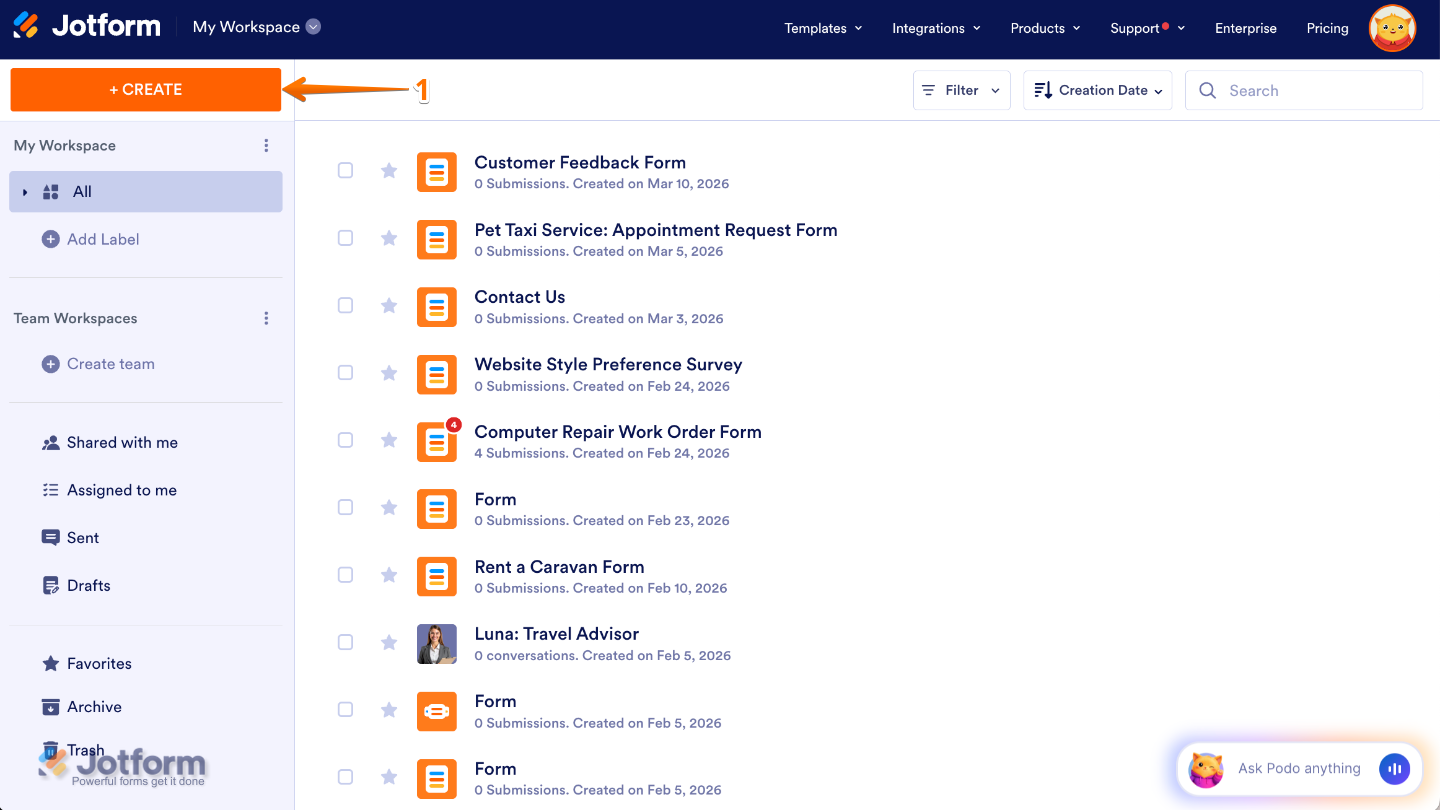
- On the top-left side of your Workspace page, click on Create.
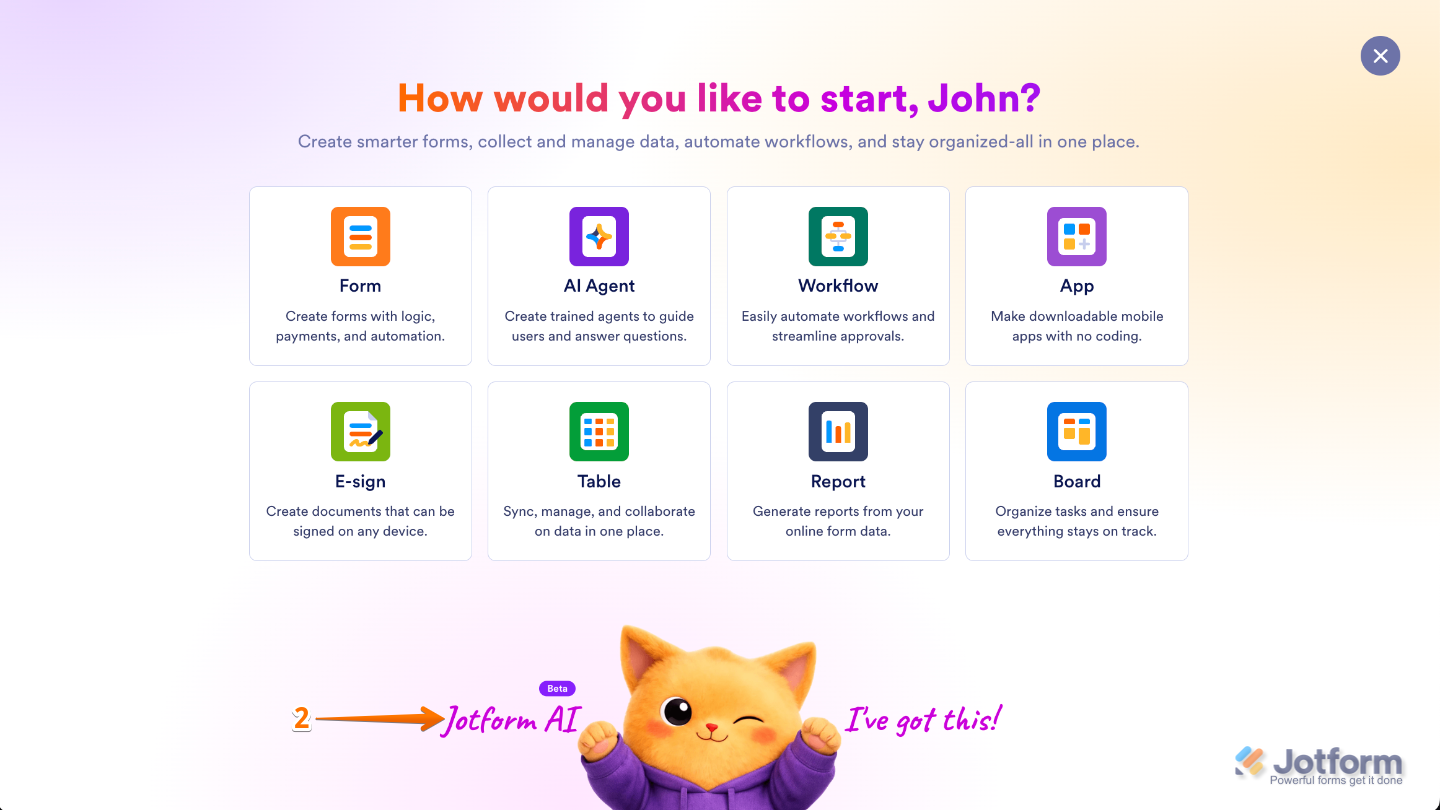
- Then, at the bottom of the window that opens up, click on Jotform AI.
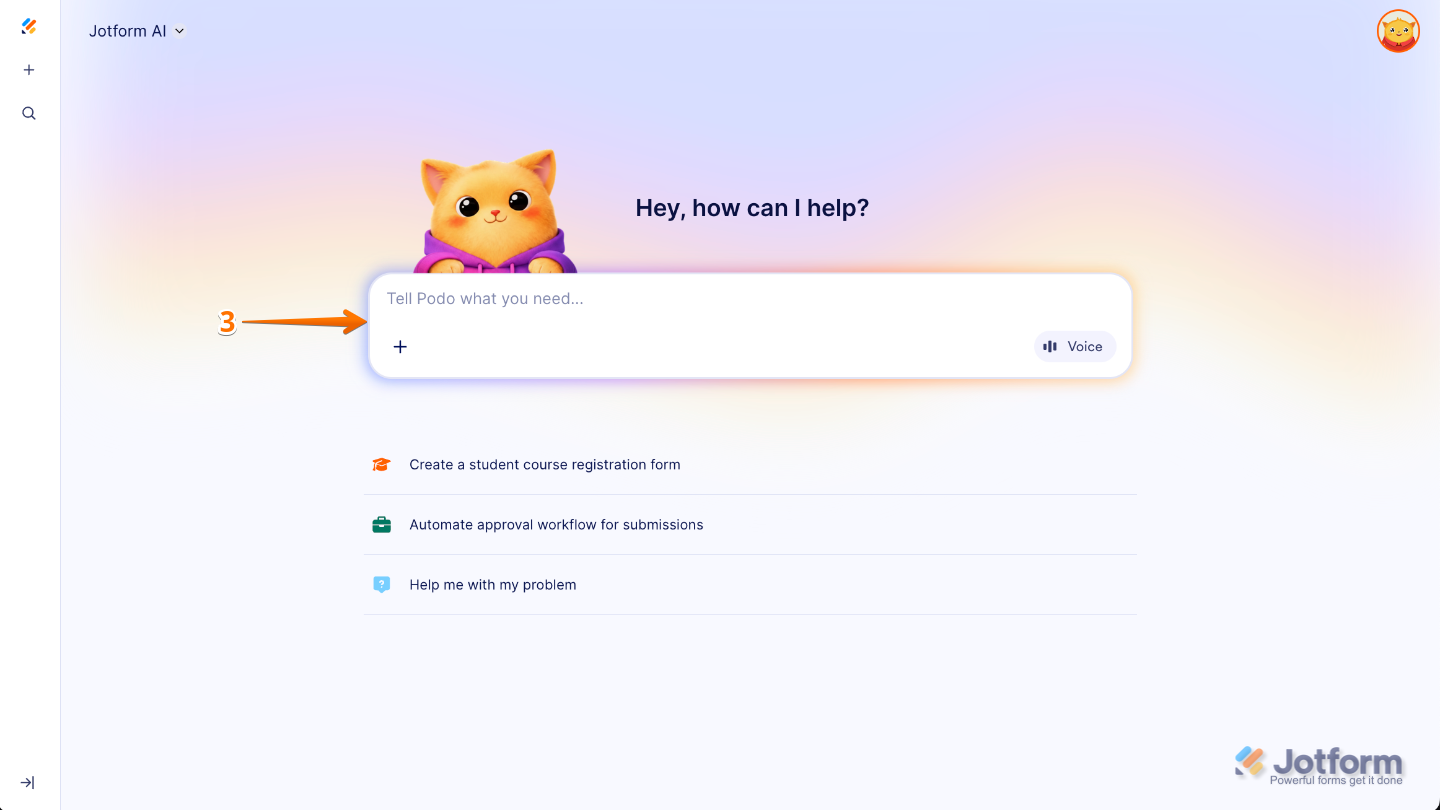
- Now, in the Prompt box in the middle of the page, enter the submission details you’d like to search for, along with the name of the form the submission was made for.
Here are some example prompts you can use to search for your form submissions:
- Show me the submission from [Name] for the form titled [Form Title].
- Find the response submitted by [Name] and summarize their answers.
- Can you pull up the latest submission for the form titled [Form Title]?
- Show me submissions from today for the form titled [Form Title].
- Check if [Name] has already submitted a response for the form titled [Form Title].
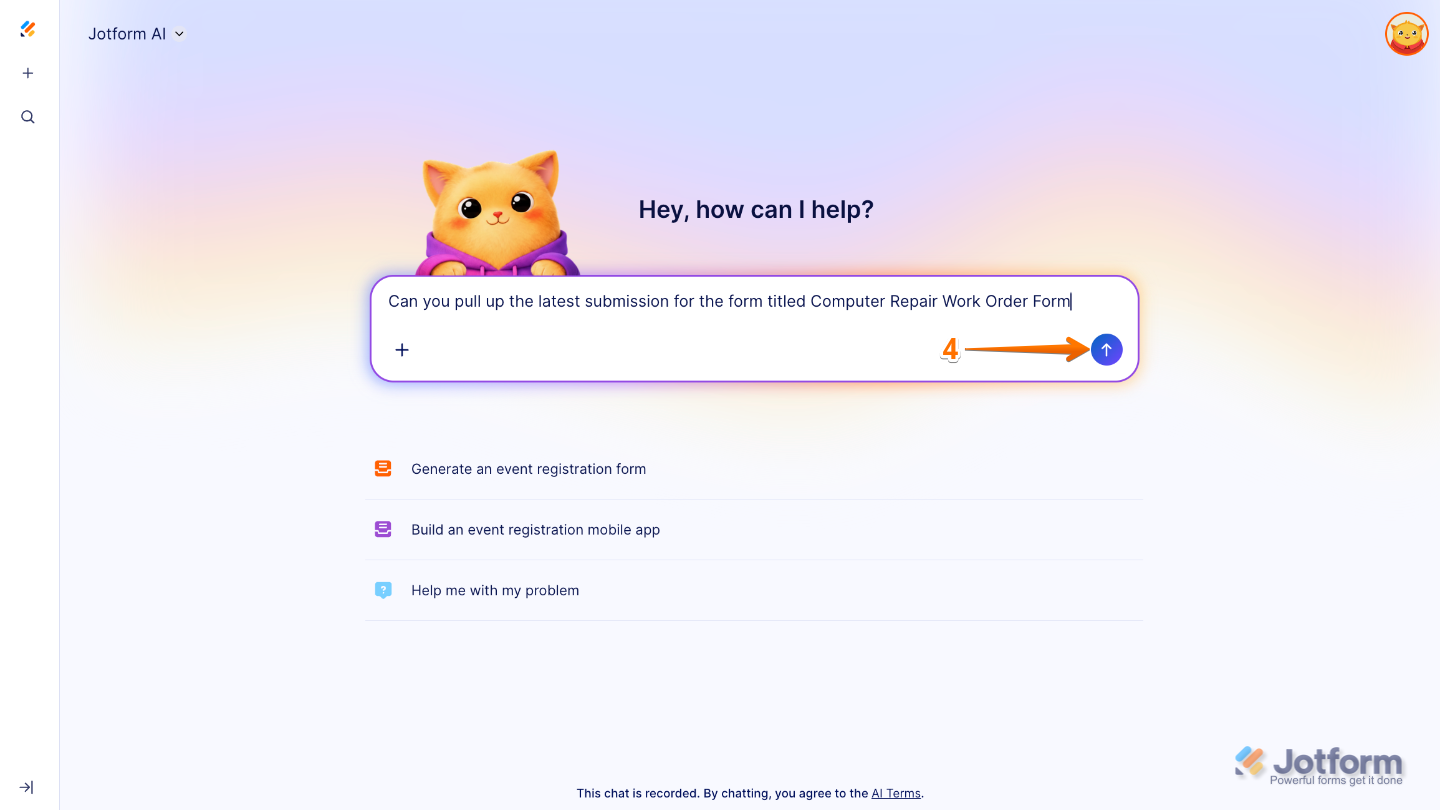
- Once you’re done, press the Enter key on your keyboard or click on the Upward Arrow icon on the right side of the Prompt box.
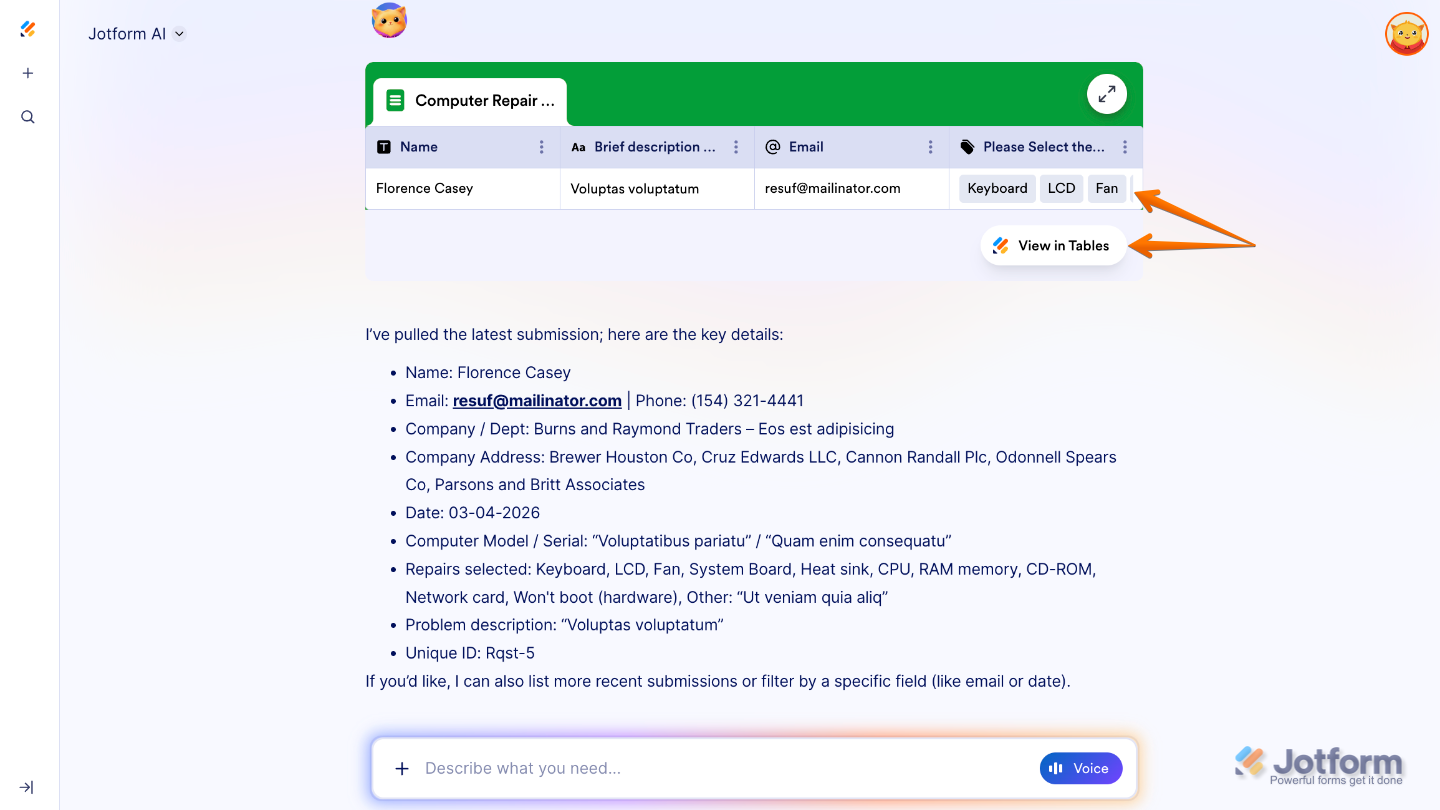
That’s it. You’ll see the results right away, along with a clear view of the matching submissions so you can quickly review them. If you’d like to explore further, click on View in Table to open your Submissions Table in a new tab, where you can sort, filter, and manage them more easily.
Pro Tips
- Be as specific as possible⸺include dates, names, or keywords to get more accurate results.
- Use natural language when searching, just the same as you’d normally speak or type.
- If needed, refine your prompts to quickly narrow down results, especially when working with large sets of data.

Send Comment: