SharePoint Forms
Send submissions directly to SharePoint
Jotform’s integration with Microsoft SharePoint helps you keep your submissions organized without extra steps. Collect data with Jotform and send attachments and PDFs directly to SharePoint.
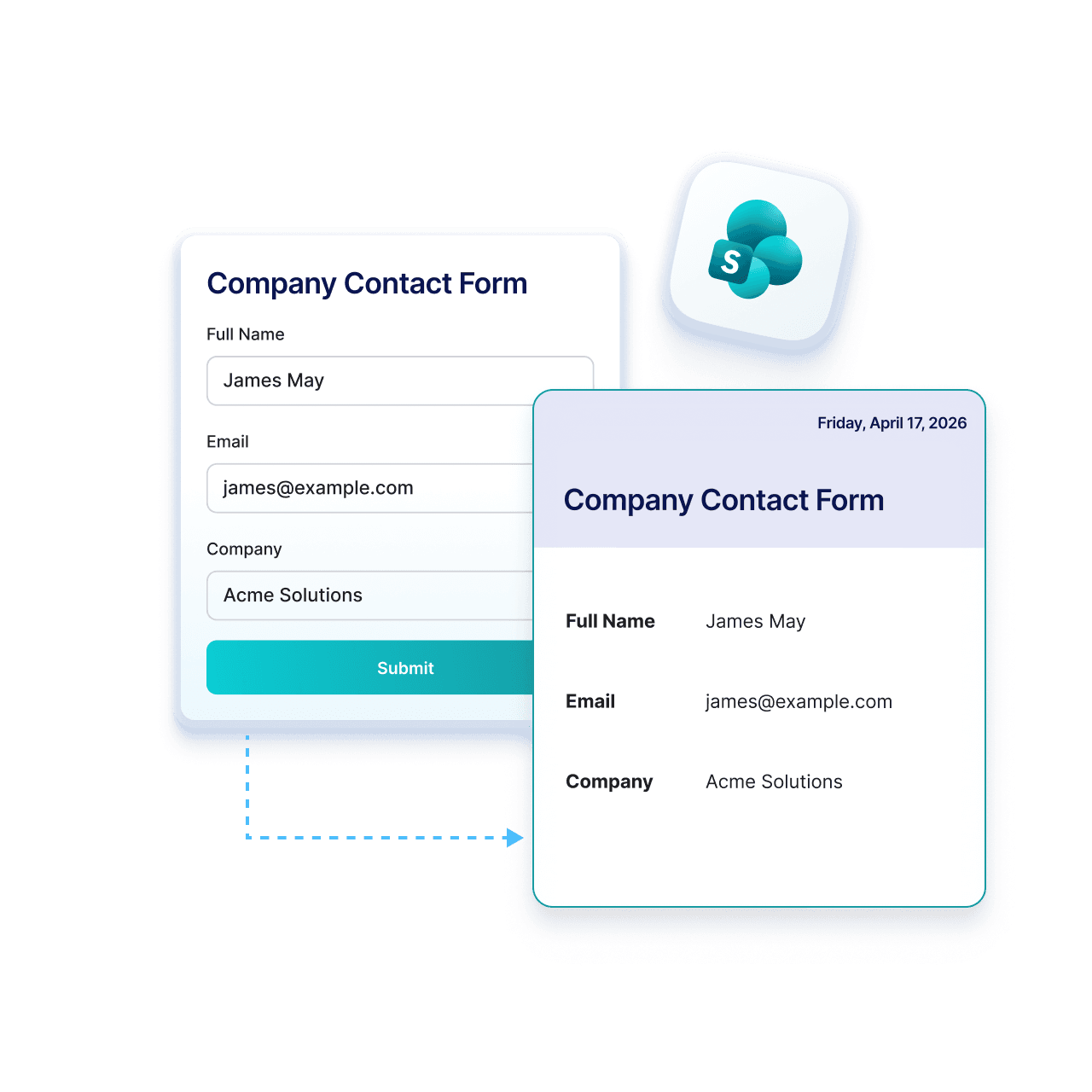
How it works

Choose Microsoft SharePoint in Integrations
Go to Jotform settings and select Microsoft SharePoint from the integrations list to start your connection.

Connect your Microsoft account
Sign in to your Microsoft account and allow access so Jotform can send form submissions to your SharePoint lists.
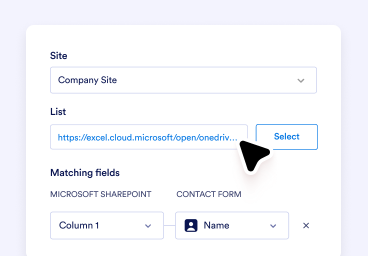
Set up and start collecting data
Choose your list or action, map your fields, and automatically send every new submission to SharePoint.
Why use Jotform for SharePoint
Store submission files automatically
Upload form attachments and generated PDFs to SharePoint automatically, without downloading or manual uploads.
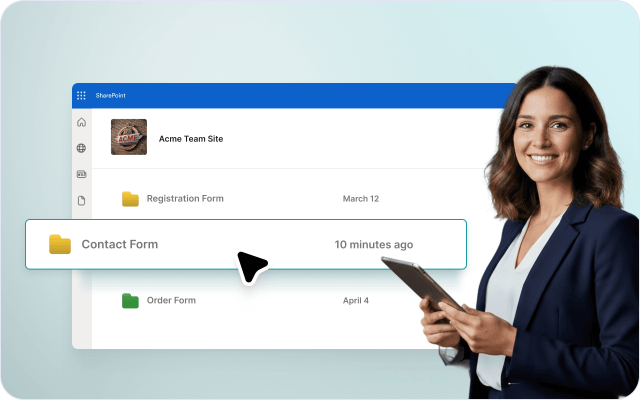
Keep documents organized
Create folders for each submission and keep files structured in SharePoint so everything is easy to find and manage.

Reduce manual uploads
Stop downloading and re-uploading files. Send all submission files and PDFs to SharePoint automatically as they arrive.

Use your existing SharePoint setup
Quickly match form fields to Excel columns with a simple setup. No technical knowledge or complex steps needed.

Keep everything connected
Keep submission files inside SharePoint so your team can access, review, and manage documents in one place.

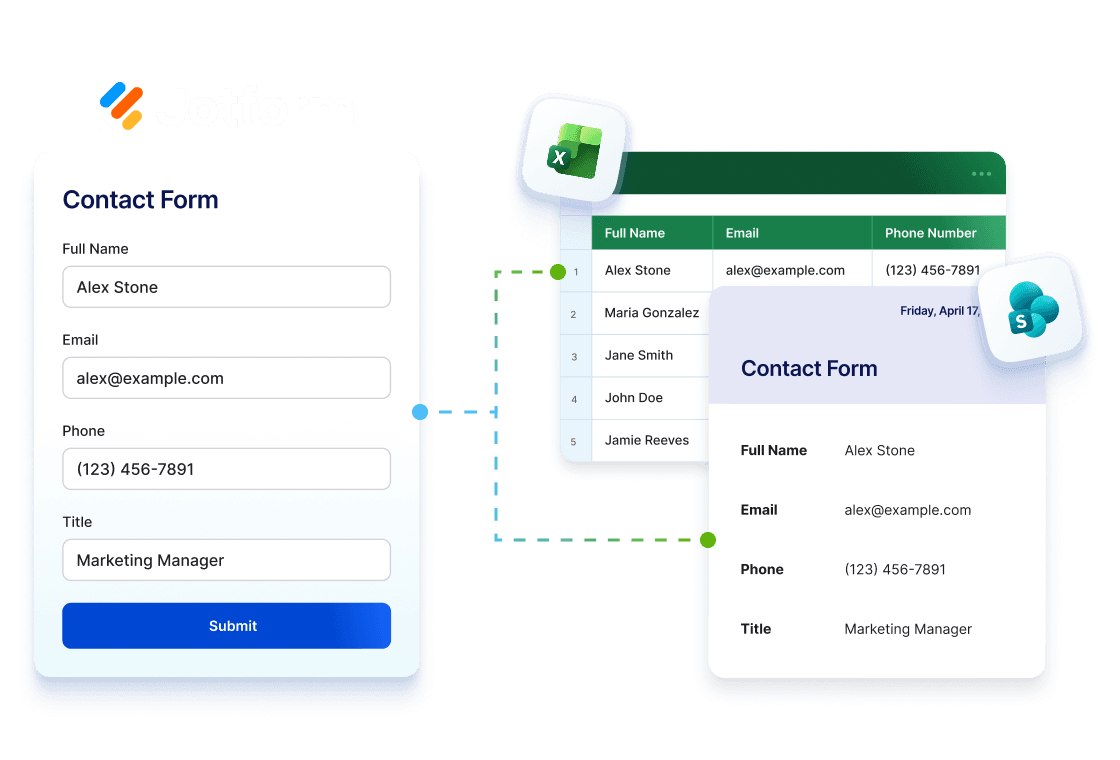
Use Jotform with Excel and SharePoint
Collect data with Jotform, analyze it in Excel, and store it in SharePoint. Keep your workflow seamlessly connected from submission to storage.
Explore Excel IntegrationTurn forms into organized SharePoint processes
Collect and manage data with Jotform and send it to SharePoint lists, where your team can collaborate in one place.
HR teams
Collect onboarding documents with Jotform and send them to SharePoint, where files are in organized folders for each employee.
Operations teams
Collect submissions with attachments using Jotform and send them to SharePoint, where files are organized for easy access.
Legal teams
Collect submission data and files with Jotform and store them in SharePoint, where records stay organized and audit ready.
IT and admin teams
Collect requests with Jotform and send related files to SharePoint, where everything is stored without manual uploads.
Enterprise Microsoft users
Collect data and documents with Jotform and store them in SharePoint, where teams manage files within Microsoft workflows.
How to Integrate Your Form with SharePoint

FAQ
Can I automatically send form submissions to Microsoft SharePoint?
Yes. The Microsoft SharePoint integration lets you automatically send form data, submission PDFs, and uploaded files to SharePoint, making it easier to organize and manage your content in one place.
What actions are available in the Microsoft SharePoint integration?
What does Add Row to New List do?
What does Add Row to Existing List do?
What does Upload File do?
Can I map my form fields to SharePoint List columns?
Can I send files and PDFs to a specific SharePoint location?
Can I send existing submissions to SharePoint?
Do I need a Microsoft account to use the SharePoint integration?
Where can I learn more about Microsoft SharePoint integration?
Start using SharePoint forms today
Manage Jotform submission files and PDFs directly in SharePoint, organized and ready for your team whenever.