

5 steps of creating a Google Form
- Visit Google Forms.
- Start a new form.
- Add questions to your form.
- Customize the form’s appearance.
- Share your form.
Sounds easy, right? Using Google Forms, you can build a survey, quiz, or contact form and share it with the world in just a few clicks. And you can do it without any design skills.
But while building the form is straightforward, it doesn’t mean that it’s built well or fit for purpose. Creating a well-crafted form that people want to fill out requires skill. The form must ask the right questions, in the right order, in a way that feels effortless for the person on the other end. Get your form user experience right, and you’ll see higher completion rates and better-quality responses.
This guide walks you through every element of Google Forms — from question types and customization to sharing and analyzing responses — so you can create forms that work for you and the people filling them out. Throughout, I’ve also provided alternative solutions when Google Forms falls a bit short.

Looking for the best alternative to Google Forms?
Jotform’s full-featured form-building solution is mobile-friendly and has the most integrations in the industry. Use it to collect payments, automate workflows, gather leads, and more.
“Help me create a form” function in Google Forms
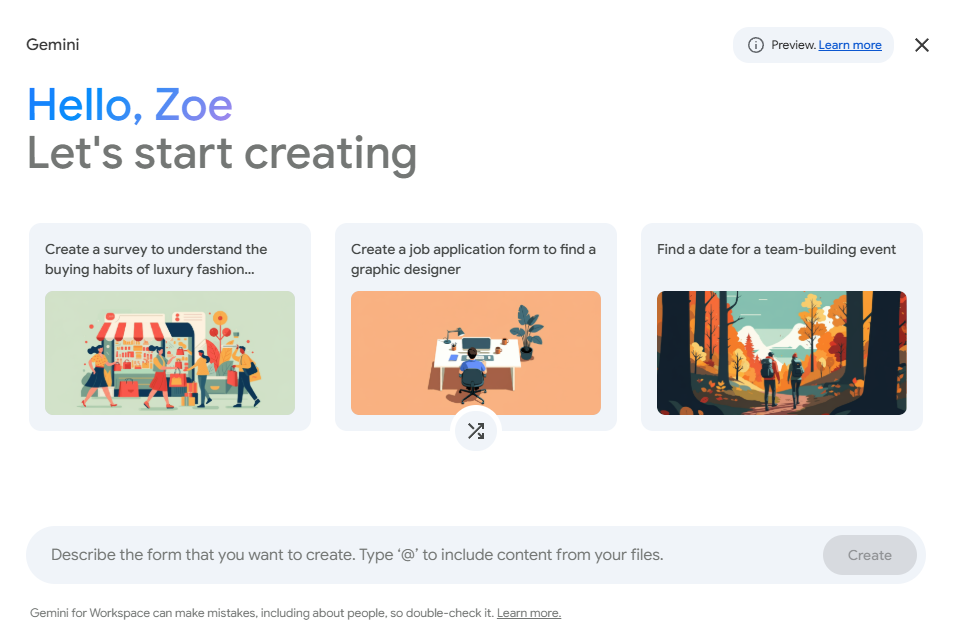
Google Workspace users benefit from a Google Forms AI assistant via Gemini. This AI function enables users to describe, in natural language, the form that they want to create. Once done, AI puts the form together for you. For Workspace users, it’s a handy fast-track if you need something up and running quickly. You can even reference existing files in your Google Drive (Docs, Sheets, PDFs, Slides) by typing “@” to pull them into the prompt.
Once you enter your prompt by clicking Create, the form will appear in the popup, and you can iterate on it if needed. All you do is refine your prompt and click Try again.
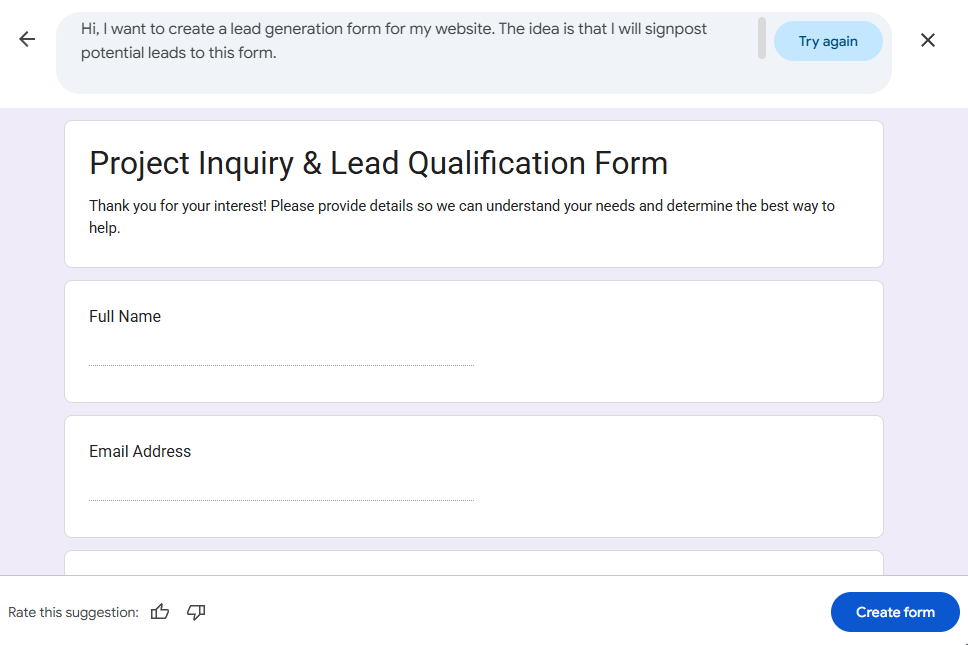
The “Help me create a form” function is only available to Workspace users and you need the second tier, Standard, which costs $16.80 per user per month. If you’re already using Workspace, then this may be perfect — but if you’re not, it’s a big investment for AI features when you could use an alternative (and free) solution like Jotform’s AI Form Generator.
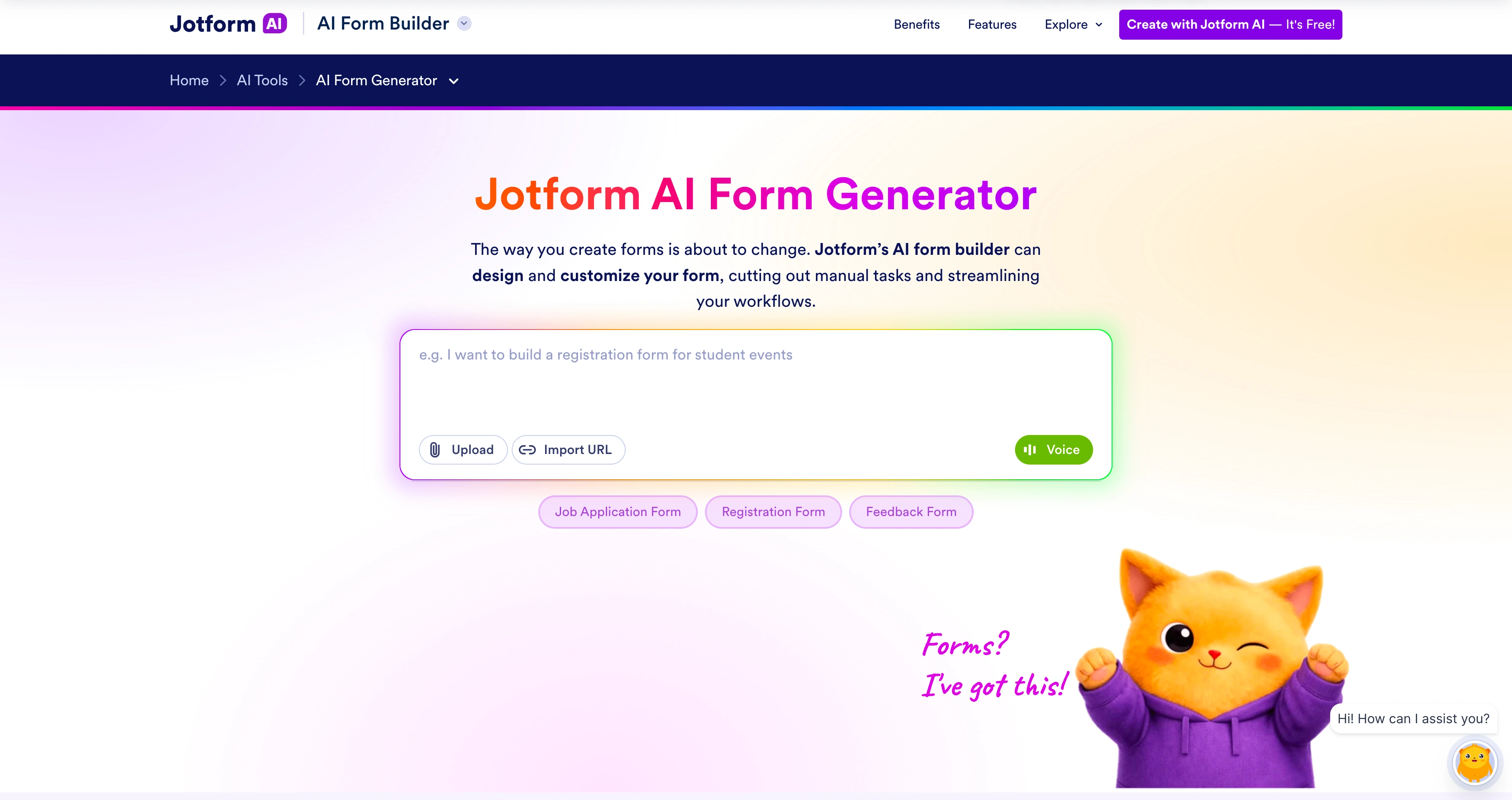
Jotform’s free AI form builder works in a very similar way to the paid-for Google Workspace form builder:
- You write a text prompt.
- The AI creates the form.
- You iterate on it later if you want to.
But there’s also a big difference: Jotform’s AI form builder offers the ability to add your branding to the form. All you need to do is upload details, like your logo, to your Jotform account, and the form builder automatically pulls them in.
Pro Tip
You can connect Jotform’s AI form builder to ChatGPT via the Jotform ChatGPT App. Once done, you’ll be able to create forms within the chatbot’s interface.
Google Forms question types (and which to include in your form)
There are 12 question types in Google Forms. I break down the most common below, including what they are and when to use them.
| Question type | What it is | Best for | Example question | Additional resources |
|---|---|---|---|---|
|
Multiple choice |
Respondents select one answer from a predefined list |
When there’s a clear set of possible answers, but you only need one response |
How did you hear about us? |
How to add multiple choice grids in Google Forms |
|
Checkboxes |
Respondents can select multiple answers from a predefined list |
When more than one answer might apply |
Which of the following do you use? |
Google Forms’ multiple choice vs checkboxes |
|
Short answer |
A single-line open text field |
Quick, specific responses like names, emails, or one-word answers |
What is your job title? |
Short answer vs paragraph in Google Forms |
|
Paragraph |
A multi-line open text field |
Longer, open-ended responses where you want detail |
Tell us about your experience |
Short answer vs paragraph in Google Forms |
|
Dropdown |
Respondents select one answer from a collapsed list |
Long lists of options where multiple choice would feel cluttered |
Which country are you based in? |
How to create a dropdown in Google Forms |
|
Linear scale |
Respondents rate something on a numbered scale |
Measuring satisfaction, likelihood, or sentiment |
How likely are you to recommend us? (1–10) |
How to use linear scale questions in Google Forms |
|
File upload |
Respondents upload a file directly in the form |
Collecting CVs, images, documents, or supporting materials |
Please upload your portfolio |
Upload files to Google Form s |
Important note about file uploads: Respondents must be logged into a Google account to upload files in Google Forms, which may cause friction and prevent them from completing the form. This is another reason why it’s worth comparing Google Forms vs Jotform. In Jotform, anyone can upload files directly or via Dropbox, Box, and other services.
How to customize your Google Form
You can customize Google Forms, but it’s fairly simple in comparison to other form builders, like Jotform.
Google Form users click the palette icon in the top right corner to open the Theme options panel, where you can adjust
- Text styles and font by choosing from a selection of font styles and adjusting the font size.
- Header image by uploading a custom image or choosing from Google’s library.
- Theme color by changing the colors using the color picker. You can also customize one color to match your branding. Once you’ve selected one color, Google selects the secondary colors for you.
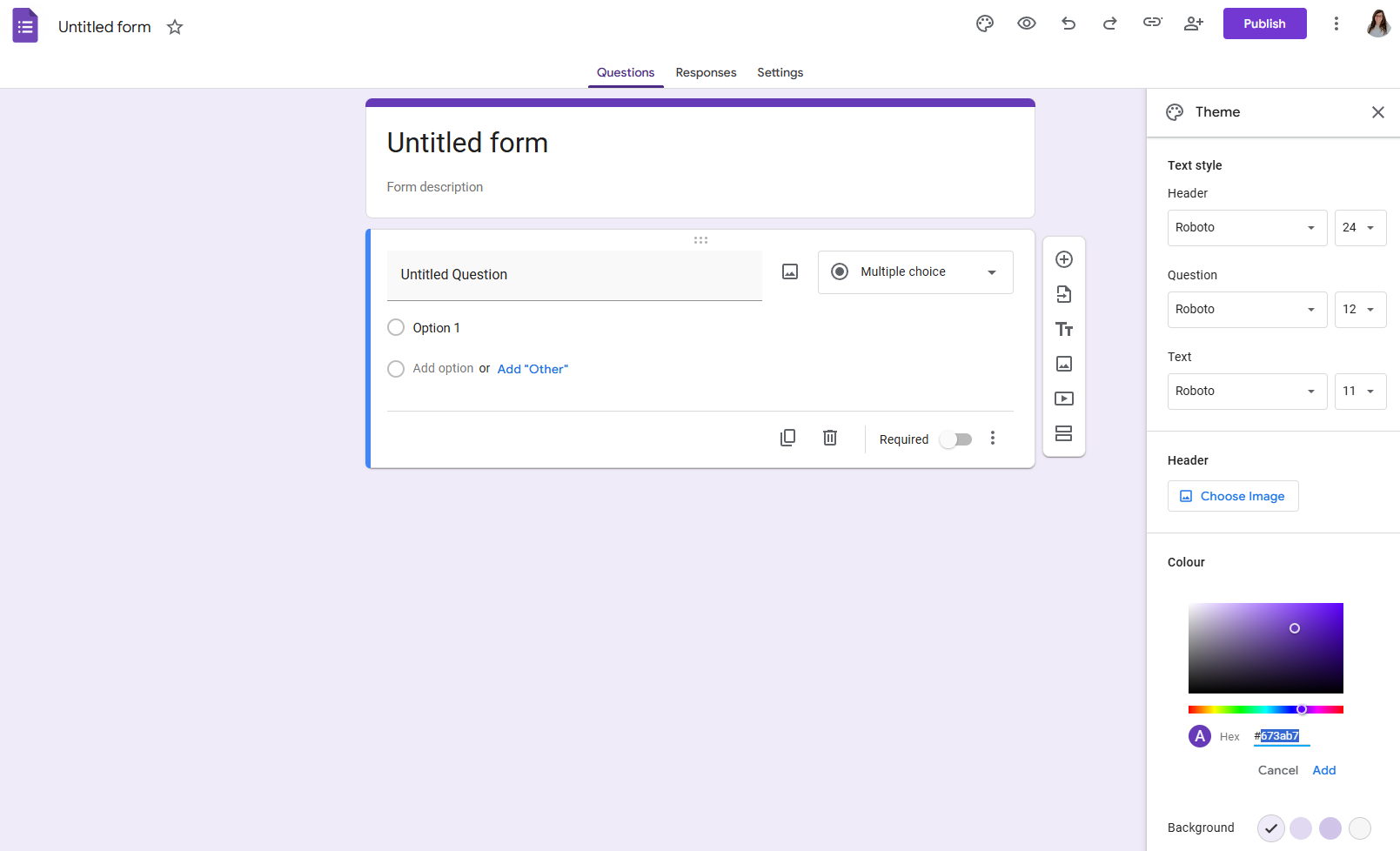
Google Forms’ customization is a clean, no-fuss interface that gets the job done, but I personally think the options are a little limited.
For one, your form will only ever feel so close to your brand. No matter how you configure it, a Google Form still looks like a Google Form because you can only alter one color, and you can’t add your own secondary color. Plus, the layout, card-style design, and the Google branding are all fixed. In many use cases, like personal use or internal data collection, it’s probably fine. But if you’re embedding a form on your website, sharing it with customers, or representing a brand, that default look can feel off.
That’s where Jotform shines as the best online form builder. Jotform forms can be fully white-labeled. Customization extends to brand colors, fonts, logo, and layout so precisely that respondents never know a third-party tool is involved. With more than 20,000 ready-made templates, a drag-and-drop builder, and tons of Jotform features, you can create something that looks completely bespoke without touching a line of code.
There are many options for customizing the form using the no-code design solutions, including
- Color scheme
- Background image
- Form layout
- Form logo
- Font options
- Label styles
- Line layout
These would give most people everything needed to create a fully on-brand form solution, but if you want even more options and full creative control, you can add CSS.
Ready to build a form that looks exactly how you want it? Explore Jotform’s templates for free.
How to adjust form settings
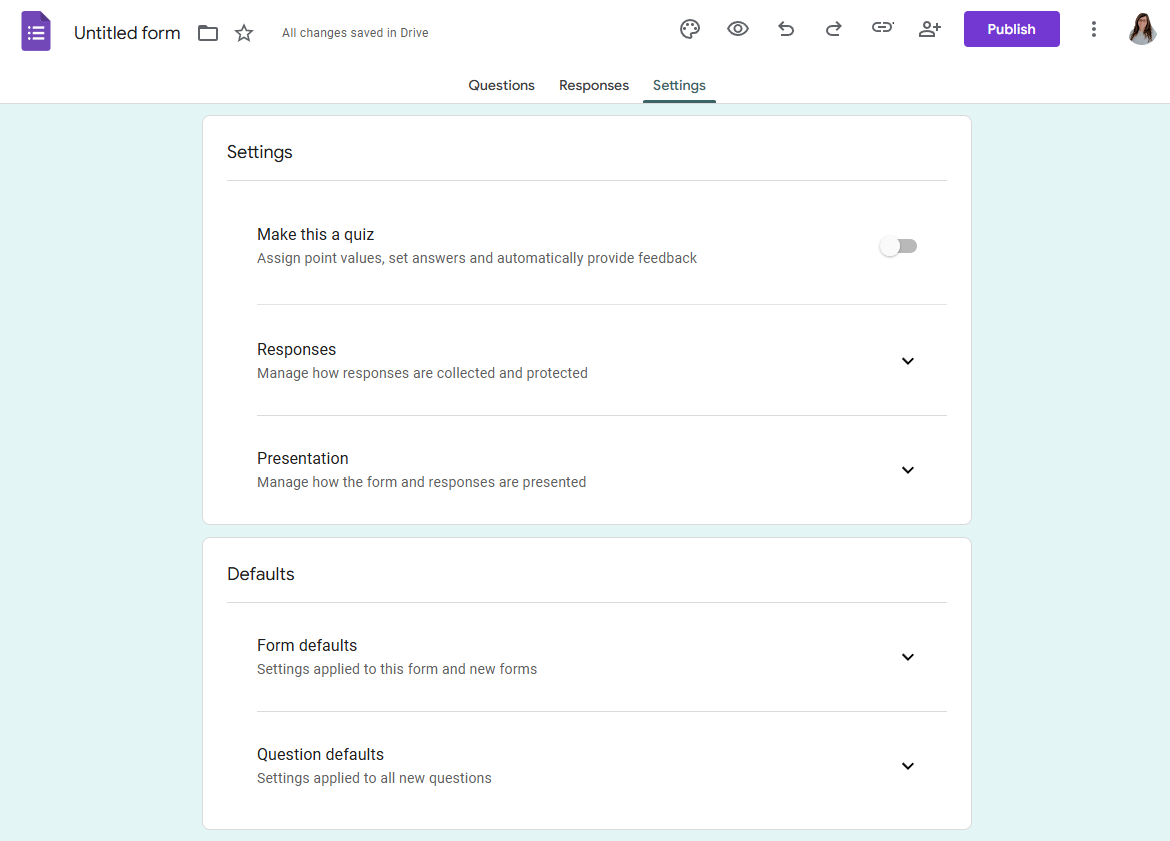
You can configure your Google Form’s settings by clicking the Settings tab at the top of your form. Each configuration option allows you to configure further settings.
For example, you can select
- Make this a quiz: To configure release marks and control over whether respondents see which questions were answered correctly or incorrectly, and the associated points
- Responses: To determine whether you collect emails, whether respondents receive an email, and response limitations
- Presentation: To set up progress bars and question shuffling, or choose whether to include confirmation messages
- Default settings: To configure email collection and rules about whether questions are required by default
How to share your Google Form and collect responses
Once your form is ready, it’s easy to send it — just click the Send button in the top right corner.
You have three options for sharing a Google Form:
- Share via a direct link.
- Send the link by email.
- Embed the form on a website using an iFrame code snippet.
Responses are collected in real time under the Responses tab, where you can see a summary view, individual responses, and basic charts. For deeper analysis, you can click the Google Sheets icon to link your form to a spreadsheet. Every new submission will automatically populate Sheets, and data analysis is easier because you can sort, filter, and work with your responses.
But you could get so much more from your data…
Jotform takes response management considerably further. With Jotform Tables, every submission automatically builds out a fully searchable, filterable knowledge base — no spreadsheet wrangling required. And with Jotform’s Report Builder, you can turn those responses into clean, visual reports in minutes. If you’re still manually pulling data from a spreadsheet every time you want an update, you’re spending time you don’t need to.
Here’s a peek at how easy it is to turn form submissions into Jotform Tables:


Want more than a Google Form? Upgrade to Jotform
Google Forms is a capable tool for straightforward data collection. But if you’ve ever felt constrained by its limitations — the fixed design, the basic response management, the lack of payment options — there’s a better way: Jotform, which is so much more than a Google Forms alternative.
Here’s what you get when you switch to Jotform:
- Beautiful looking, advanced forms: Over 20,000 ready-made templates, rich customization options, and advanced form features like conditional logic and auto submission.
- Payment processors: 40-plus payment integrations, including PayPal, Square, and Stripe.
- Mobile compatibility and responsiveness: All forms created with Jotform are mobile responsive by default. Use Jotform Mobile to create and monitor your forms on the go.
- Powerful form integrations:Jotform has the most integrations in the industry. It integrates with many customer relationship management tools, including Salesforce, HubSpot, Zendesk, Google Drive, Slack, Mailchimp, Canva, and more.
- AI forms that work for you: By enabling AI assistance, your form becomes an AI Agent that answers questions, provides real-time support, and ensures accurate submissions.
- Hundreds of form widgets: Extend your form’s functionality with everything from signature fields and image sliders to appointment schedulers and payment tables. Google Forms has no equivalent.
Make the switch today: Migrate Google Forms to Jotform
You’ve seen what Google Forms can do. Now imagine a form builder with no design constraints, built-in payment processing, powerful integrations, and AI that works alongside your respondents. That’s Jotform.
The best news? You don’t have to start from scratch. Migrate from Google Forms to Jotform in minutes and start building on-brand forms that respondents love to fill out.
FAQs about creating a Google Form
Yes. Google Forms is completely free for anyone with a Google account, but if you want to use Gemini to create your form, you need a paid Workspace account.
Click the Send button in the top right corner and share your form via link, email, or embed it on a website.
Google Forms has no response limit. You can collect unlimited responses for free.
Only if you enable the “Collect email addresses” setting before sending your form. Otherwise, responses are anonymous by default.
Google Forms is limited in design flexibility, lacks built-in payment processing, and requires respondents to have a Google account for file uploads (as well as users to have a paid Workspace account for AI form generation using Gemini). It also lacks advanced features like conditional logic depth, white-labeling, and robust integration options. These are all areas where Jotform pulls ahead.
This article is for small business owners, educators, and administrative professionals who are currently using Google Workspace but are likely to hit “feature walls” as their data needs grow.



































































































Send Comment: