Jotform’s standard Signature Element can also work with Jotform Sign Automation. When enabled, Jotform automatically generates a PDF copy of the form submission with an audit trail after the form is submitted.
This helps create a more secure and professional signing experience by allowing form fillers to review and sign their submission before completing the form.
Adding a Signature Element on Your Form
Before enabling Jotform Sign Automation, you’ll first need to add a Signature Element to your form. Here’s how to get started:
- In Form Builder, click on Add Element on the left side of the page.

- Then, in the Form Elements menu, under the Basic tab, click on Signature. Or, just drag and then drop it to where you want it to be on your form.

That’s it. You’ve successfully added and set up the Signature element on your form.

Pro Tip
The Jotform Sign feature is also supported for the Smooth Signature and Initial widgets under the Widgets tab. Looking for more info? Our guide on How to Add an E-Signature to Your Form has more details.
Enabling Jotform Sign
Once your Signature Element is added, you can enable Jotform Sign Automation and configure the signing settings for your form. Here’s what to do:
- In Form Builder, select the Signature field, and then click on the Signature Pen icon on the right.
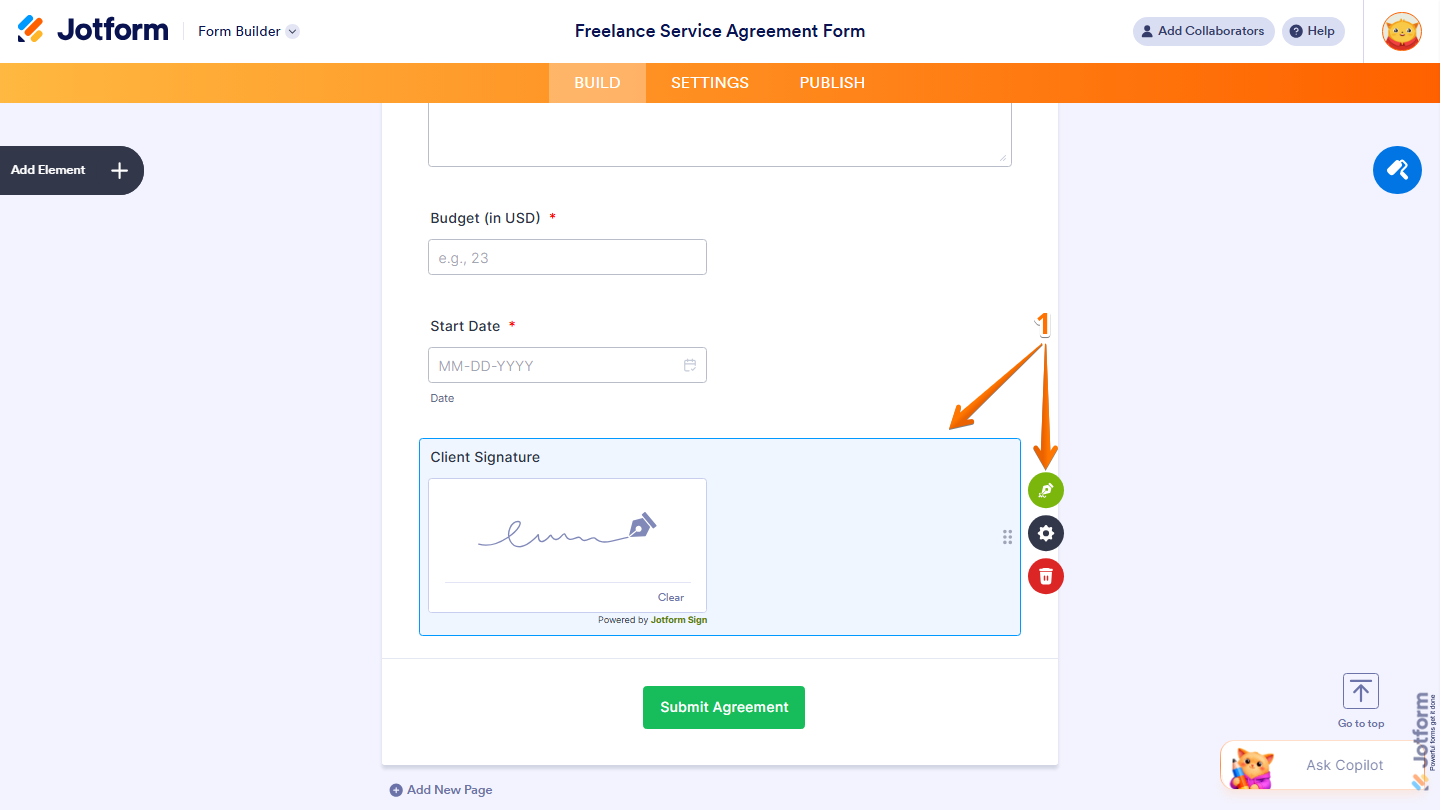
- Then, in the Jotform Sign page that opens, toggle on the Enable Jotform Sign Automation.
- After enabling Jotform Sign Automation, you can also configure the other Jotform Sign settings as needed:
- Select Email Field — Lets you choose which Email field in your form will receive the Jotform Sign document for signing.
- Select a PDF Document — Allows you to upload or choose the PDF file that will be sent through Jotform Sign for e-signatures.
- File Name — Lets you customize the name of the generated document so it’s easier to identify and organize.
- Sent Audit Trail — Enables an audit trail to be sent along with the signed document, providing a record of signing activity such as timestamps and signer details for added transparency and security.
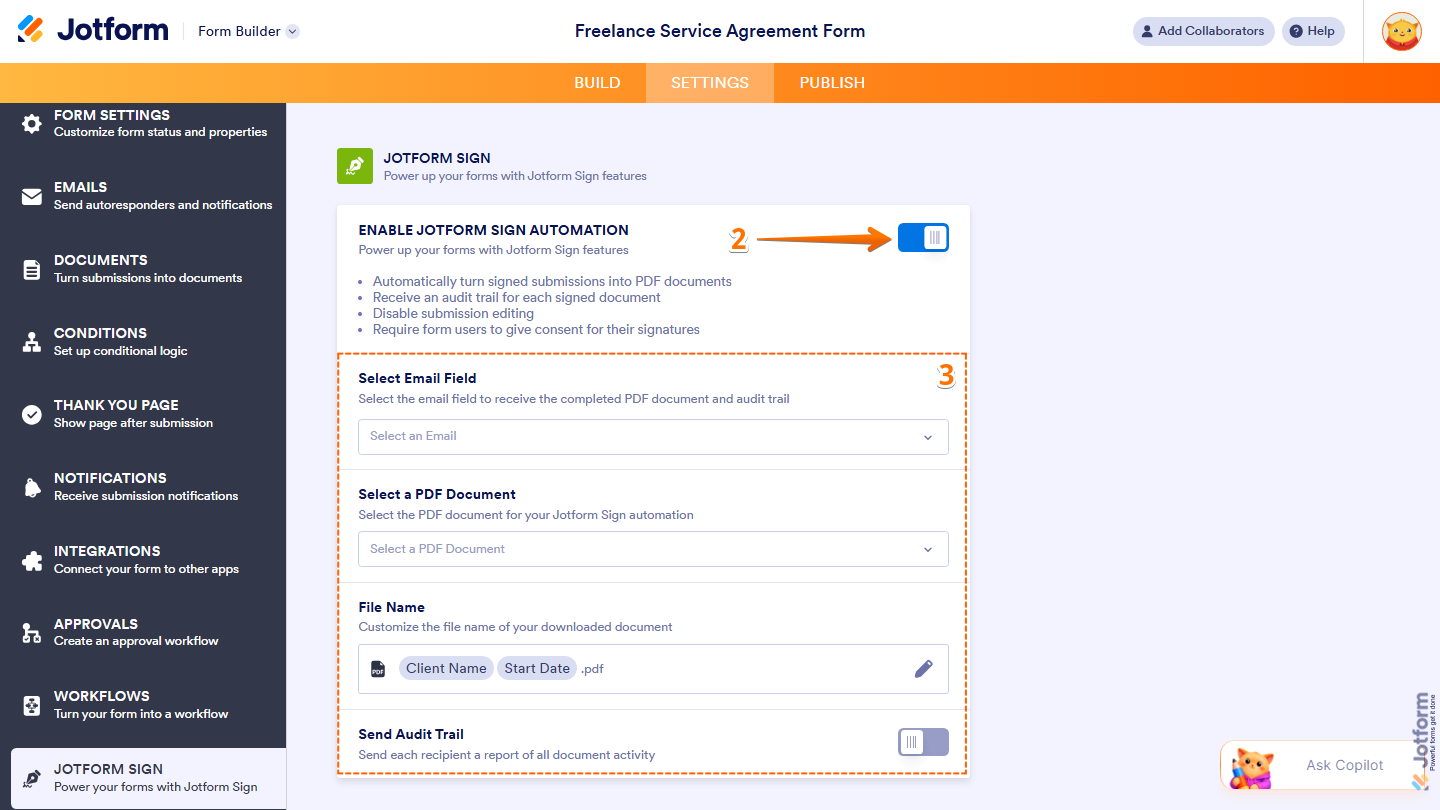
That’s it! Jotform Sign Automation is now enabled for your Signature field, allowing form submissions to generate signed PDF documents with an audit trail automatically.
Note
Once you enable Jotform Sign Automation, submission editing will automatically be disabled, and form fillers will be asked to provide consent for their signatures before submitting the form. Signed submissions will also count toward your account’s Submission and Signed Document Limits.

Send Comment:
4 Comments:
November 7, 2024
How do I put this form and request for signing directly into a Wix website
August 4, 2024
The signed form forgets name and name 1 after a few pages
April 15, 2023
“then receive a copy of the submission with the audit trail via email after submitting your form”
What does the email look like?
October 12, 2022
Why don't I have a "Jotform Sign" tab in my form Settings?