With Jotform, you can easily customize your forms to match the style and feel of your Canva designs for a more polished and consistent experience. Whether you’re creating event registrations, surveys, applications, order forms, or contact pages, having forms that visually align with your branding can help your designs feel more professional and connected from start to finish.
Jotform makes it simple to personalize colors, fonts, layouts, and other design elements without needing advanced design or coding skills. This can be especially useful for creators, businesses, educators, nonprofits, and teams that want their forms to blend naturally into presentations, social posts, marketing materials, or other Canva projects while keeping everything visually cohesive and easy for audiences to engage with.
Adjusting Form Display Settings in Canva Design Editor
Once you add a form to your Canva design, it only takes a few simple steps to adjust its background and how it fits within your project. Here’s how to get started:
- In Canva Design Editor, while your form is selected in your design, you’ll see the following settings you can configure in Jotform Canva App:
- Transparent Background — Keep the check in the box next to this setting if you want the form background to appear transparent so your Canva design remains visible behind it, or remove it if you want the form background to stay visible.
- Fit to Design — Put a check in the box next to this setting if you want the form content to automatically fit within the width and height you set for the form in your Canva design.
- Then, click on Update Design to apply the changes.
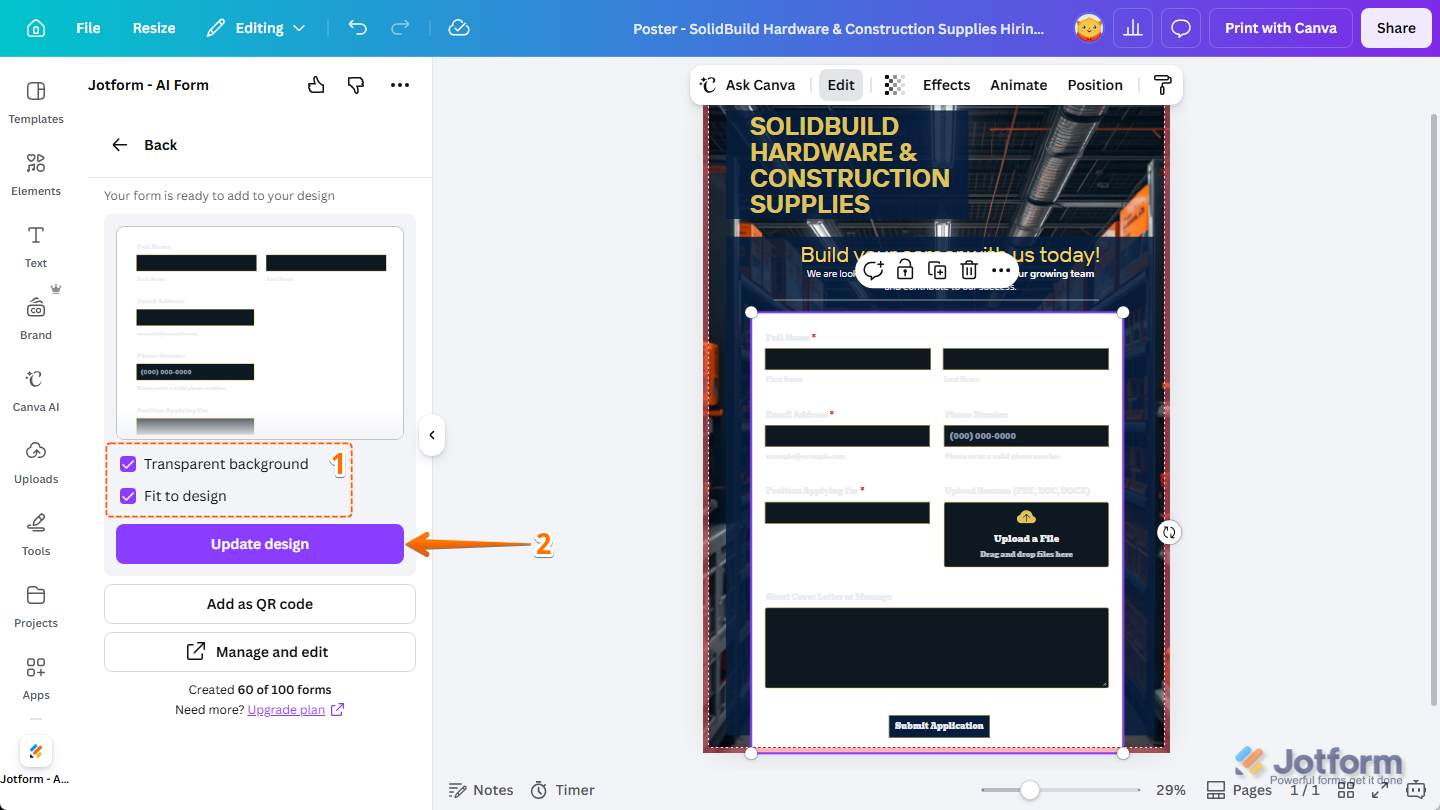
That’s it! Your form background and fit settings will now work more smoothly within your Canva design.
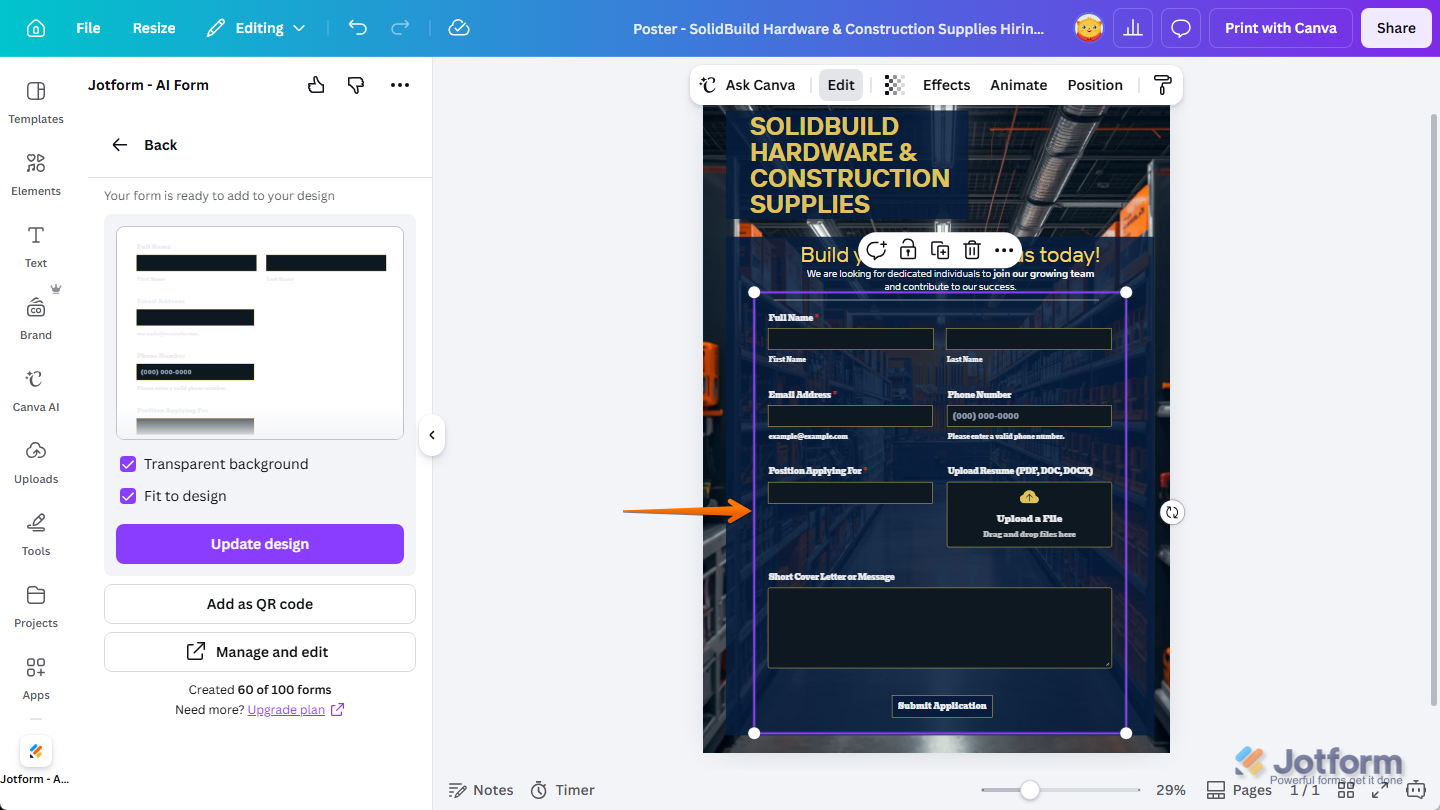
Modifying Your Form in Jotform Form Builder
You can also modify the form you’ve added to your design in Form Builder. Here’s what to do:
- In Canva Design Editor, while your form is selected in your design, click on Manage and Edit at the bottom of the Jotform Canva App.
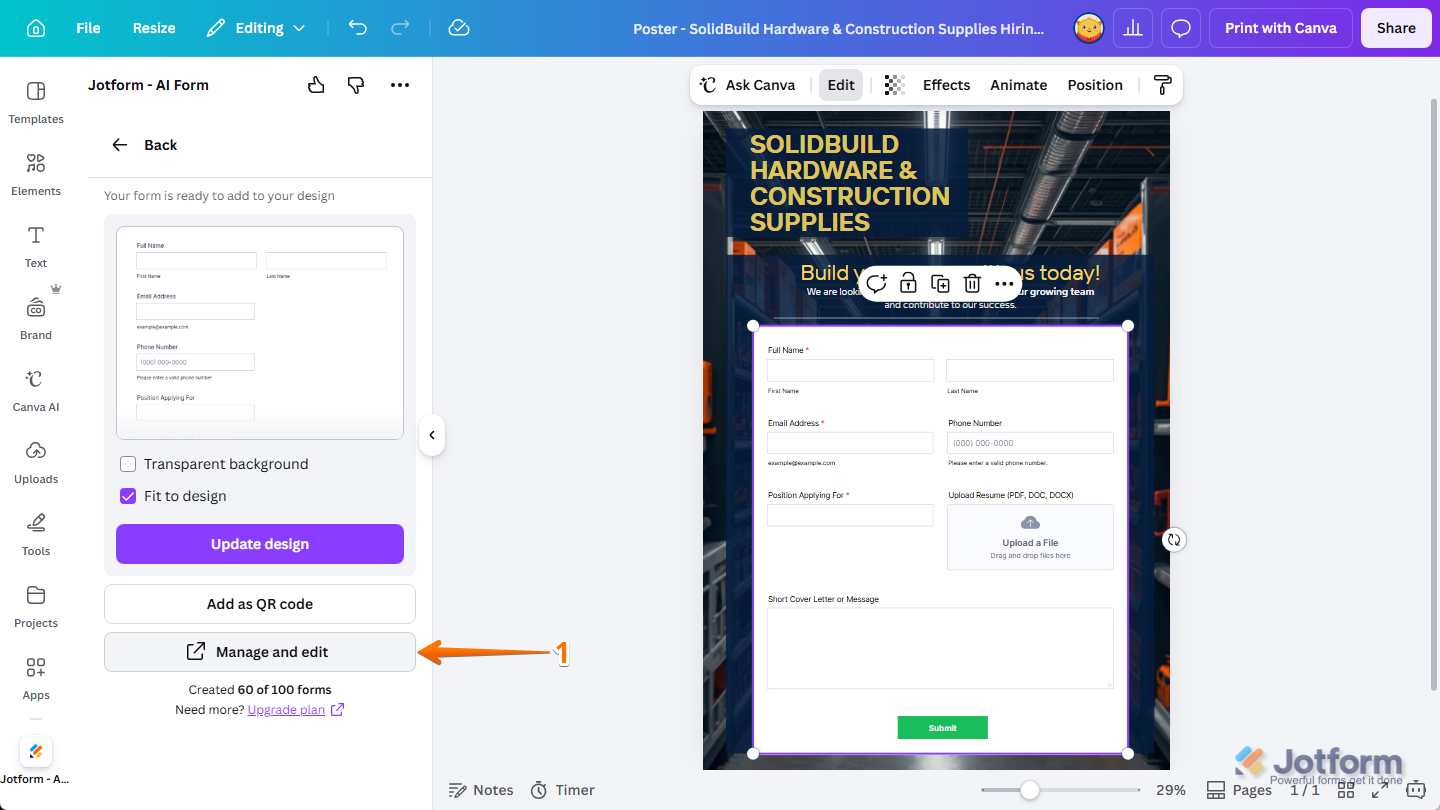
- Then, in the confirmation window that pops up, click on Continue to open it in the Jotform account connected to the app in a new browser tab.
Note
If your form is saved on a Guest account and you’re not sure how to connect the app to your Jotform account, check out the Moving Forms From a Guest Account section below.
- Next, on the top right side of the Form Builder, click on the Paint Roller icon to open Form Designer.
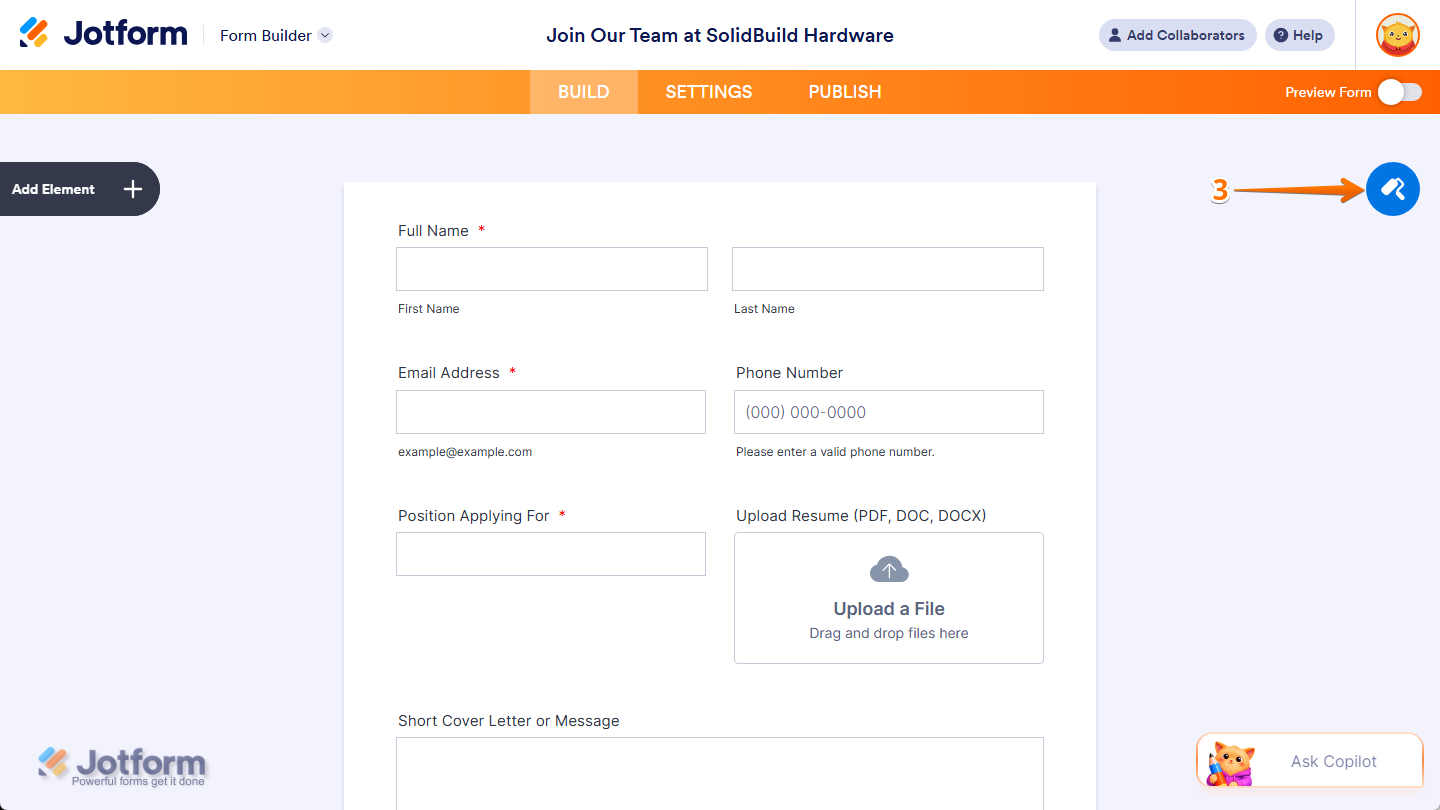
That’s it! Now you can customize your form’s appearance through the following tabs:
Note
You may need to reload the Canva Design Editor to see the changes you made to your form in Form Builder.
Editing Your Form Colors
You can edit the colors of the form you’ve added to your Canva design in a few simple steps. Here’s how:
- While Form Designer is open on the right side of Form Builder, under the Colors tab, you’ll see the following settings you can adjust to better match your design:
- Color Scheme — Click on the preset color combination you want to apply to your form to match the overall look and feel of your design.
- Page Color — Keep the default hex code or enter a new one to set your form’s page color that better complements your design.
- Page Image — Click on Choose a File, then in the menu that opens, upload, select, or enter the URL of the image you want to use as the background for your form’s page to better match the style of your design.
- Form Color — Keep the default hex code or enter a new one to change your form’s background color for a more consistent look with your design.
- Form Image — Click on Choose a File, then in the menu that opens, upload, select, or enter the URL of the image you want to use as the background for your form to create a more visually consistent look with your design.

- Then, scroll down to the bottom and continue to edit these settings:
- Font Color — Keep the default hex code or enter a new one to make your form text easier to read against the background colors you applied and to better align with the color palette of your design.
- Input Background — Keep the default hex code or enter a new one to make your form input fields stand out more clearly within your design.
Note
You can also click on the Color Picker button on the right side of the Page Color, Form Color, Font Color, and Input Background input boxes, and in the color menu that appears, select a specific color or choose from the predefined options.

That’s it! Your form colors will now better match the look and feel of your Canva design.

Pro Tip
If you’re unsure about color combinations, use an online tool like Adobe Color to create color palettes based on your Canva visuals. This ensures your color choices are harmonious and visually appealing.
Updating Your Form Styles
You can update the styles of the form you’ve added to your Canva design in just a few steps. Here’s what to do:
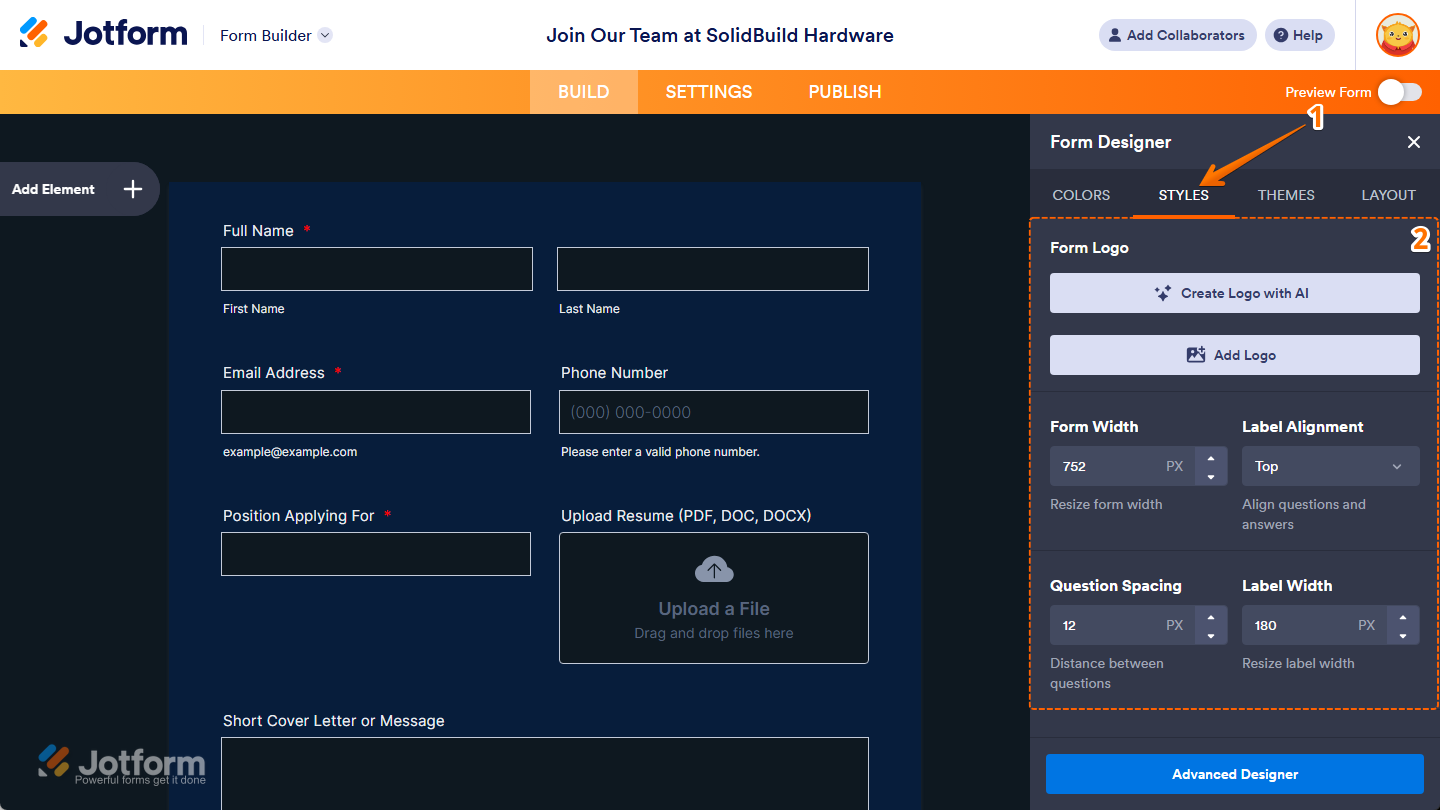
- While Form Designer is open on the right side of Form Builder, go to the Styles tab.
- Then, you’ll find the following settings you can configure to better fit your design layout:
- Form Logo — Click on Create Logo with AI to generate a logo using AI. Or, click on Add Logo, then in the menu that opens, upload, select, or enter the URL of the image you want to use as your form logo to better match the branding and style of your design.
- Form Width — Keep the default width of your form or enter a new value in px to resize your form width to better fit the layout of your design.
- Label Alignment — Keep this set to Top to position labels above each field for a more vertical layout, or click on the dropdown and, in the menu that opens, select Left or Right to align labels beside them for a layout that better fits your design.
- Question Spacing — Keep the default distance between your form fields or enter a new value in px to adjust the spacing between them to better fit the layout of your design.
- Label Width — Keep the default label width or enter a new value in px to better align your form labels with their input fields and fit the layout of your design.
- Next, scroll down to the bottom and continue with the following settings:
- Font — Keep the default font for your form, or click on the dropdown and, in the menu that opens, select a different font to better match the style of your design.
- Font Size — Keep the default font size or enter a new value in px to make your form text better fit the layout of your design.
- Button Style — Click on Choose Style, then in the menu that opens, select the style you want to apply to your form buttons to better match the overall look and feel of your design.
- Inject Custom CSS — Enter custom CSS in the editor to apply more precise styling changes that better match the look and layout of your design.
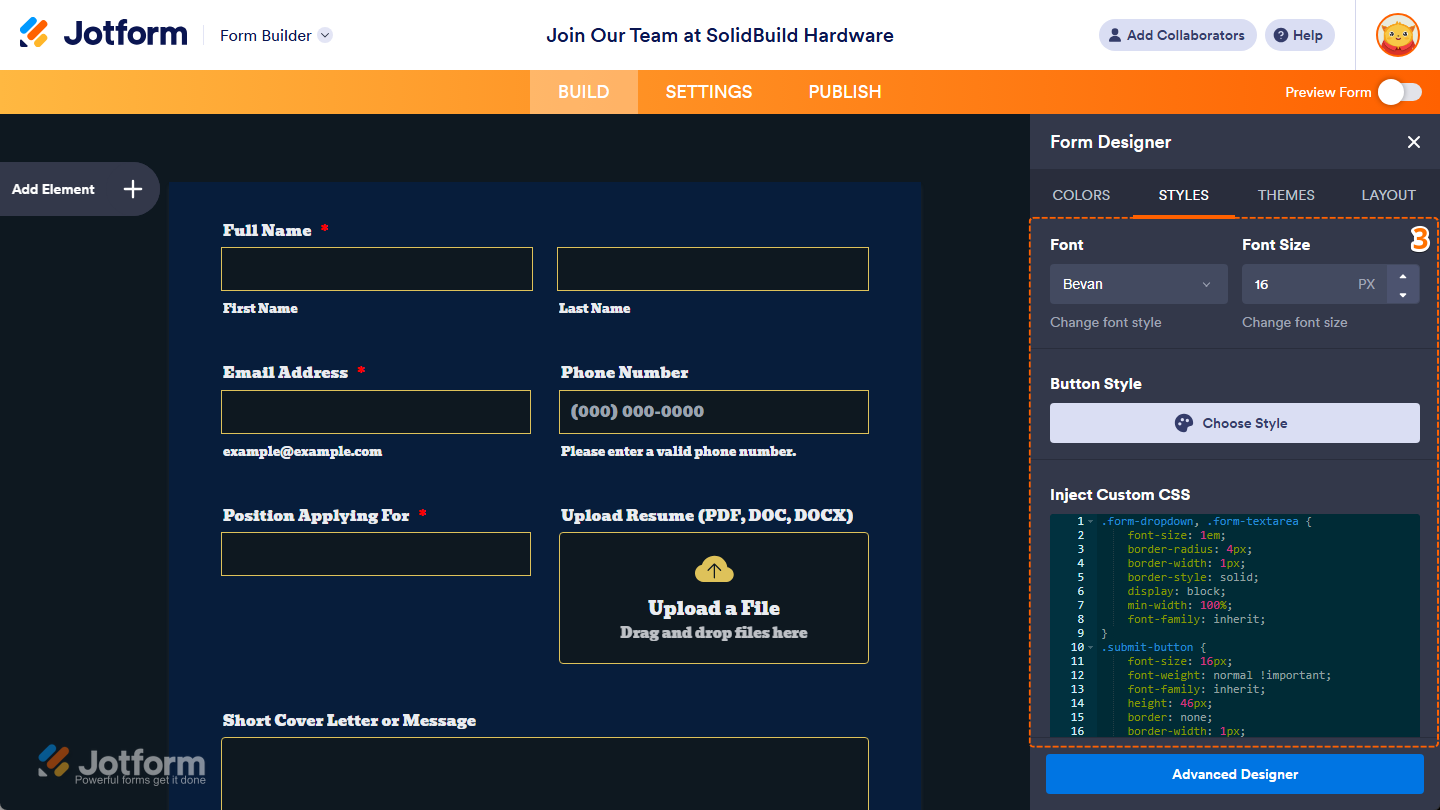
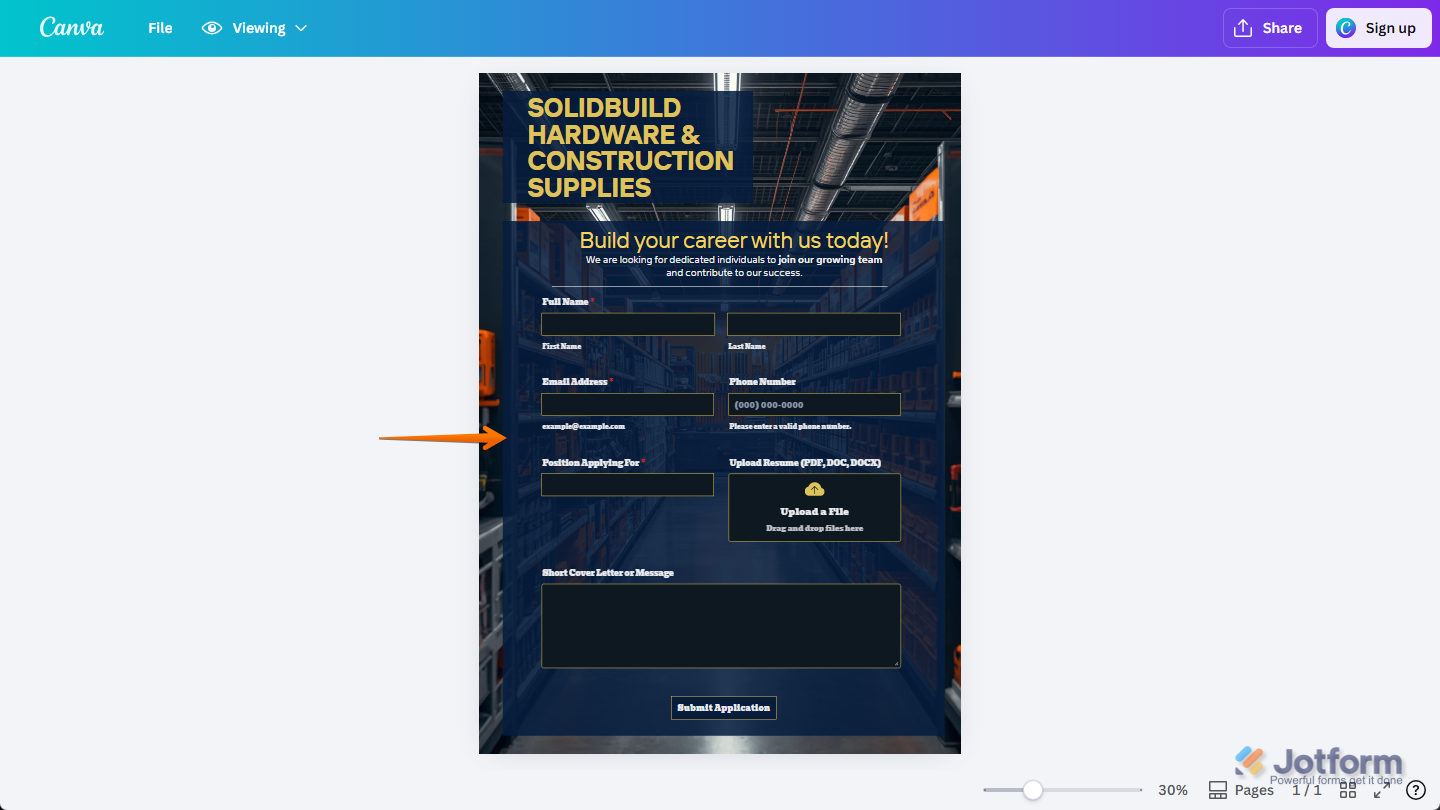
That’s it! Your form styles will now better align with your Canva design layout and visual style.
Pro Tip
If your design uses different font sizes and styles, try using larger text for headings and smaller text for the rest of your form to create a clearer and more visually consistent layout.
Changing Your Form Theme
You can change the theme of the form you’ve added to your Canva design in just a few steps. Here’s the quick way to do it:
- While Form Designer is open on the right side of Form Builder, go to the Themes tab.
- Then, click on Filter at the top of the themes list, then in the menu that opens, select one of the following options:
- All Themes — This shows all themes available for your form.
- My Themes — This shows the public and private themes you’ve created in your account.
- Favorite Themes — This shows themes you’ve marked as favorites for quicker access.
- Featured Themes — This shows recommended themes for your form.
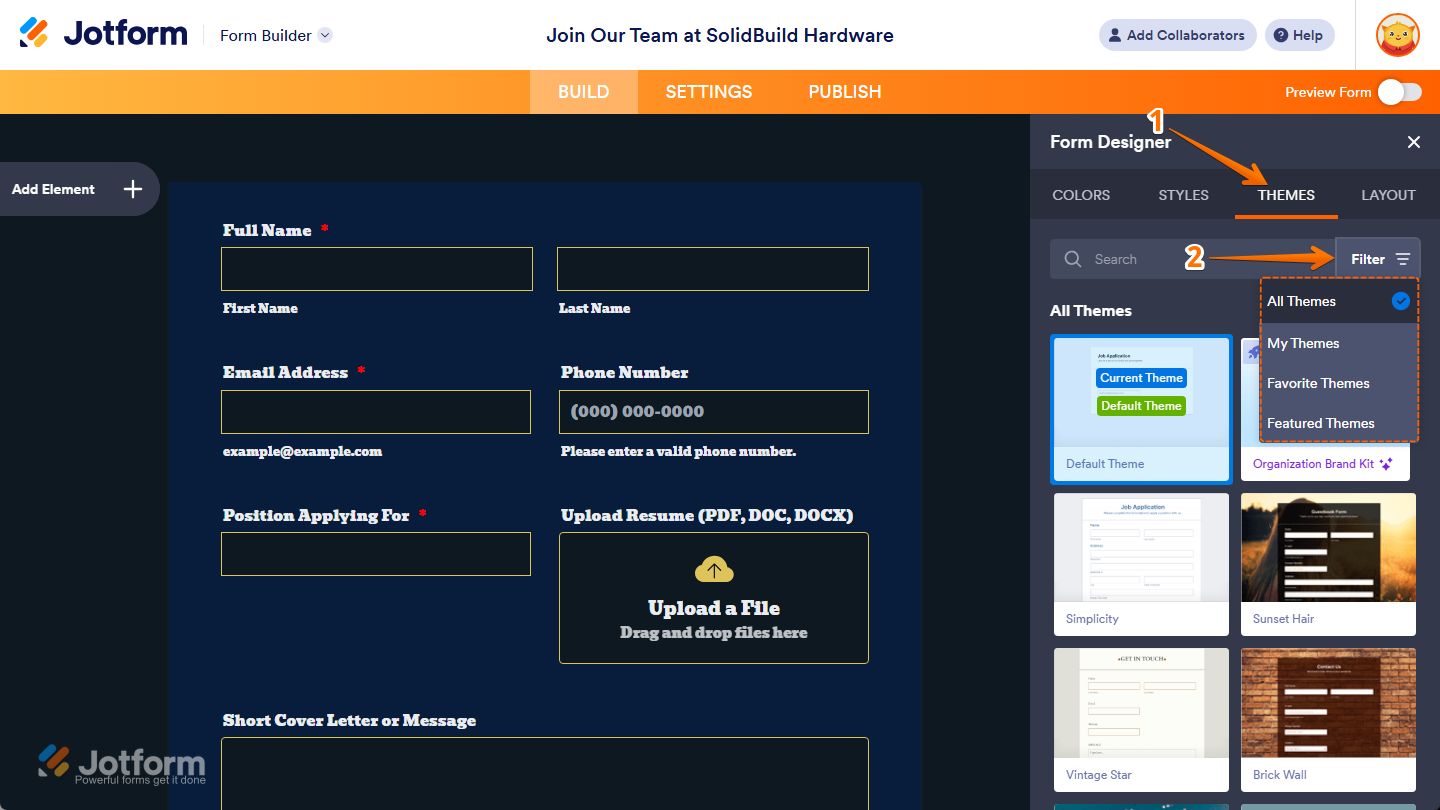
- Next, in the Search bar next to it, enter a keyword to easily find one that matches the look and style of your design.
- Then, in the Search results, hover your mouse over the theme you want to use, then click on Use Theme.
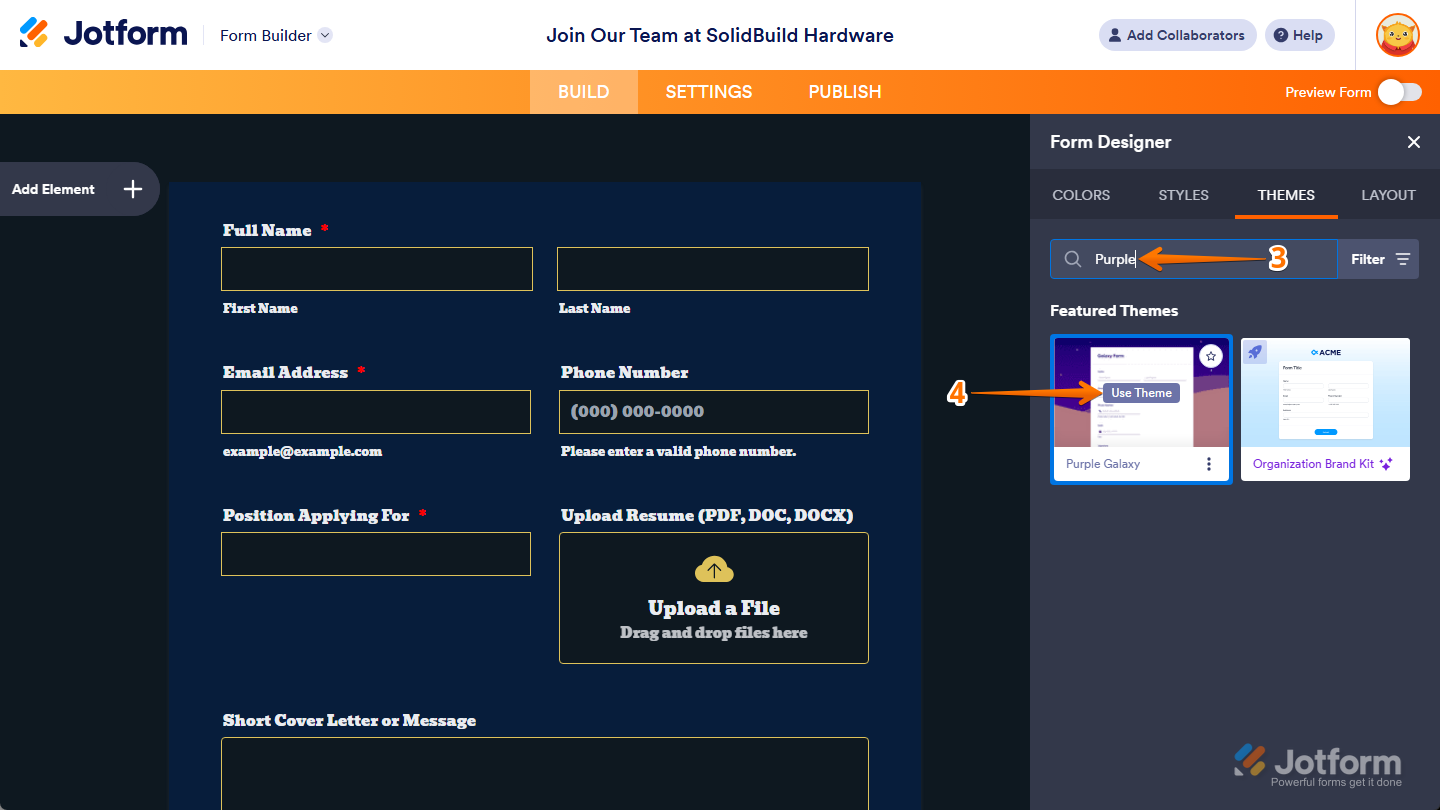
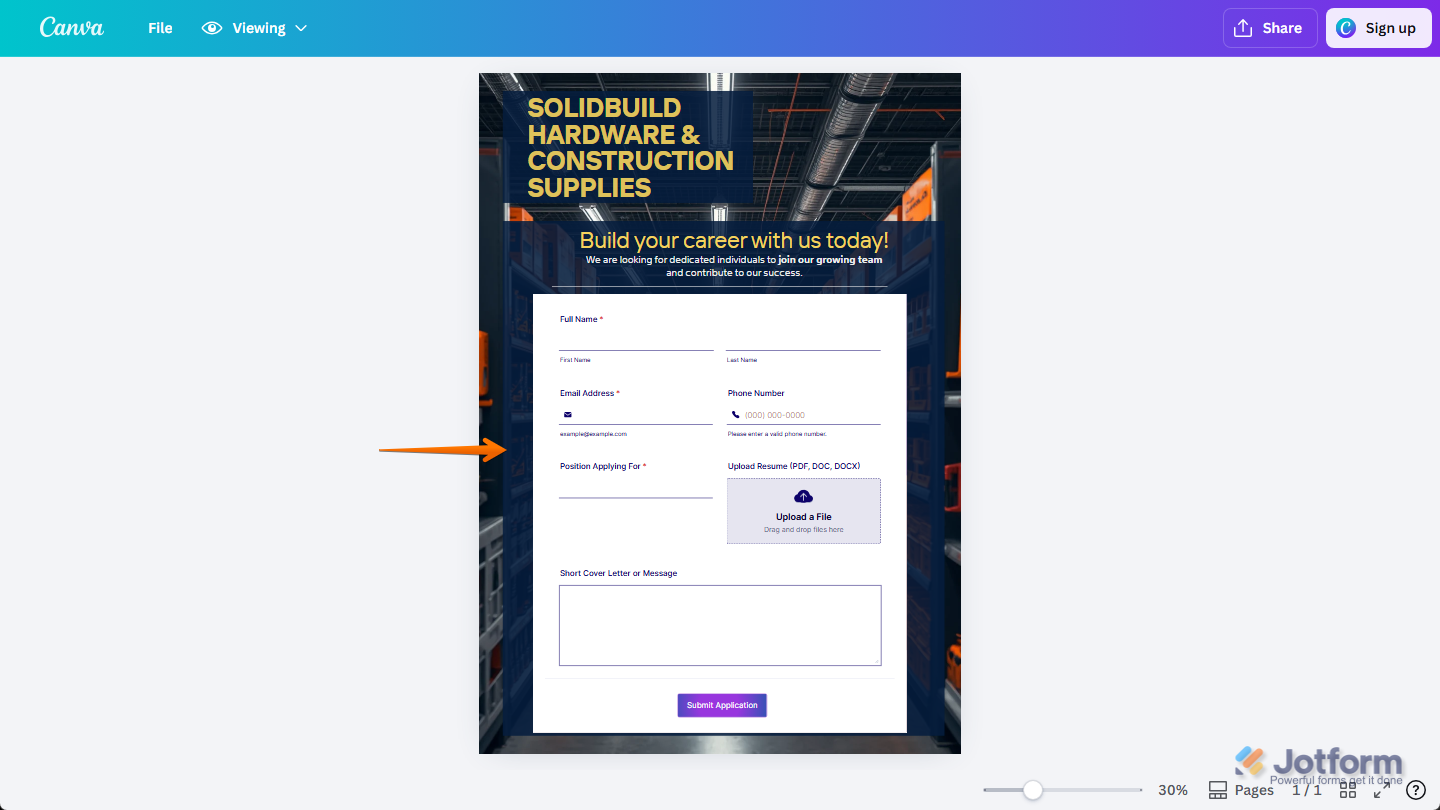
That’s it! Your selected theme is automatically applied to the form in your Canva design.
Pro Tip
Try selecting a theme that already has a similar style to your Canva design to make it easier to match your form’s overall look. You can then continue updating its colors and styles for a more consistent design.
Switching Your Form Layout
You can switch the layout of the form you’ve added to your Canva design. Here’s how:
- While Form Designer is open on the right side of Form Builder, go to the Layout tab.
- Then, from the following options, click on the layout you want to switch your form to:
- Classic Form — This layout displays all form questions in a traditional vertical format for a more structured experience.
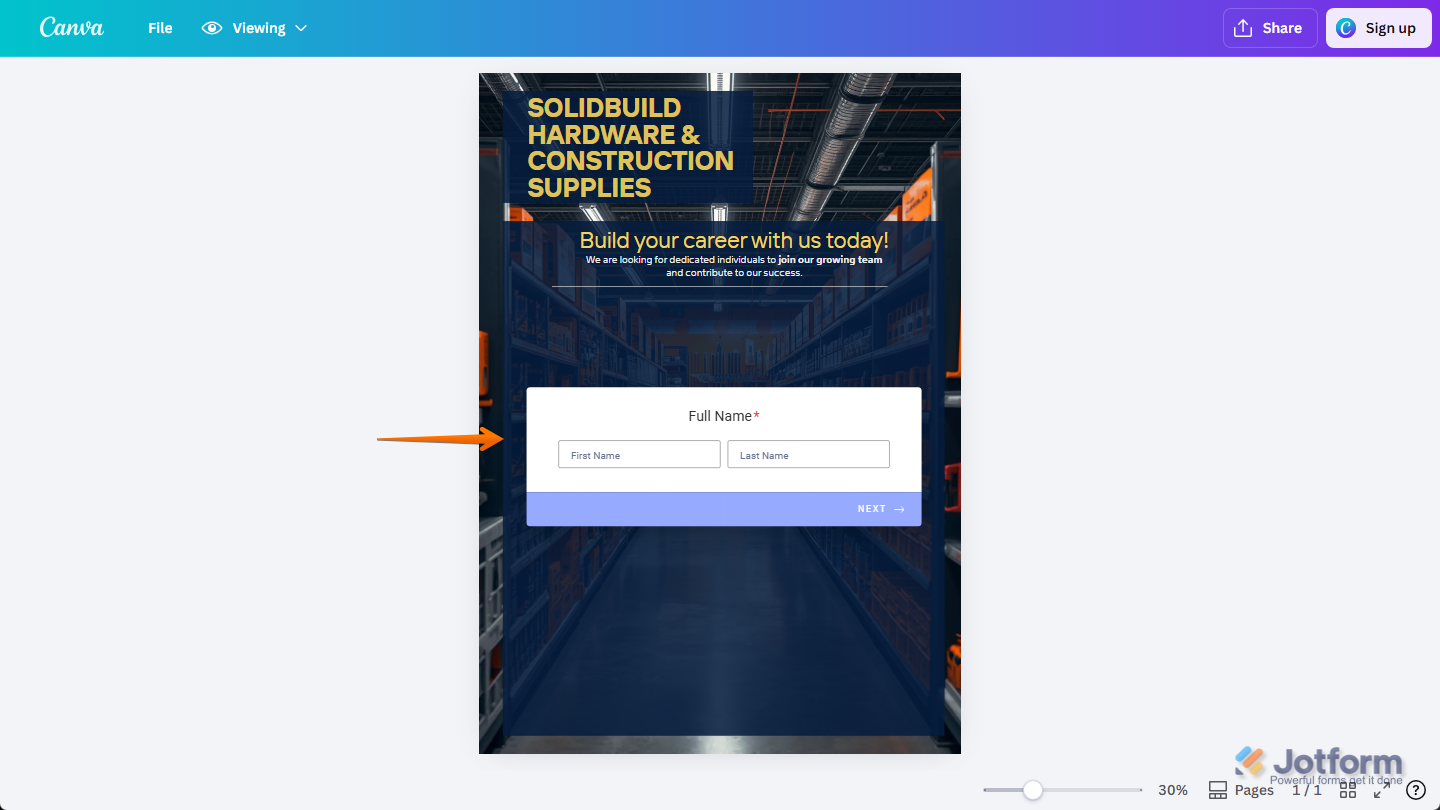
- Card Form — This layout displays one question at a time for a more interactive and modern form experience.
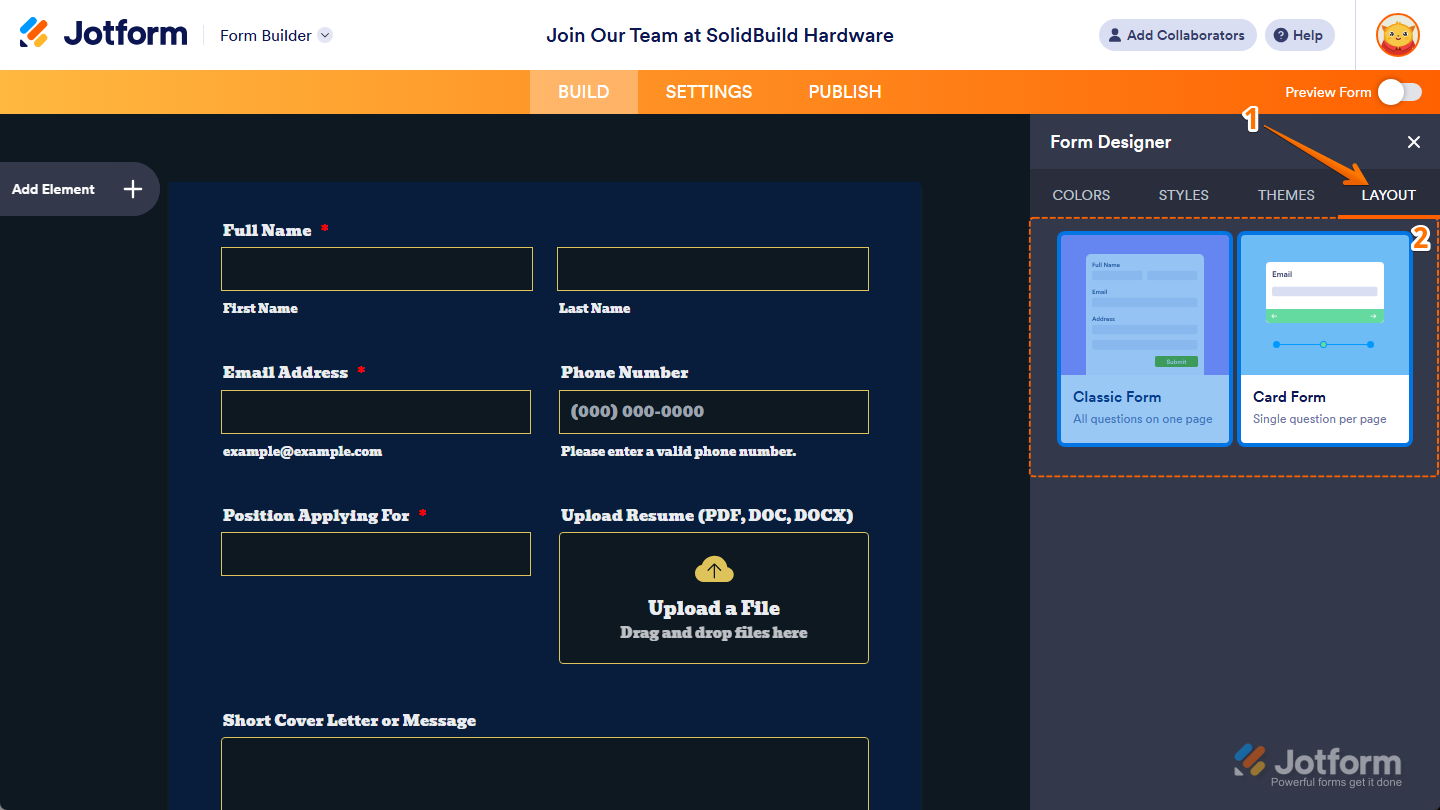
That’s it! Now the Form Builder will reload, and the layout you selected is automatically applied to the form in your Canva design.
Pro Tip
If your form will mostly be viewed on mobile devices, try using the Card Form layout to create a more focused experience on smaller screens and a design that better matches interactive Canva projects.
Note
For more detailed form customization, you can also use Advanced Designer to access additional design options. Check out our guide on How to Access and Use Advanced Designer to learn more.

Send Comment:
2 Comments:
February 12, 2026
How can I make my contact form vertically narrow like landsacpe layout
October 25, 2025
My project list form is not downloaded correctly. I would like to disable the up and down cursor on the right. Down load the entire form