Jotform makes it easy to connect your forms with Highrise so you can automatically send submission data to your CRM account. This helps you keep your contacts and records up to date without having to enter information manually.
Once the integration is connected, you can choose where your submission data should be sent and match your Jotform fields with the corresponding Highrise fields. This makes it easier to manage leads, contacts, and customer information in one place.
You can connect your Highrise account and configure the integration in just a few steps. Here’s how:
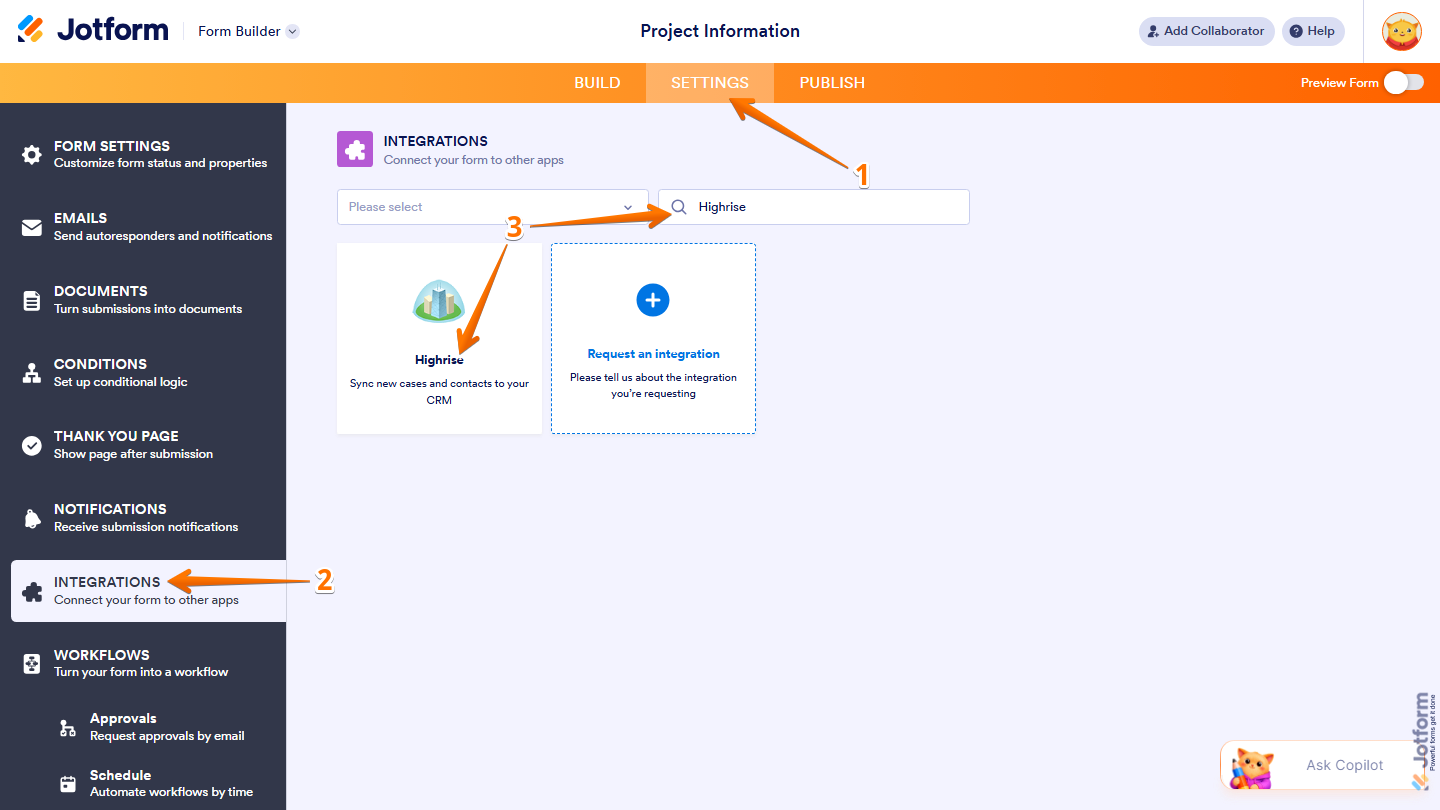
- In Form Builder, in the orange navigation bar at the top of the page, click on Settings.
- Then, in the menu on the left, click on Integrations.
- Now, search for HighRise and then click on it.
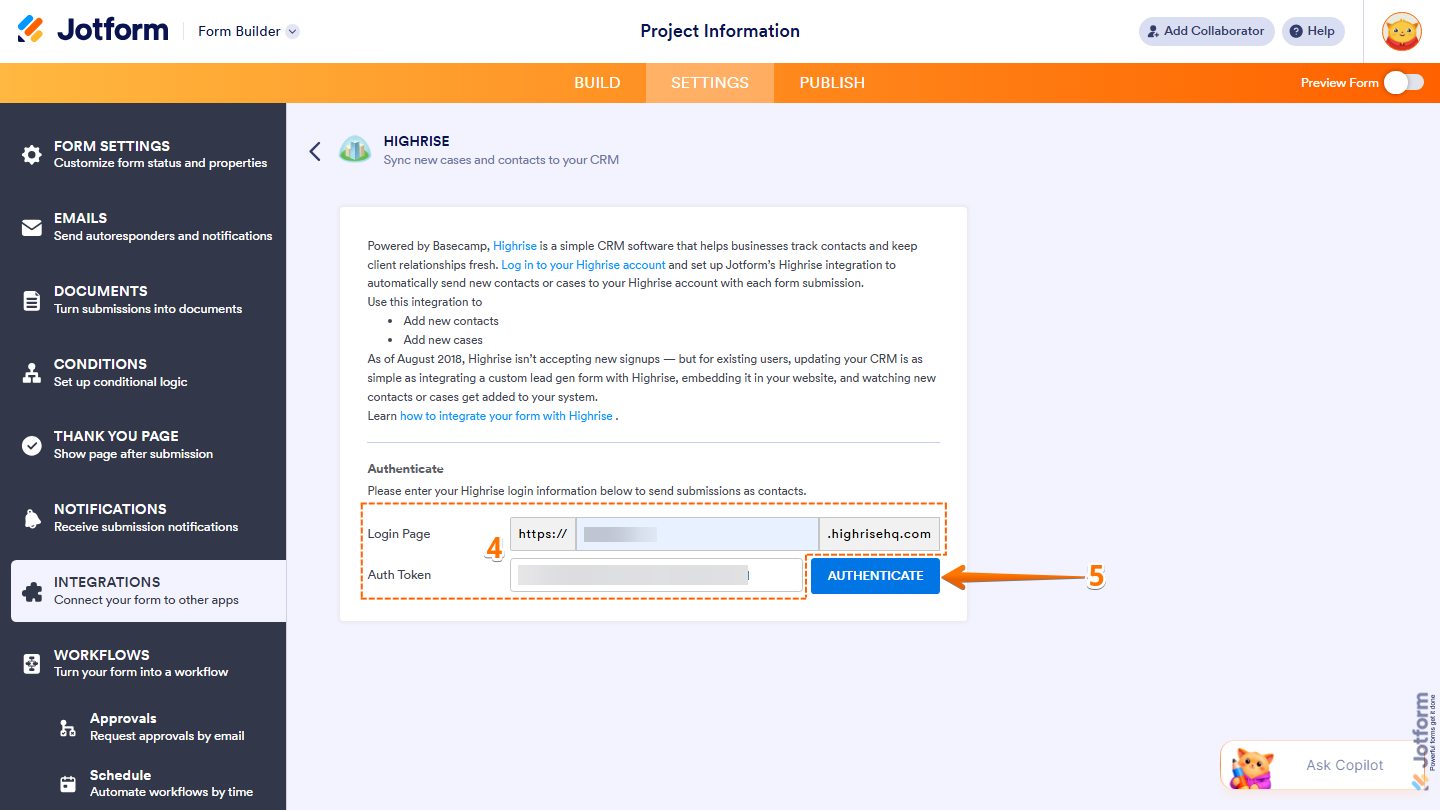
- Next, in the Authenticate section, fill in these details:
- Login Page — Enter your Highrise account login URL.
- Auth Token — Enter your Highrise API authentication token.
- Then, click on Authenticate.
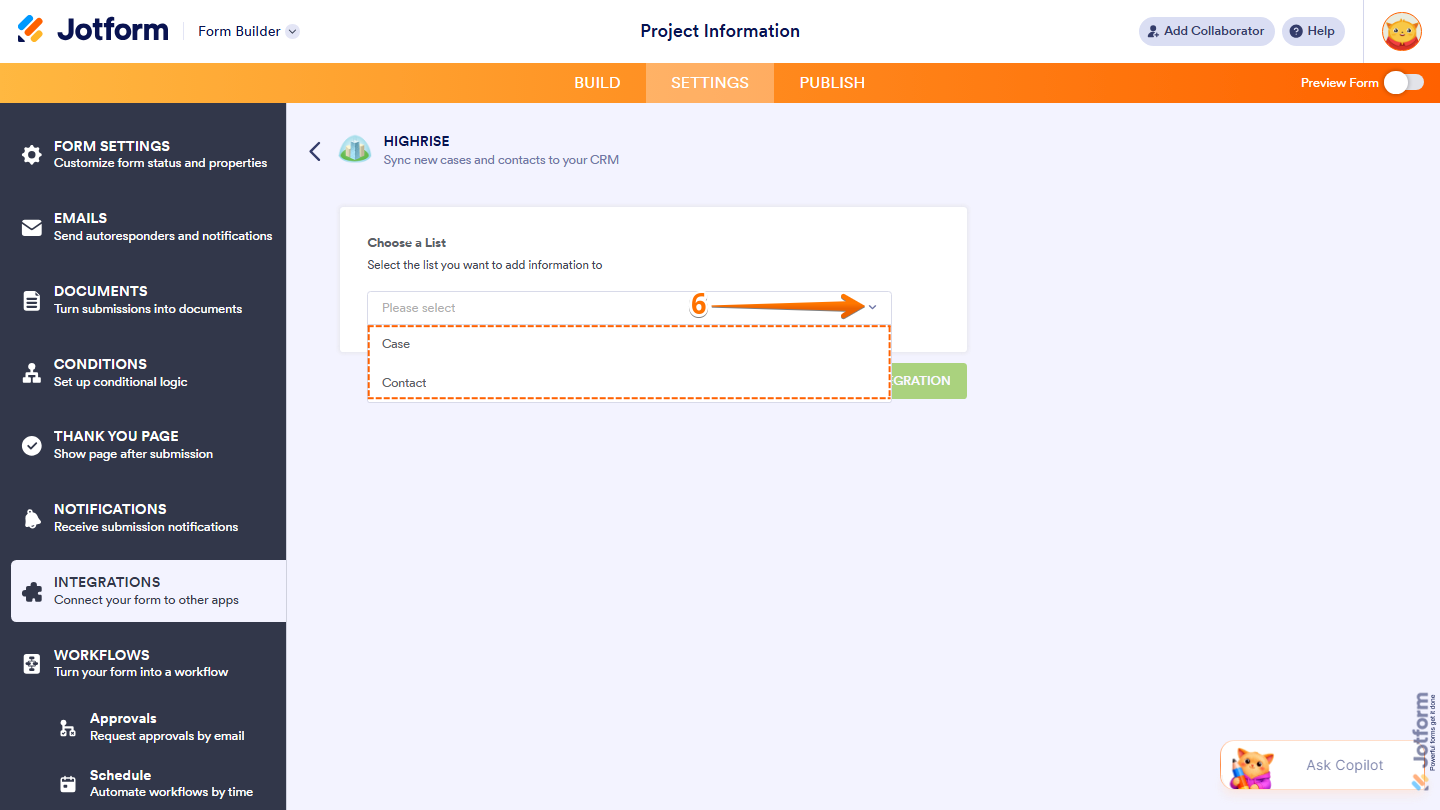
- Now, in the Choose a List Dropdown section, click on the Downward Arrow icon, and in the Dropdown menu that opens, select where you want to send your form data:
- Case — Send submission data to a case record in Highrise.
- Contact — Send submission data to a contact record in Highrise.
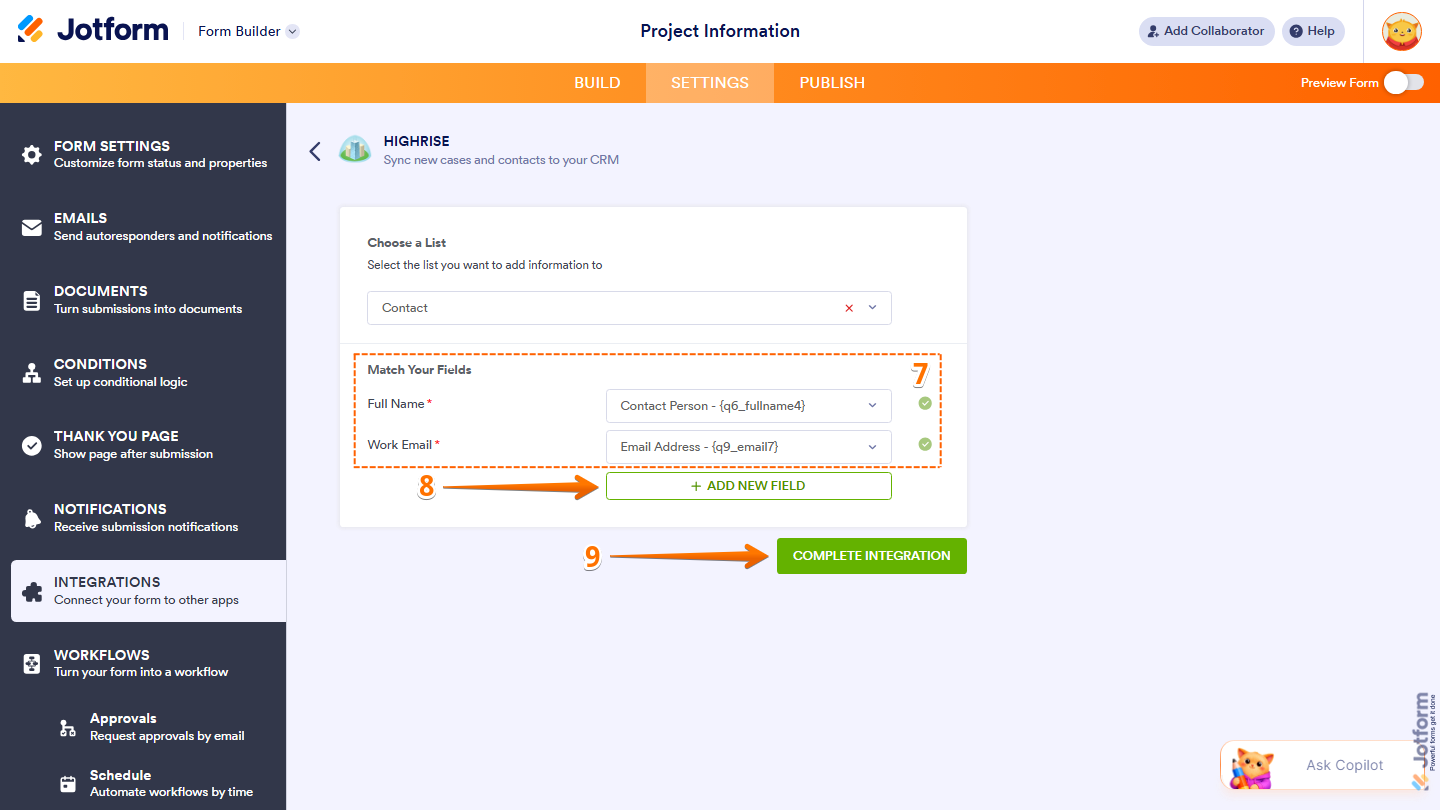
- Next, in the Match Your Fields section, match your Jotform fields with the corresponding Highrise fields.
- If needed, click on Add New Field to create additional field mappings.
- Once done, click on Complete Integration.
- Finally, click on Finish, and you’re good to go.
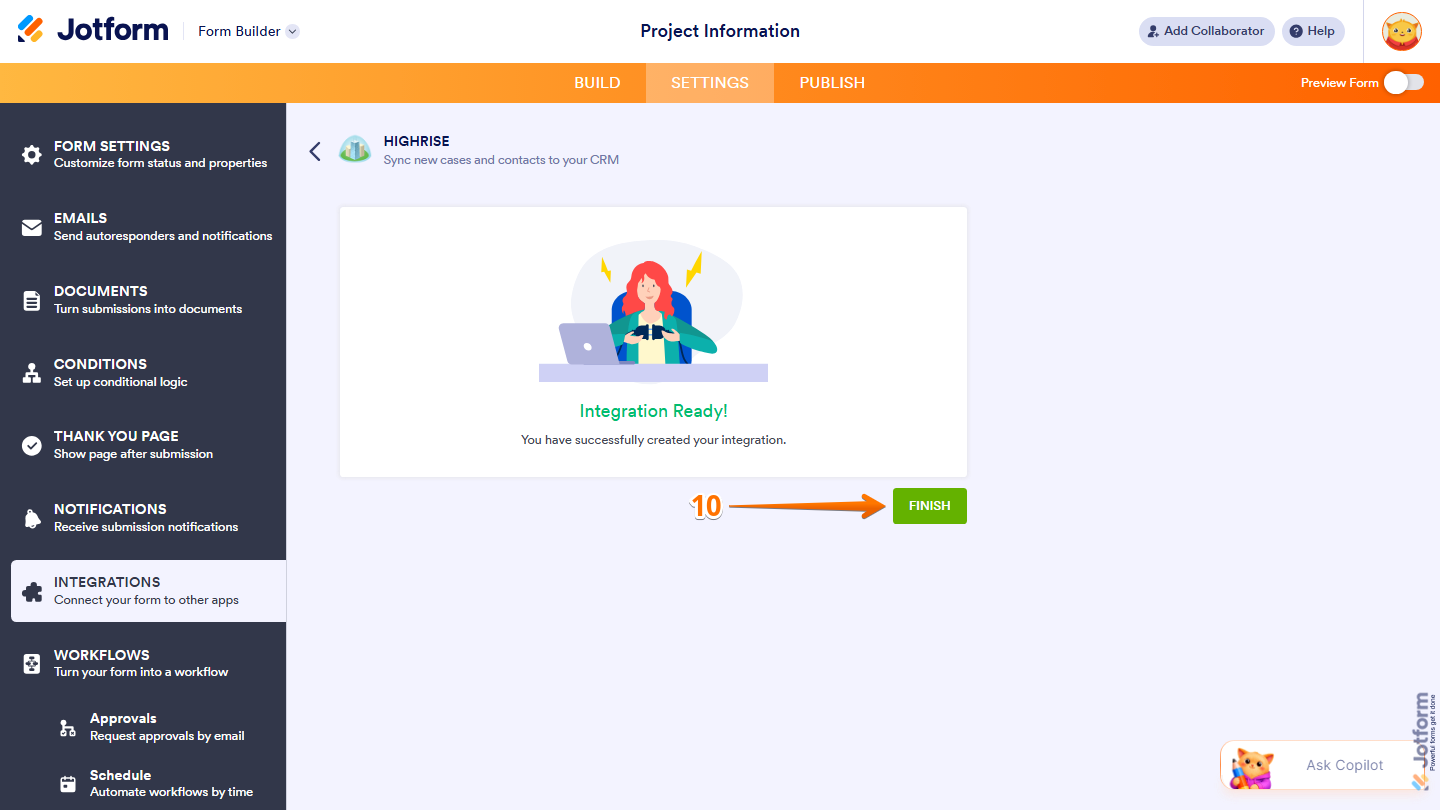
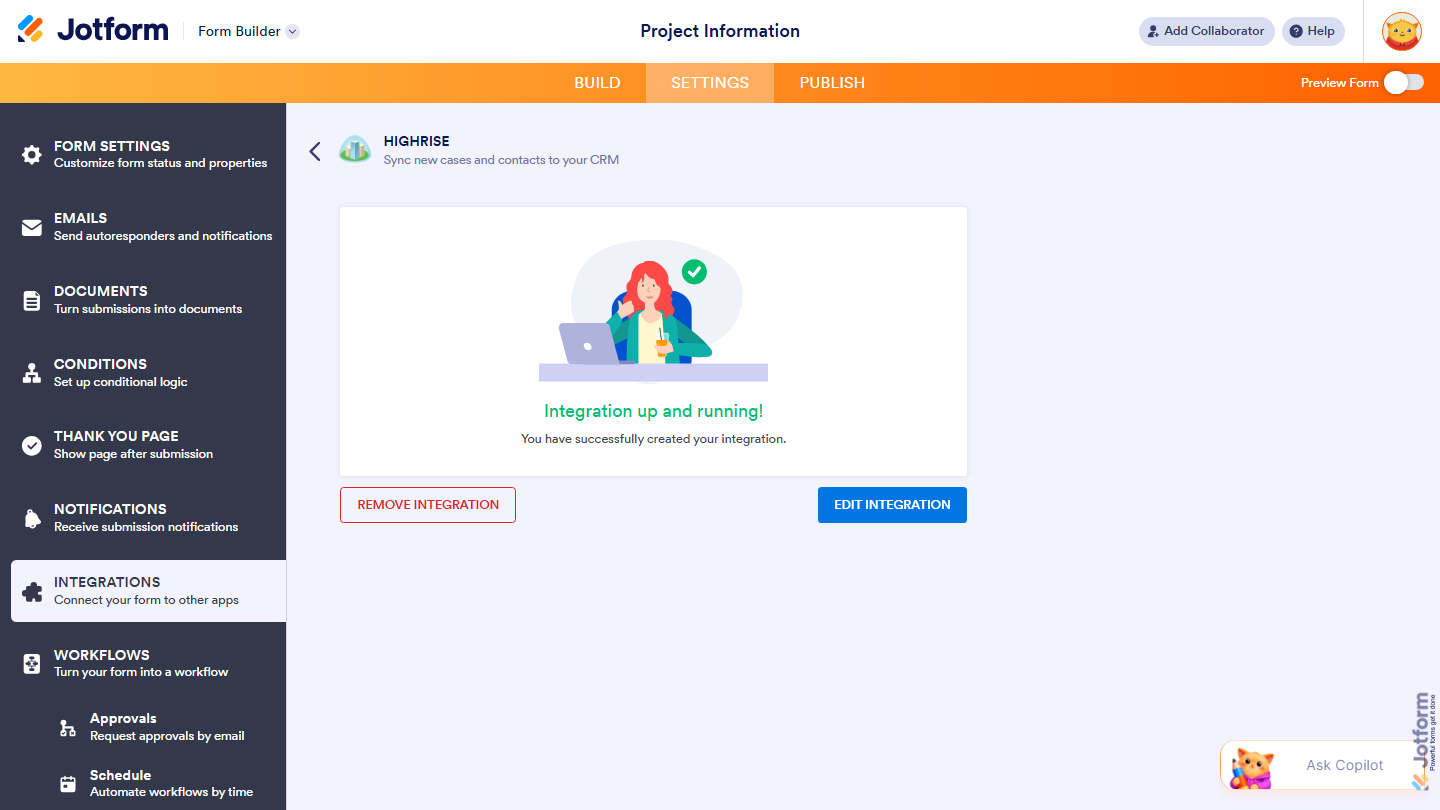
That’s it! New form submissions will now be sent automatically to your selected Highrise list. If you need to update your settings later, simply return to the Integrations tab and open the Highrise integration. This gives you full control to adjust your setup as your workflow evolves.
Note
The Highrise integration requires an existing Highrise account. If you’re unsure whether your account is eligible to use Highrise, you can check the Highrise website for more information.

Send Comment: