
Microsoft Teams makes it easy for coworkers to meet and collaborate, whether they’re across the hall or in different countries. With over 320 million monthly active users, it’s become part of the routine for all sorts of businesses.
Microsoft Teams pricing, however, is notoriously confusing. In most cases, you can’t buy the software by itself. It’s usually bundled into Microsoft 365 subscriptions, so what you pay depends on the plan you choose. Some plans also have hidden fees that can raise the price if you’re not paying attention.
This guide breaks down the cost for each plan, available features, hidden costs, and how to pick the right tier based on your team’s size and needs.
Is Microsoft Teams free?
Most Microsoft Teams plans are paid, but there is a free tier with a few basic features, including
- Unlimited chat
- Up to 60-minute-long video meetings for up to 100 participants
- File sharing
- Screen sharing
- 5 GB of cloud storage
- Data encryption for meetings and files
If you’re a freelancer or working with a very small team, this option may check all your boxes. For instance, you might only schedule short meetings with clients for progress reports. The free version lets you screen share what you’re working on or send attendees a copy of the file. You can also text chat with your team as much as you’d like.
For growing businesses, though, the gap between Microsoft Teams free vs paid plans quickly becomes clear. For one, video calls in the free version shut down as soon as you hit the 60-minute limit. If your all-staff meeting runs over, or you’re having an in-depth discussion with a client, you might find yourself staring at a black screen.
Additionally, the free version doesn’t allow you to record videos. As of November 2025, though, if you subscribe to Microsoft 365 Personal and Family plans, you can record your work meetings using your personal Teams account. While that’s a helpful workaround, recording is still not part of the free plan.
You also don’t get business email or the ability to transcribe meetings. The lack of transcription limits accessibility and makes it harder to remember if your client asked for a beige or sage background for their new ad.
Microsoft Teams plans & pricing in 2026
There are two types of paid Microsoft Teams plans. Teams Essentials is a standalone plan, while all the other tiers are bundled with Microsoft 365 Business or Enterprise subscriptions. All the prices in the following chart are based on annual subscriptions. Before you purchase anything, be sure to verify pricing on the official Microsoft Teams site, because Microsoft announced it plans to roll out pricing updates on July 1, 2026.
Free | Teams Essentials | M365 Business Basic | M365 Business Standard | M365 Business Premium | Enterprise (E3/E5) | |
|---|---|---|---|---|---|---|
| Monthly price (per user) | Free | $4/user/month | $6/user/month | $12.50/user/month | $22/user/month | $36/user/month for E3; $57/user/month for E5 |
| Meeting length limit | 60 minutes | 30 hours | 30 hours | 30 hours | 30 hours | 30 hours |
| Max participants | 100 | 300 | 300 | 300 | 300 | 1,000 |
| Meeting recording | ||||||
| Storage | 5 GB | 10 GB per user | 1 TB per user | 1 TB per user | 1 TB per user | 1 to 5+ TB per user |
| Business email | Yes, with Plan 2 | |||||
| Desktop Office apps | No, but includes access to a few web apps | |||||
| Webinar hosting | ||||||
| Advanced security | ||||||
| Max users | 1 | 300 | 300 | 300 | 300 | No limit |
Microsoft Teams Free
The free version works best for freelancers and small teams. It comes with basic communication features, including unlimited chat and meetings up to 60 minutes long. You can also share your screen and exchange files.
While this is a good starter option, many teams quickly outgrow it. Consider upgrading if you want to have longer meetings or invite more than 100 participants. Paid plans also offer more storage and the ability to record meetings.
Microsoft Teams Essentials
If you’re on a tight budget, Teams Essentials can be an affordable option. It’s the only standalone paid plan, so it doesn’t require the full Microsoft 365 suite.
Teams Essentials extends the maximum meeting time to 30 hours and lets you invite up to 300 participants. It also expands the storage to 10 GB per user.
This option could work if you’re just looking to upgrade your meetings. It doesn’t include business email, so you’ll need to use Gmail or another email provider. It also doesn’t give you access to any of the Microsoft Office apps, but you can purchase them separately. For example, if you need only Word and Excel, it might make more sense to pay for lifetime licenses to those apps than to purchase a higher-tier Microsoft 365 subscription.
Microsoft 365 Business Basic
The Microsoft 365 Business Basic pricing is only a few dollars more per user than Teams Essentials, but it comes with a lot more features. It’s the biggest jump in value across the tiers.
Business Basic includes more advanced meeting features, including recording and transcription. If a team member can’t join an important call, these tools help them stay in the loop. Other benefits include custom business email and 1 TB of storage per user.
Web apps are another major perk. You can access the latest online versions of Microsoft Excel, OneNote, PowerPoint, and Word. While these apps aren’t as robust as the desktop versions, they’re useful for basic business tasks. A small home remodeling company, for instance, could use the web version of Microsoft Word to put together estimates. You could also create a slide deck in PowerPoint and then screen share it in Teams.
People using Microsoft Teams for small businesses often start with the Business Basic plan. It hits the sweet spot of affordability and functionality. It’s also a smart choice if your team mostly works in the cloud or communicates through email and video calls.
Microsoft 365 Business Standard
Growing businesses usually go with Microsoft 365 Business Standard. While it costs more than twice as much as Business Basic, it offers more advanced collaboration tools. That makes it a strong contender if you have complex projects or multiple teams.
This tier comes with the desktop versions of Microsoft Access, Excel, OneNote, PowerPoint, and Word. These apps work offline and have more sophisticated features than the web versions.
The desktop version of Microsoft Word, for instance, includes features such as charts, models, bibliographies, and screen clipping. If you want to create a financial report with revenue charts, the online version won’t work.
This plan also includes over 10 additional apps, including Microsoft Bookings, Clipchamp, Editor, and Planner. If your business hasn’t invested in a lot of technology yet, these tools can help you. For example, suppose your sales team wants to start offering product demos. Instead of buying a separate appointment scheduler, you could use Microsoft Bookings.
Webinar hosting is another useful feature for larger events. Unlike regular meetings, webinars let you register guests with a customizable web page. You can also control how participants interact with presenters via features such as chat and Q&A. That helps prevent disruptions, such as background noise from someone who doesn’t know how to mute themselves.
Microsoft 365 Business Premium
If your company handles sensitive data, you need a secure collaboration platform. Microsoft 365 Business Premium is built with advanced security measures to help safeguard your information.
For example, it uses Microsoft Entra ID to verify identity and manage access to your data. Let’s say an employee loses their laptop. If you’ve set up multifactor authentication, whoever finds the laptop can’t log in to Teams, even if your employee saved their credentials on the device.
This plan also includes Microsoft Defender for Business, which helps protect your email and collaboration tools from cyber threats such as viruses and phishing attempts. That makes it less likely that a hacker will gain access to your client emails or internal Teams chats.
Data compliance tools are another core feature. With Microsoft Purview Audit, you can easily store audit logs. These records can help you spot potential breaches, such as an employee forwarding confidential documents to a personal account.
For businesses in industries such as healthcare and finance, a Microsoft 365 Business Premium plan can help you comply with regulations. However, if you don’t work with confidential data, these security features might be overkill.
Microsoft Teams enterprise plans (E3 and E5)
For organizations with more than 300 users, Microsoft offers several enterprise-level plans. You might also opt for one of these plans if you have complex compliance needs that Business Premium doesn’t cover.
E3 has advanced antivirus and anti-malware tools. Shadow IT detection flags unauthorized apps on your network, reducing the risk of data leaks. On the compliance side, Microsoft Purview eDiscovery helps your IT team conduct internal and external investigations.
E5 adds Teams Phone, which lets you make cloud-based phone calls outside your organization. Instead of being stuck at their desks, employees can make voice calls from their laptops or mobile devices. That’s useful for people who talk to international clients or spend a lot of time in the field, such as traveling sales reps. If you choose a lower tier, you’ll need to pay for this feature as an add-on.
Microsoft Teams enterprise pricing is based on quotes, so there may be some room for negotiation. Contact Microsoft or a partner for exact costs. These prices may go up on July 1, 2026, so make sure you have the latest details before you commit.
Microsoft Teams add-ons and hidden costs
The prices on Microsoft’s website don’t always tell the full story. That’s because the standard packages often don’t fit all of your needs, so you end up paying for extra features.
One of the most popular add-ons is Teams Premium, which costs $10 per user per month. This upgrade comes with AI meeting recaps and live translations in more than 40 languages. If you work with multinational teams or clients, these features could help prevent miscommunication. Teams Premium also includes custom branding and watermarking to deter leaks.
Teams Phone is another common add-on for users who don’t have the E5 enterprise plan. The base plan starts at $10 per user, per month for internal calls. If you want to make external calls, you’ll need a separate calling plan ranging from $13 to $34 per user, per month. Suddenly, you could be paying more than triple what you’d expected.
Want to add an AI assistant to Teams? Microsoft 365 Copilot is available across all business plans, starting at $18 per month.
Billing frequency is a major factor, too. Monthly billing offers more flexibility than annual plans, but it costs around 5% more.
Before you invest in Microsoft Teams add-ons, consider which features you’ll use. If your employees get by fine with email and video calls, Teams Phone might be an unnecessary splurge. Likewise, you may not need Microsoft 365 Copilot if you already have a preferred AI tool.
And be sure to crunch the numbers. A $6-per-user-per-month plan could realistically cost $23 to $44 once you tack on AI and voice features.
Which Microsoft Teams plan is right for you?
Before you can start using Microsoft Teams, you need to pick the best plan. Here are our recommendations:
- Free: Ideal for freelancers or very small teams with basic communication needs.
- Essentials: Great for small teams that already have an email provider and simply need a better meeting tool.
- Business Basic: A solid choice for small businesses that need email, recording, and a decent amount of storage. It also includes access to several Microsoft web apps.
- Business Standard: A great fit for growing businesses that need desktop Office apps or want to host webinars.
- Business Premium: A secure option for companies that handle sensitive data or work in highly regulated industries.
- E3/E5: Designed for large enterprises with more than 300 users or tricky compliance requirements.
Upgrade your Microsoft Teams experience with Jotform
You don’t always need an expensive plan to get more features. With the free Jotform Microsoft Teams integration, you can collect, manage, and act on data without leaving Teams.
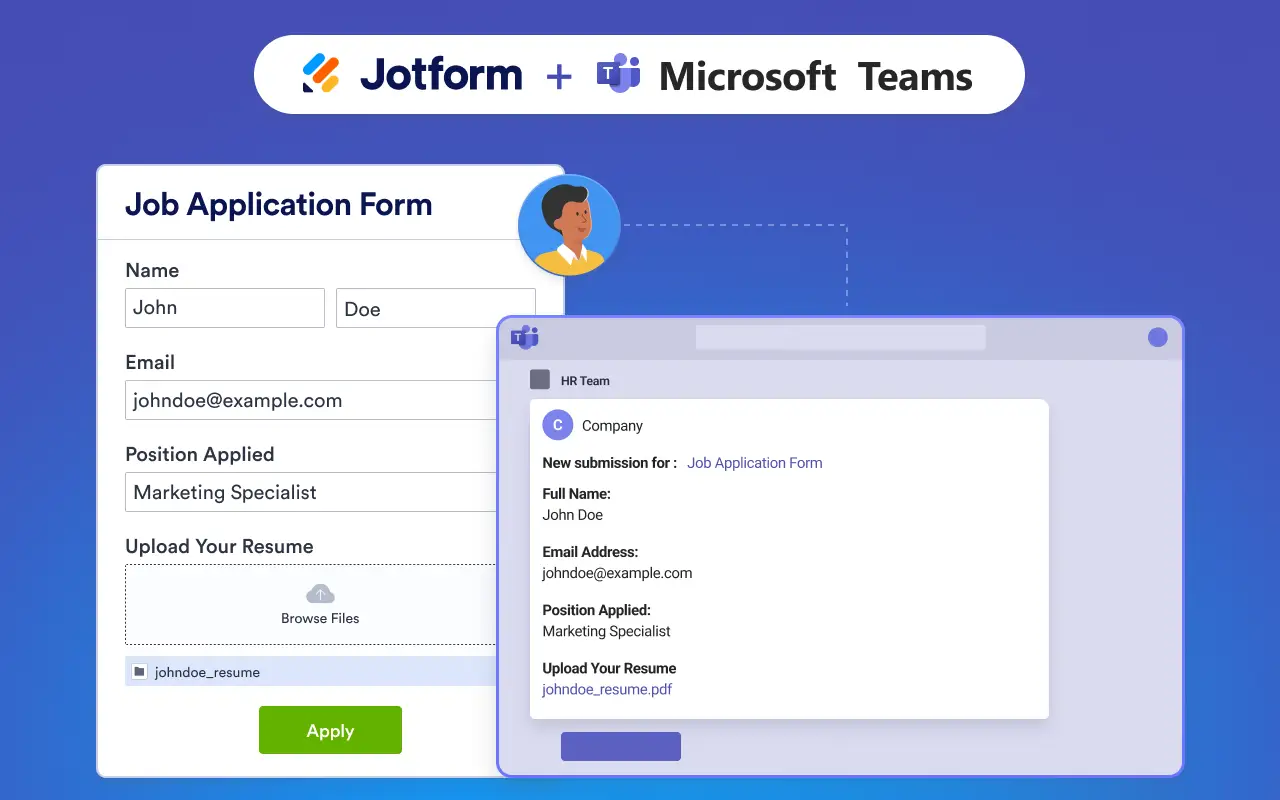
This tool sends instant form notifications straight to specific Teams channels. Here are a few examples of what that looks like:
- Every time a lead fills out a contact form, your sales department gets a Teams alert.
- When a client submits a request to fix a bug, an automated chat message appears in the product development channel. Your team is already online, so they can work on the solution immediately.
- HR receives a notification every time a new employee fills out onboarding and intake forms.
- When an employee registers for a webinar, the meeting automatically appears on their Teams calendar.
- Internal forms automatically get routed to the people who approve them.
- If an employee fills out a request form to repair a leak in their office ceiling, your maintenance team spots it in their channel and sends someone to fix it.
Don’t see your workflows listed here? Jotform offers 20,000-plus free form templates for everything from appointment requests to time sheets and surveys.
These form integrations work across all Teams plans, including the free tier, so you can build your data workflows into Teams, no matter which plan you choose. Instead of hopping between tools, you’ll see everything you need in one place.
If you’re ready to upgrade your collaboration experiences, try Jotform for free and connect it to Microsoft Teams today.



































Send Comment: