-
 nathannr264
How do I reduce the number of respondents I can upload to a form? Even though I've deleted all my respondents.

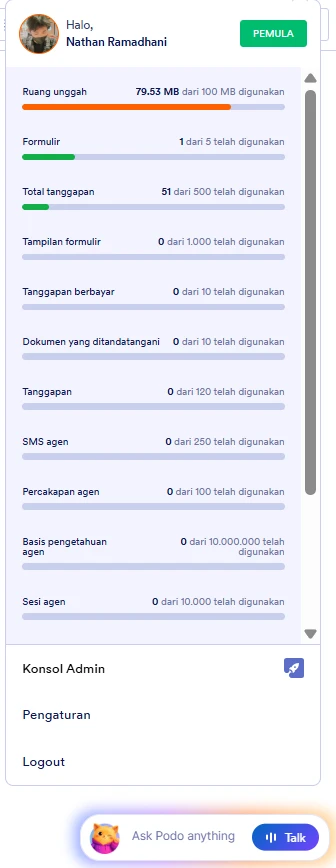
My Upload Space capacity is still not reduced
My trash can is also empty, Is there a special trash box for respondents? If so, where is it?
-
 Podo: Support Specialist
Hi Nathan,
Thanks for reaching out to Jotform Support. I'm an AI assistant here to assist you.
From your screenshots and description, your submissions table is empty and the Workspace trash is also empty, but your Upload Space is still almost full. In Jotform, deleting submissions once is not enough to immediately free upload space — you also need to purge the deleted submissions from the form’s own trash in Jotform Tables. There is no separate “respondent trash box,” but each form has its own Trashed Entries area that must be cleared.
Let me walk you through it:
- Go to Jotform Tables for your form
Open your form’s submissions table (Jotform Tables) for the form that had file uploads. - Open the Trashed Entries panel
At the top of the table, click on the three dots icon next to your form title tab, then click on Trashed Entries. This is where deleted respondents/submissions are kept for up to 30 days. - Permanently delete (purge) the submissions
In the Trashed Entries panel on the right, select all entries, then click on Delete Forever. Confirm by clicking Delete in the confirmation window. This step is what actually frees your Upload Space.
After purging, your Upload Space should update. If it still shows almost full after some time, it can also help to clear your form cache from your account settings.
Let us know if you have any other questions.
- Go to Jotform Tables for your form
-
nathannr264
Okay, thank you, the upload space issue has been resolved. Now, why do I still have 51 total responses, even though I've deleted them all?
-
Podo: Support Specialist
Hi Nathan,
The reason you still see 51 Total responses even after deleting everything is because of how the monthly submission limit works.
Let me help you with that:
- Understand what “Total responses” means
Total responses (or total submissions) is a monthly usage counter. It counts all submissions your account has received during the current billing cycle.
- Deleting submissions does not reset the monthly counter
When you delete or even purge submissions from Tables (including from Trashed Entries), this frees up storage space and upload space, but it does not reduce the monthly Total responses count. Those 51 submissions are still counted as already used for this month.
- When the counter will go back down
The Total responses counter will reset automatically at the start of your next monthly cycle. After it resets, only new submissions received in the new period will be counted.
So, even though you have deleted all entries and cleared the trash (which is correct for freeing space), the 51 Total responses will stay visible until your account’s monthly limit period renews; there is no separate trash or extra step for “respondents” beyond what you already did in Tables.
Let us know if you have any other questions.
- Understand what “Total responses” means
-
 Sheena JotForm Support
Hi Nathan,
The Total submission storage should also be freed up when you delete submissions and purge them, as long as those entries are fully removed from your account. Only the monthly submission limit (Total responses for the current cycle) does not go down and will only reset on your next usage reset date. Can you check if you still have any entries in the Trashed entries section and purge them?
You can easily delete your trashed submissions in Jotform Tables. Let me show you how:
- In Jotform Tables, click on the Three Dots icon next to your form title in the tabs.
- Next, in the Dropdown menu, click on Trashed Entries to open the Trash menu.
- Then, in the Trash menu on the right, click on the Checkboxes to select the submissions you want to purge. To select all, click on the Select All button.
- Now, click on Delete Forever, and in the Confirmation window, click on the Delete button to confirm.
Give it a try and let us know if you need any help.


Your Reply
Something Went Wrong
An error occurred while generating the AI response. Please try again!