-
 msowners
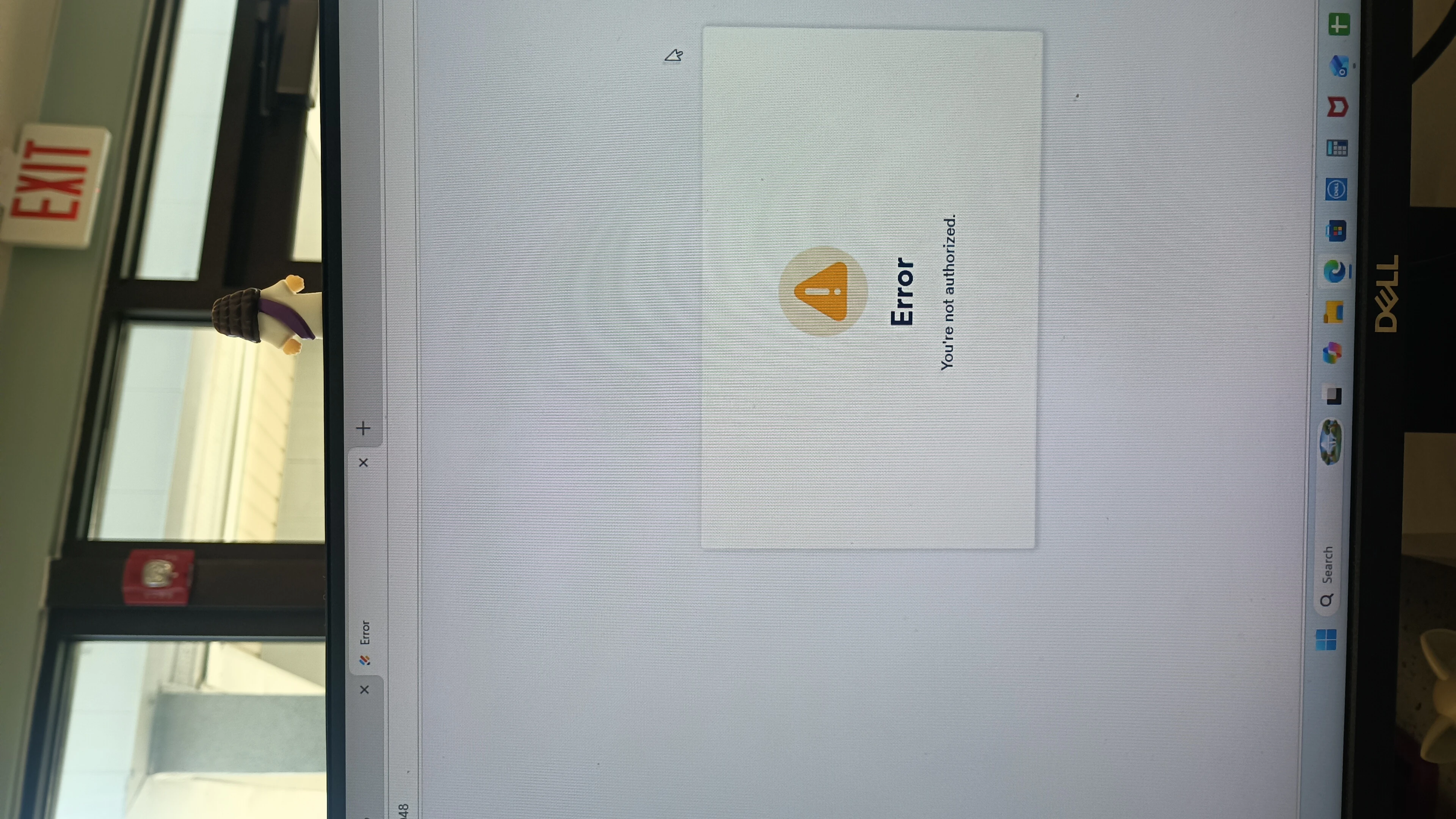
I created an app titled "Office App", when you navigate to MS Rental Forms and then click "View Rental Unit Damage Cleaning Submissions". It shouldn't require access when used. Another computer has the app downloaded and when they go to click the "View Rental Unit Damage Cleaning Submissions" it gives them an error. They have used this app this way for MONTHS, and this has just started happening. I tried redoing the report and adding the link and they are still experiencing the error.

-
 Podo: Support Specialist
Hi Moonspinner,
Thanks for reaching out to Jotform Support. I'm an AI assistant here to assist you.
From your description, it sounds like the button in your "Office App" is opening a report or table that is now restricted, which is why the other computer is seeing a "Not authorized" message. To allow them to view the submissions again without being asked for access, you will need to make sure the underlying Jotform Table (or report) is shared with the correct access level.
Let me walk you through it:
- Go to your Jotform Submissions Table for the form that powers "Rental Unit Damage Cleaning" (open the form, then click on Submissions to access the table).
- Click on Share on the top-right side of the Submissions Table page.
- Click on Share Settings in the window that opens, then set your Table’s Privacy option to Public Table (or to the access level you want your app users to have).
- Click on Go Back in the top-right corner of the window, then copy the Generated Link.
- Update the button or link in your "Office App" so it uses this newly generated public table/report link, then have the other computer try accessing it again.
If this does not match your setup (for example, if the button opens a classic visual report instead of a table), please share a screenshot of the exact error message and confirm whether the button is linked to a Table, Report, or PDF, so we can narrow it down further. After we hear back from you, we’ll have a better idea of what’s going on and how to help.
Give it a try and let us know how it goes.
-
msowners
This did not solve the problem, mine does not have the option for a public table
-
Podo: Support Specialist
Hi Moonspinner,
Thanks for the clarification.
Based on the available information, there are two different types of assets that can be opened from your app button, and each has its own access controls:
1. If your button opens a Visual Report
In this case, the “Public Table” option in Tables would not apply. You would instead need to make the visual report itself public:
Let me walk you through it:
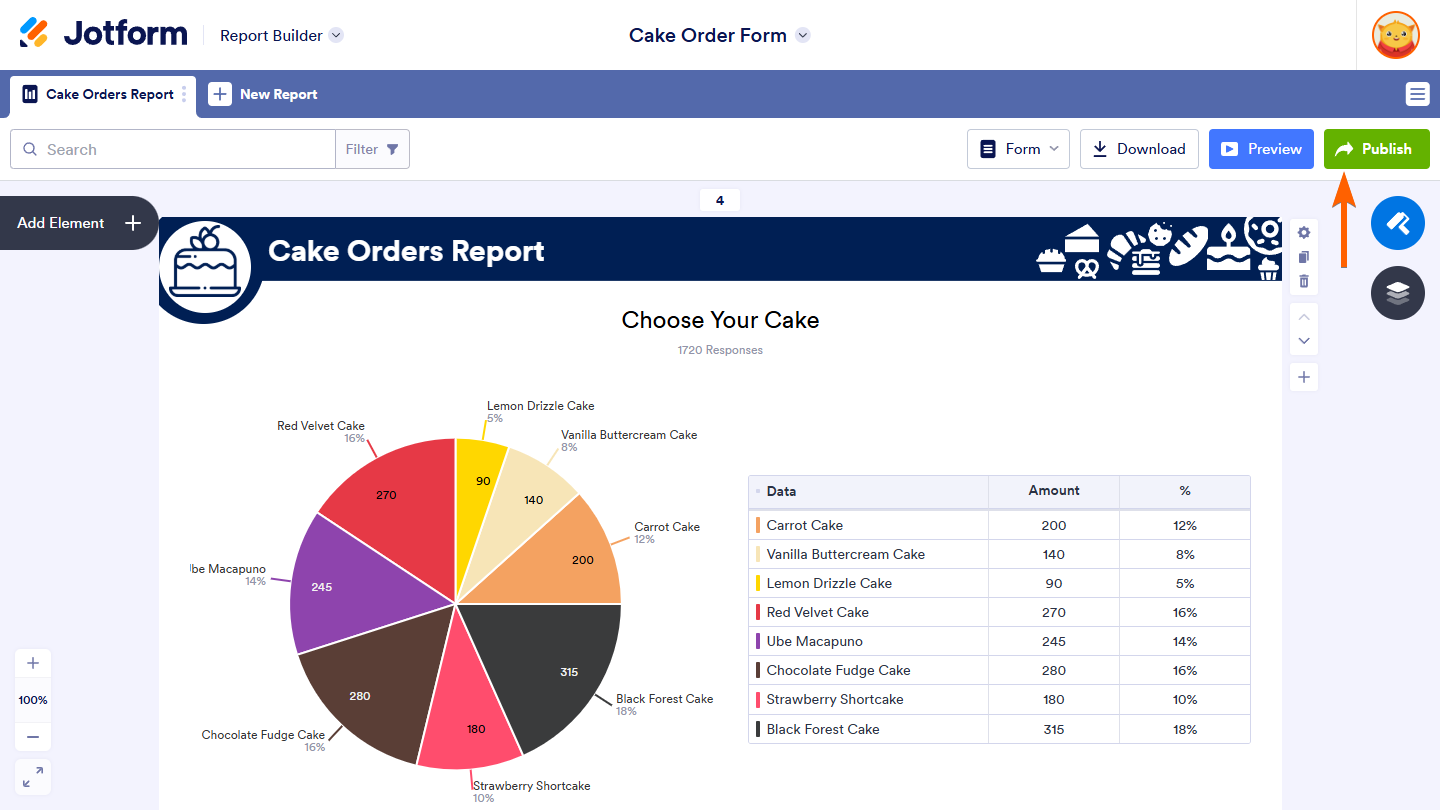
- Open the form that powers your “Rental Unit Damage Cleaning” submissions, then go to the related Visual Report in Report Builder.
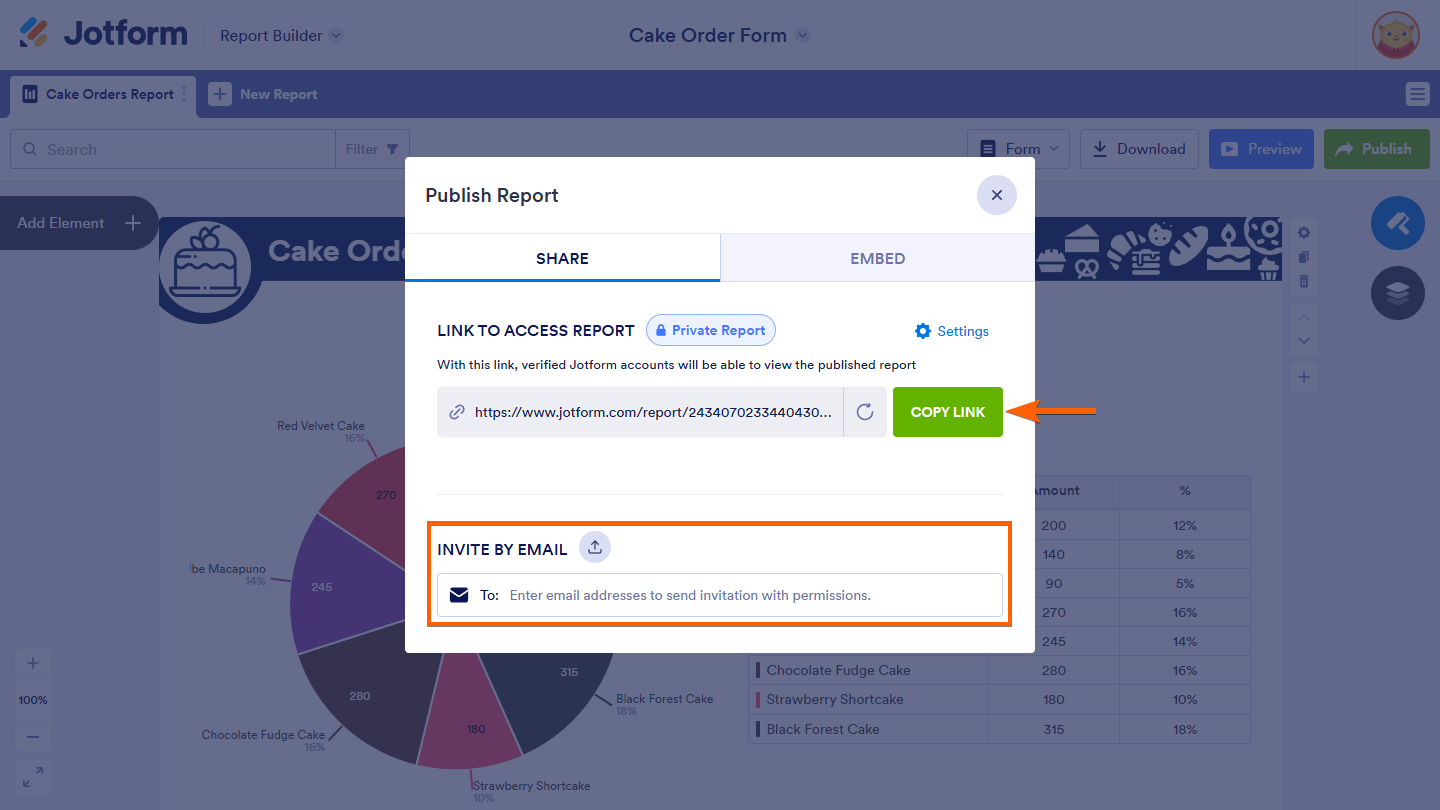
- Click on Publish on the right side of the Report Builder page.
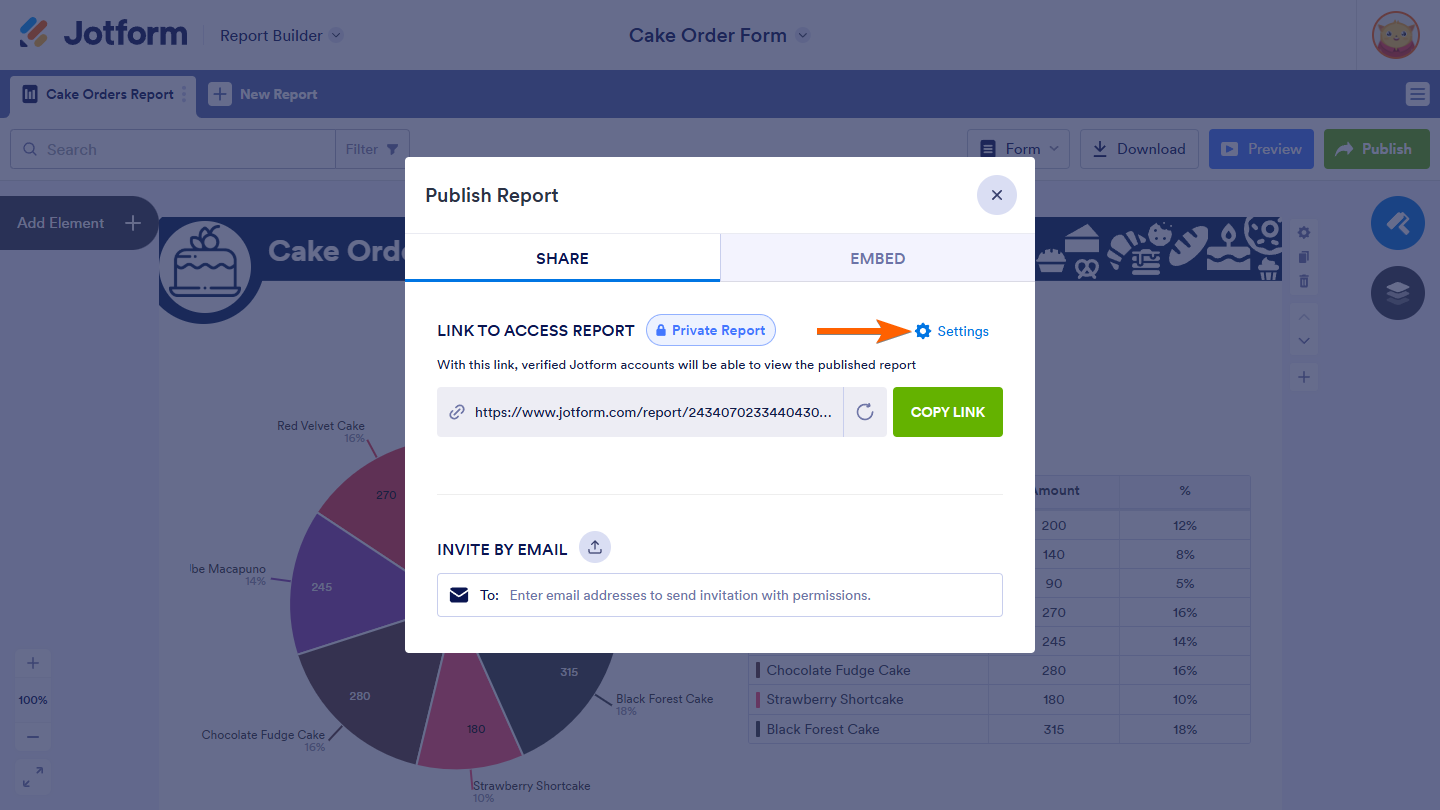
- In the Publish Report window, click on Settings next to the Link To Access Report section.
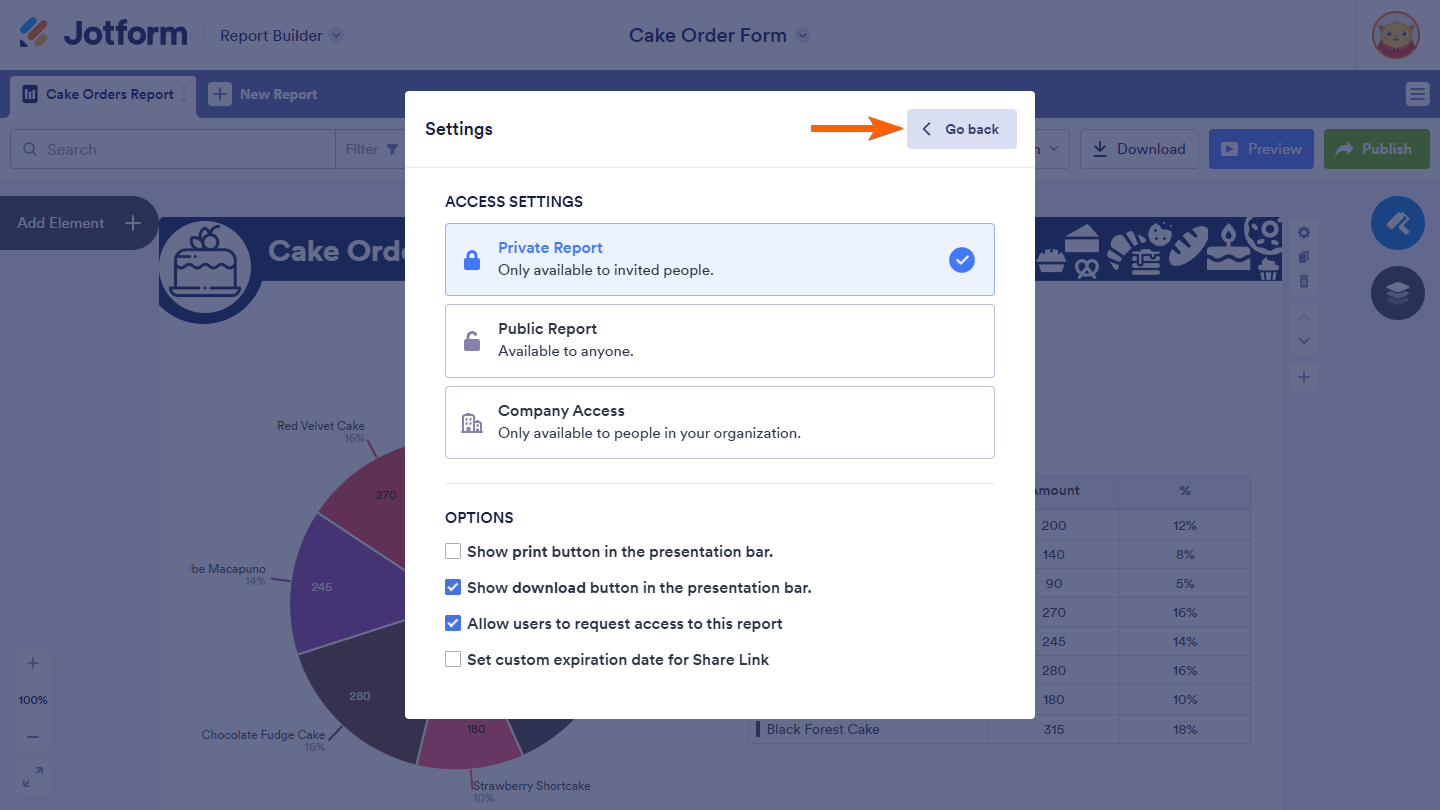
- Select an Access Setting of Public Report so that anyone with the link can view it, then click on Go Back.
- Click on Copy Link and update the URL used by the “View Rental Unit Damage Cleaning Submissions” button in your Office App with this public report link.
Here is how the sharing steps look in Report Builder:
2. If your button opens a Submission Table
When you open the table and click Share → Share Settings, there should normally be three Privacy Options: Private Table, Public Table, and Company Access. If you do not see “Public Table” at all, then only Private/Company-style access is available, and others will need to be explicitly invited or request access.
In that case, you can still allow others to access it by:
- Clicking on Share at the top-right of the table.
- Using Invite By Email to add their email address and choose a role such as Read Only.
- Sending the invitation so they can open the table from the link they receive.
To narrow this down further, it would really help if you could confirm whether that app button is linked to a Visual Report or to a Table, and if possible share a screenshot of the Share/Publish screen you see (where the access options appear). Once we hear back from you, we’ll have a better idea of what’s going on and how to help.
Let us know if you have any other questions.
-
msowners
The report I have is not a visual report, it is a table listing.
-
Podo: Support Specialist
Hi Moonspinner,
Thanks for confirming that it is a table listing.
Since your asset is a Jotform Table and you do not have a Public Table option available, the way to let others open it from your Office App without the “Not authorized” issue is to explicitly grant them access to that table via sharing and roles.
Let me walk you through it:
Step 1: Open the Share window for your table
- Open the submissions table for your “Rental Unit Damage Cleaning” form.
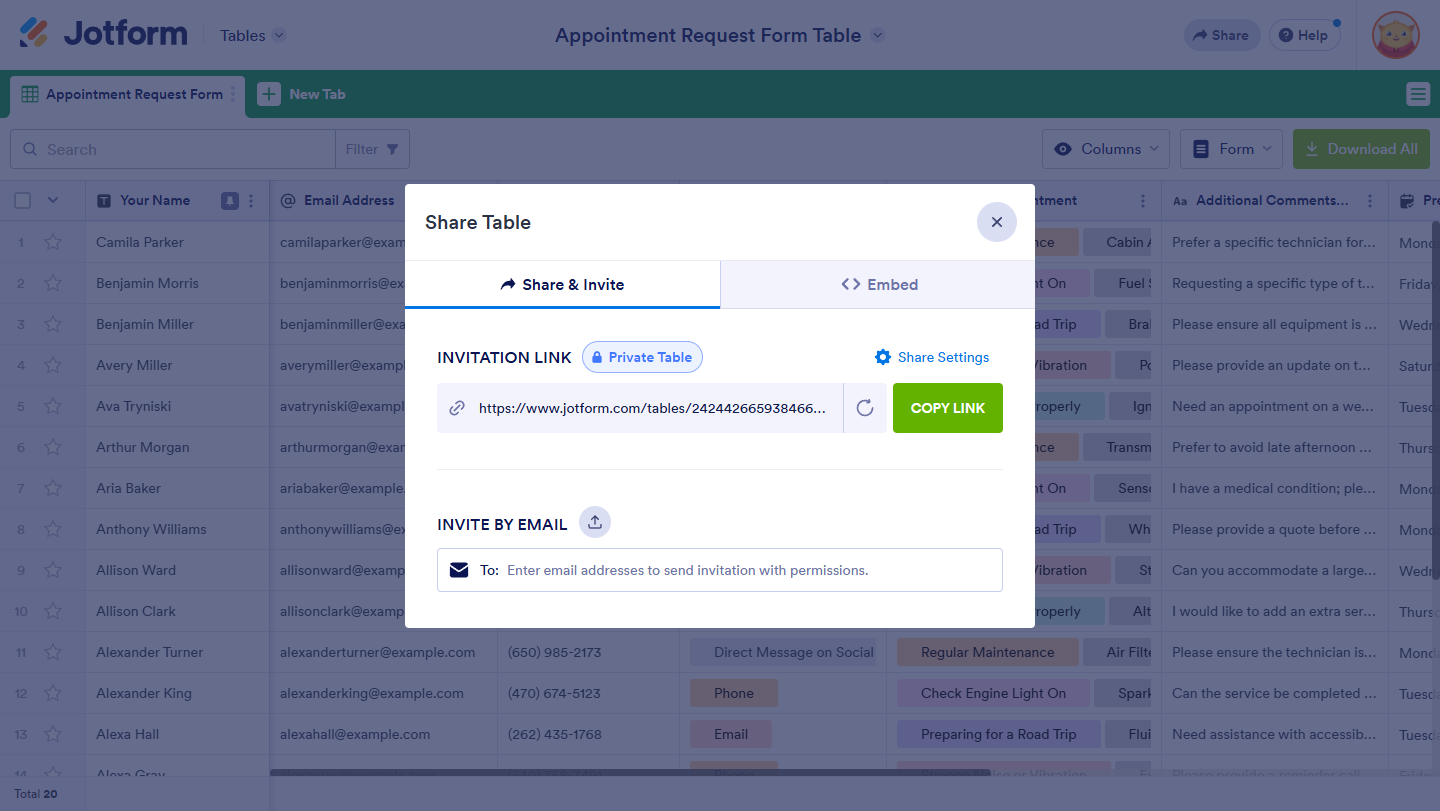
- Click on Share at the top-right side of Jotform Tables to open the Share Table window.
- In this window, you will see two main sections: Invitation Link and Invite By Email.
Step 2: Invite the specific user(s) by email
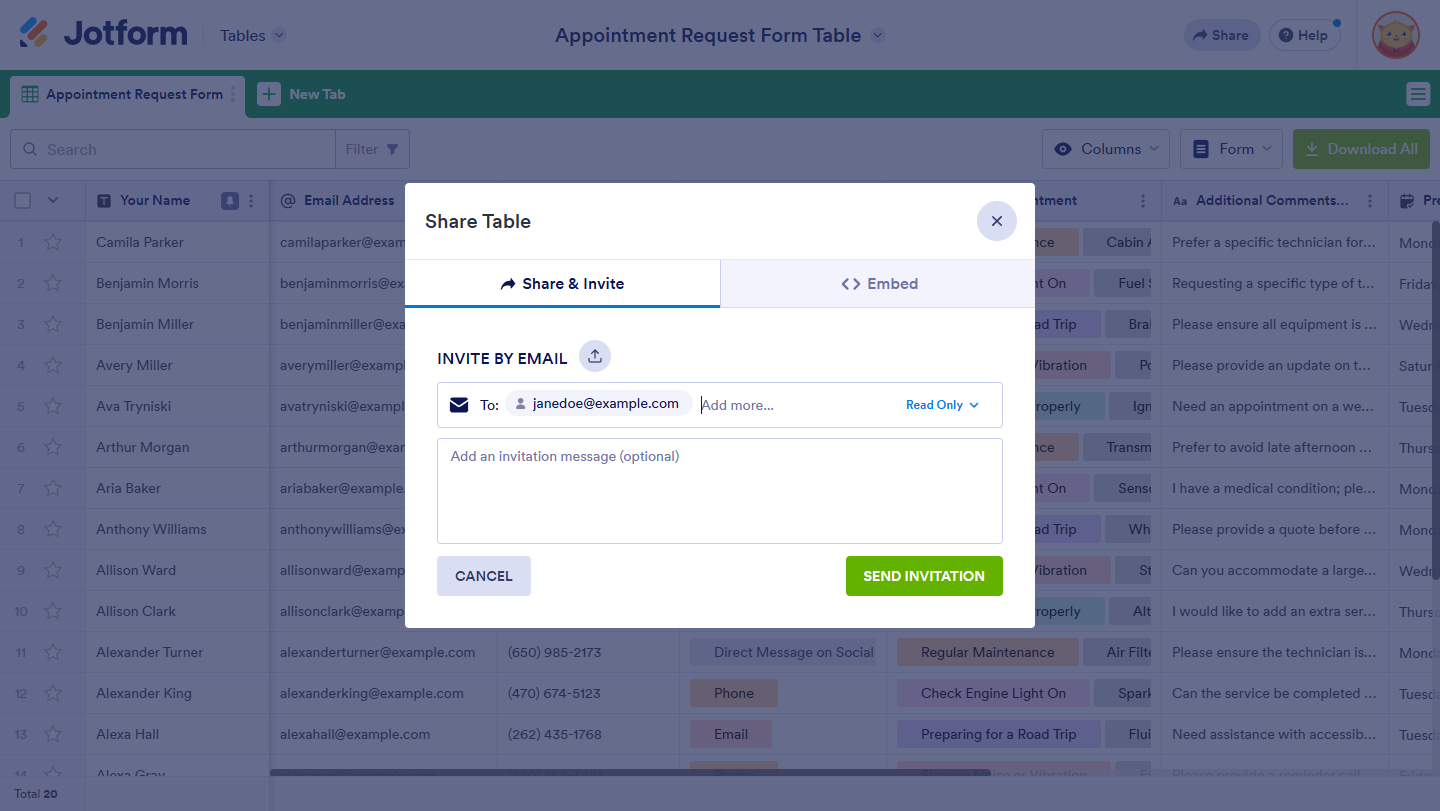
- Go to the Invite By Email section in the Share Table window.
- Enter the email address of the person using the other computer (and any other coworkers who should see this table).
- Set their permission/role (for example, Read Only if they only need to view submissions).
- Send the invitation so they receive an email with a link to access the table.
Once they accept the invitation and access the table from that email link at least once, they should be able to open the same table from the “View Rental Unit Damage Cleaning Submissions” button in your Office App, as long as they are logged into the same Jotform account that was invited.
Step 3: (Optional) Adjust privacy and default role
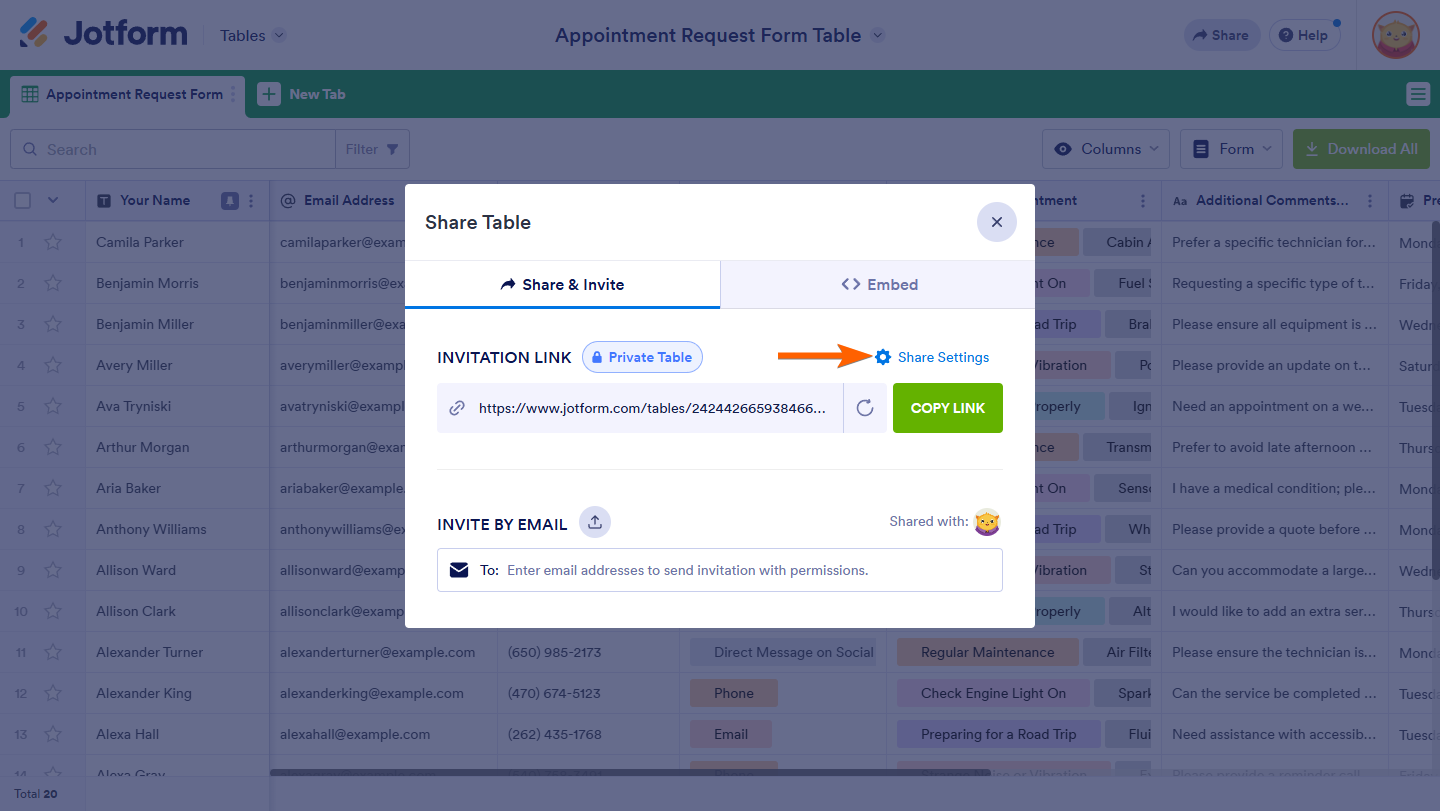
- Click on Share Settings in the Share Table window to open the settings panel.
- Check the Privacy Options shown there (for example, Private Table or Company Access) and keep the one that matches your policy.
- Review the Invitation Link Default Role (Read Only, Commenter, or Collaborator) so any new invited users get the correct level of access.
If the invited user still sees “Not authorized” after accepting the invitation, please let us know what privacy option you see in Share Settings (Private Table or Company Access) and whether they are logging in with the same email you invited, so we can narrow down the issue further.
Give it a try and let us know how it goes.

Your Reply
Something Went Wrong
An error occurred while generating the AI response. Please try again!