-
 DanaeHoncoop
Hi!
Two things:
When have noticed that making a PDF of all the form submission, it reverts back to the original form we cloned and not the current form.
We also notice that some of the words in the form are not in the emailed version of the form submission.
Please help!
Danae Honcoop
-
 Podo: Support Specialist
Hi Danae,
Thanks for reaching out to Jotform Support. I'm an AI assistant here to assist you.
Let me help you with that:
1. PDF showing the old (cloned) version instead of the current form
When you generate a PDF of submissions, Jotform uses a PDF Document layout that you can customize separately from the live form. If the PDF still looks like the original cloned version, it usually means that the PDF document was not updated after you changed the form.
Here’s how to adjust the PDF so it matches your current form:
- Go to your form’s PDF Editor (open your form, then open PDF Editor from there).
- Check the existing PDF Document: By default, a PDF document is created with the same question-and-answer pairs as your web form. If you changed fields later, the PDF layout may not have updated automatically.
- Add or remove fields so the PDF matches your current form:
- Click on Add Elements in the upper-left corner.
- Go to Form Fields and drag any missing fields into the PDF.
- Delete any fields that no longer exist or that you do not want to show.
This way, the PDF document will reflect the current version of your form instead of the older cloned layout.
2. Words missing from the emailed version of the submission
The content of your email notifications/autoresponders is controlled by the Email template, which can be edited independently from the form. If some labels or text from the form are not appearing in the email, the email template may be out of sync with your latest form changes.
Here’s how to review and update the email content:
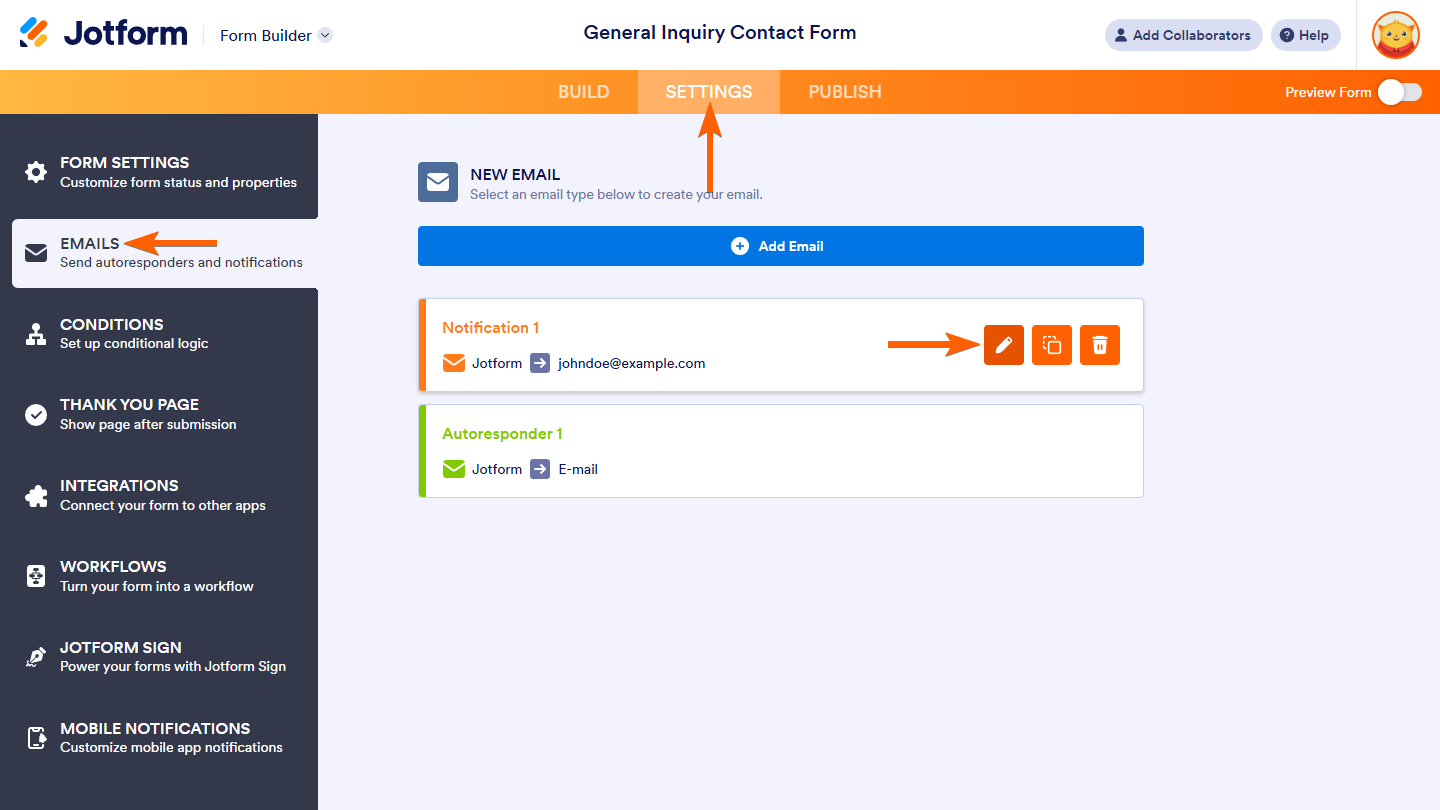
- Open your form in Form Builder and click on Settings.
- Click on Emails on the left, then hover over your Notification or Autoresponder email and click the Pencil icon to edit it.

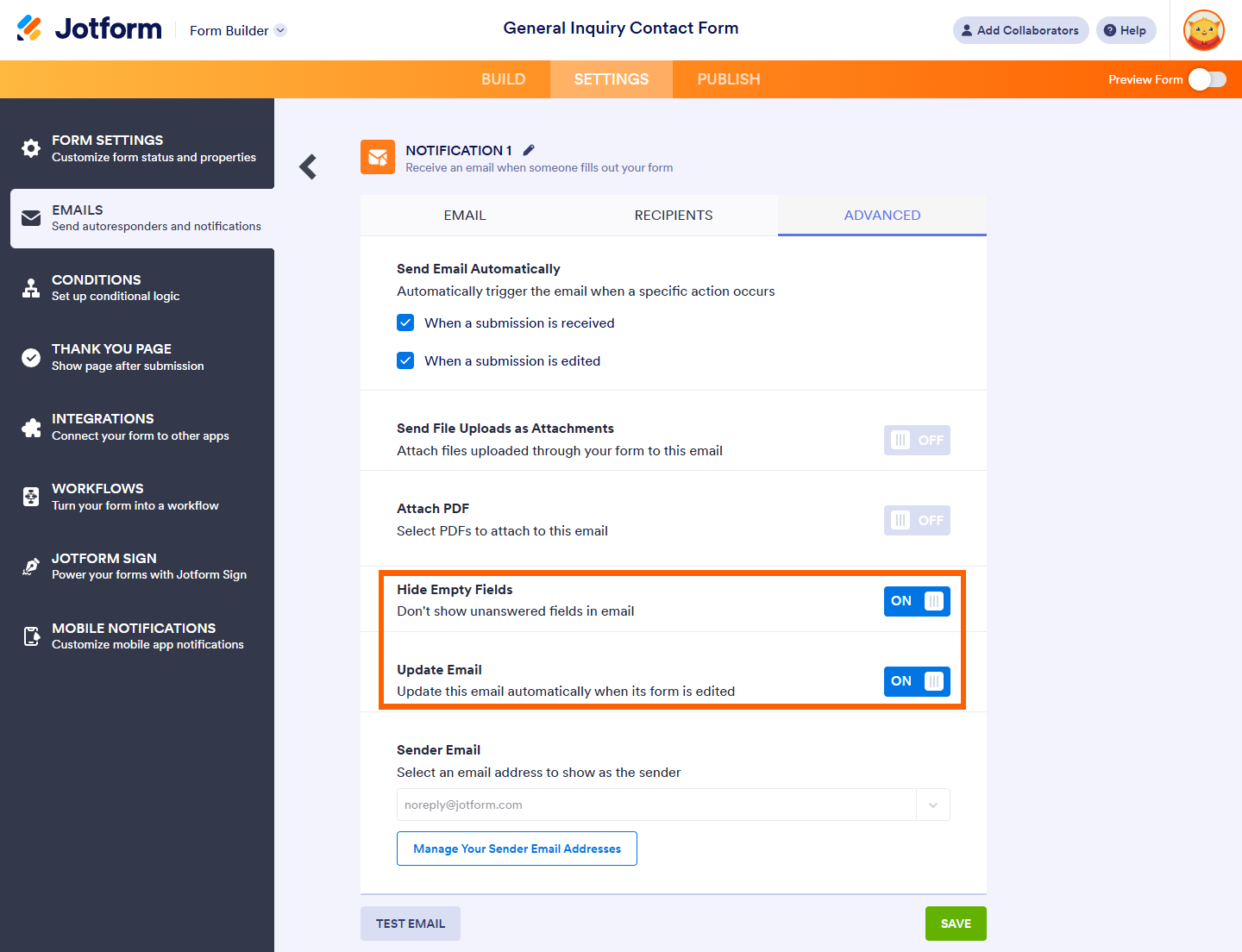
- Check the Email Content table under the Email tab:
- Make sure all the fields and text you expect are present.
- If you manually edited this table before, it may no longer auto-update when you change the form.
To keep the email and form in sync, you have two options:
- Manually add the missing text/fields into the email content (for example, type the missing labels or insert the missing field tags), or
- Reset the email content by deleting the current Notification/Autoresponder and creating a new one, so it pulls the latest form layout automatically. After that, you can customize the wording again if needed.
Also, under the Advanced tab of the email settings, there are options like Hide Empty Fields and Update Email that control whether the email table auto-updates when you change the form. If the table has been edited manually, those automatic updates no longer apply, so you may need to adjust the content yourself.
Once you align both the PDF document in PDF Editor and the email templates in Settings → Emails, your PDFs and emails should match the current form’s wording and fields.
Give it a try and let us know how it goes.
-
DanaeHoncoop
None of these worked.
-
Podo: Support Specialist
Hi Danae,
One of our Support Team members will take it from here to follow up shortly.
Let us know if you have any other questions.
-
 Camila JotForm Support
Hi Danae,
Can you send us a screenshot of the fields that do not match your PDF document? You can upload it to Google Drive, Dropbox, or record with Loom and send us the link. Let me take a look at this for you. To do that, we’ll need your permission to access your account. Don’t worry, you can turn it off again once we’re done. Let me show you how to do it:
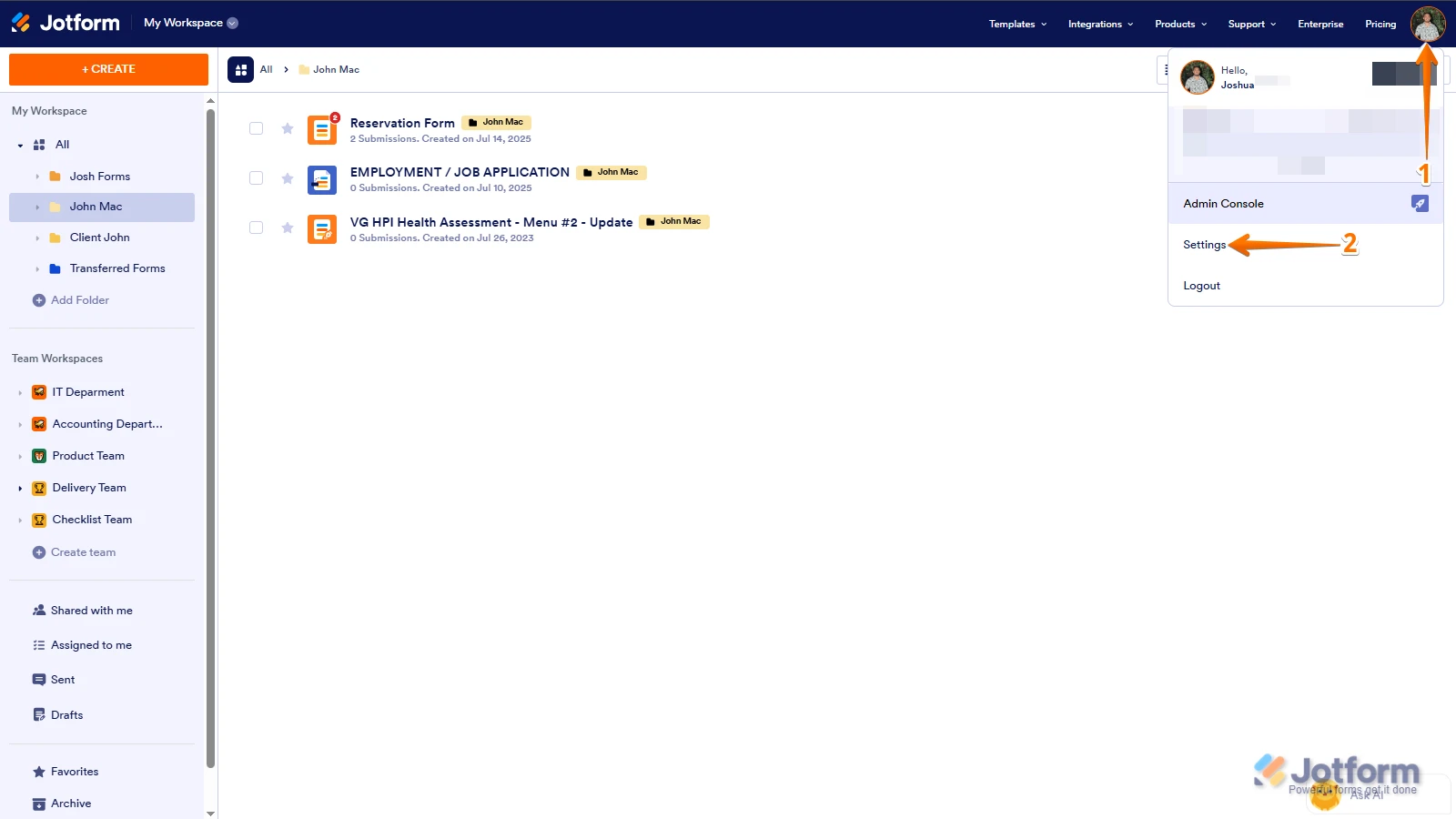
1. In the top-right corner of your Workspace page, click on your Avatar/Profile Image icon.
2. Then, in the Dropdown menu that opens, click on Settings.
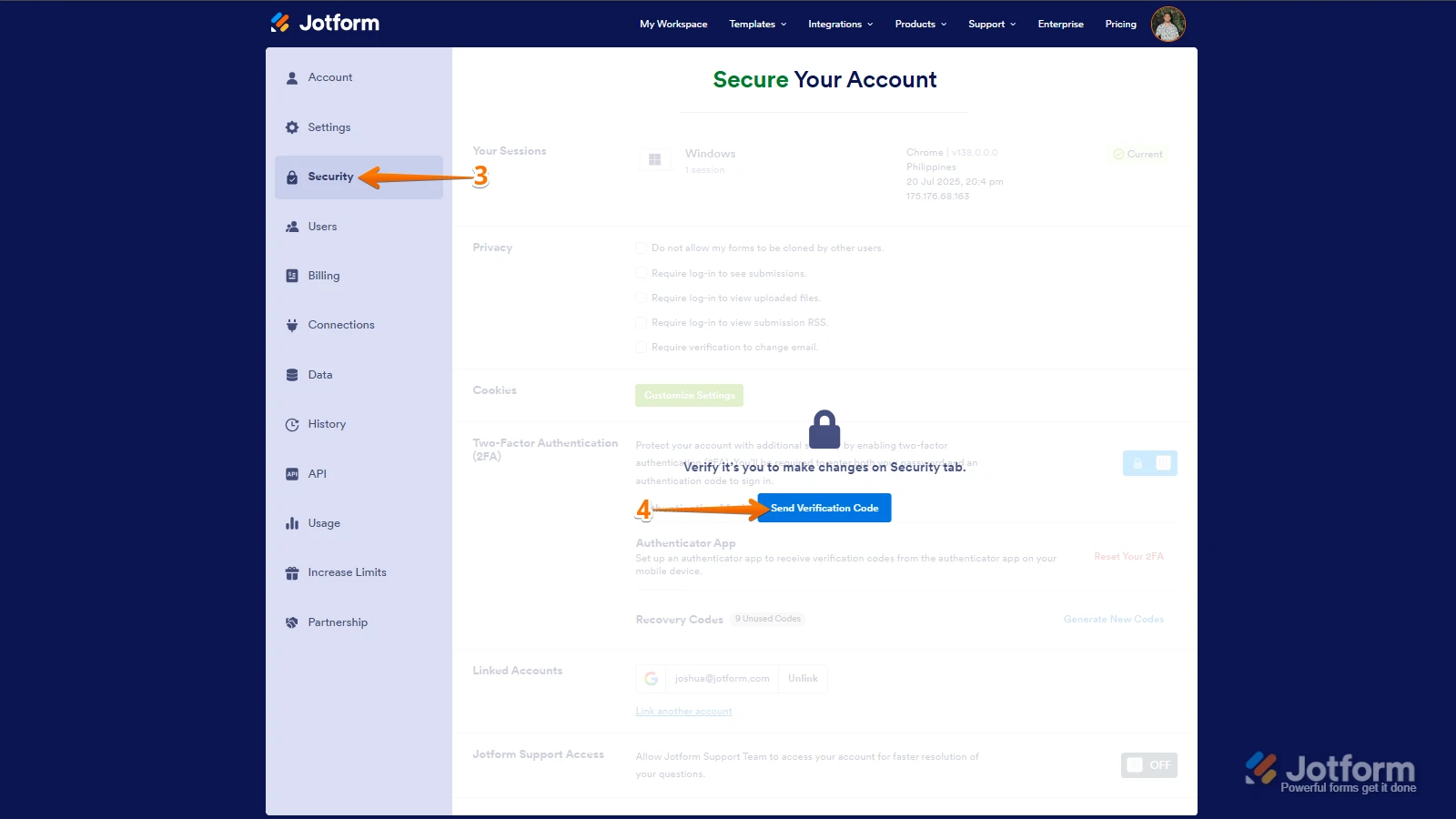
3. Next, in the panel on the left, click on the Security tab.
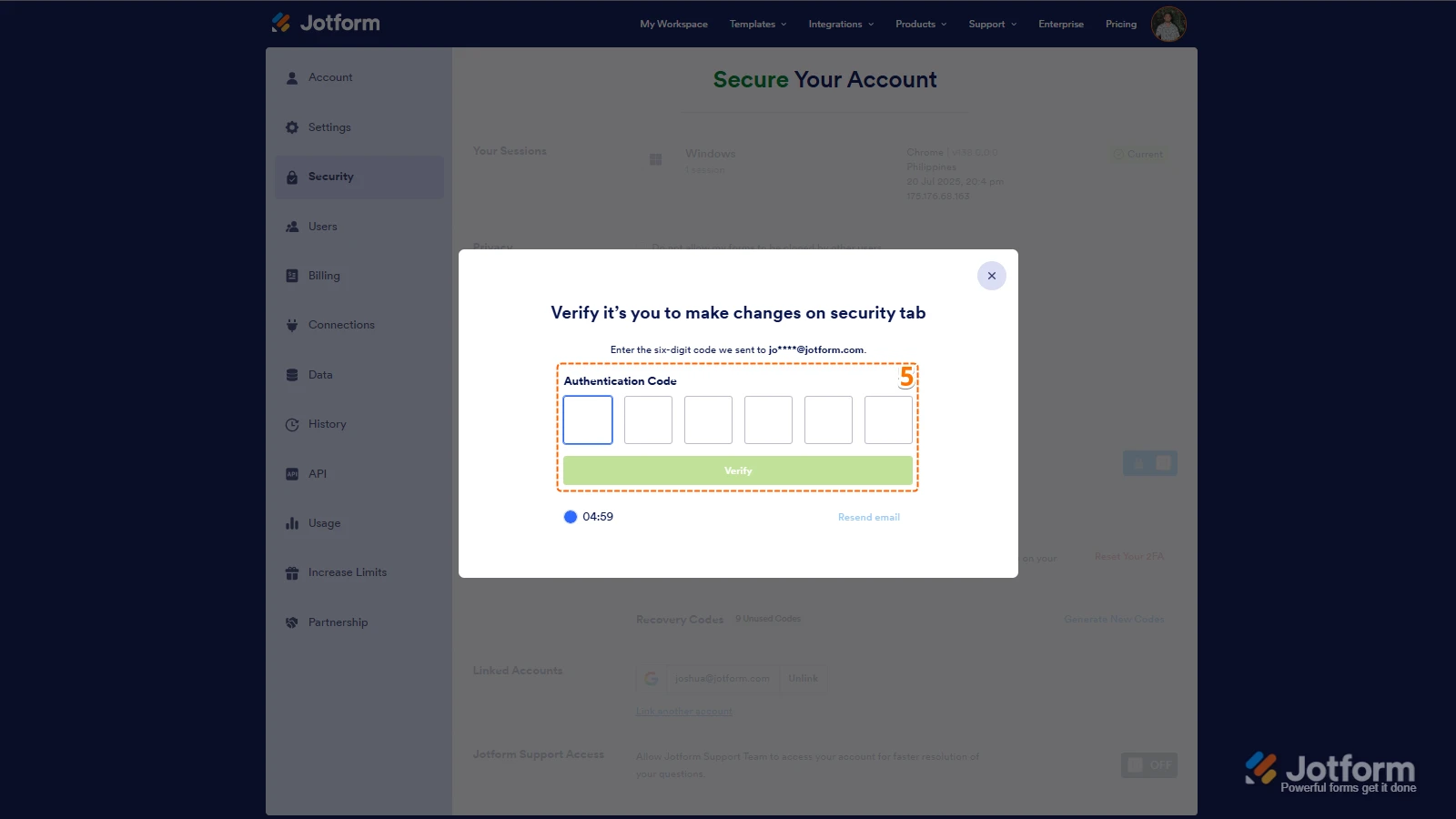
4. If you haven’t opened your Security page in a while, it’ll ask you to verify. To do that, click on Send Verification Code.
5. Then, enter the Verification Code you receive in your email.
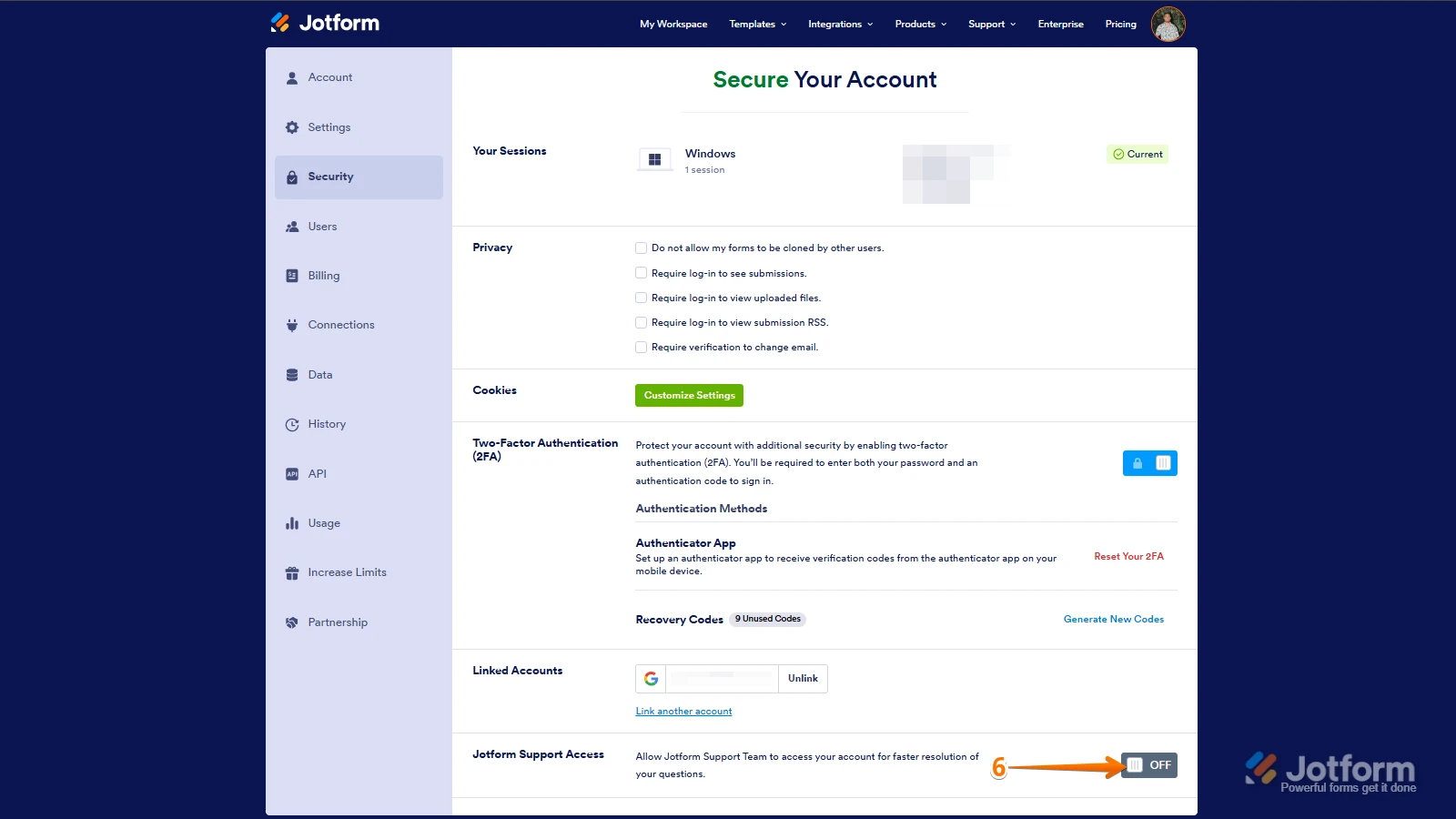
6. Finally, at the bottom of the page, toggle on Jotform Support Access.
After we hear back from you, we’ll have a better idea of what’s going on and how to help.
 After we hear back from you, we’ll have a better idea of what’s going on and how to help.
Your Reply
Something Went Wrong
An error occurred while generating the AI response. Please try again!