-
 jotformadmin931
Hi, i really need to talk to an agent. Our form is close to being rolled out and I am very stressed about the following errors:
1. Sometime during editing with AI, i caught him deleting some features such as the save and submit buttons and I asked him to redo it.
2.
Save function does not happen when I am in the middle of the form3.
Request Time Out when end users submit.I am already going crazy trying to figure this out and my job depends on it. I need to get this sorted ASAP please.
Page URL: https://form.jotform.com/261313268461454 -
 Podo: Support Specialist
Hi Jotform,
One of our Support Team members will take it from here to follow up shortly.
Reach out again if you need any other help.
-
 Mary JotForm Support
Hi jotformadmin931,
Thanks for reaching out to Jotform Support. I checked and currently, the Save and Submit button are showing in your form:
 Are you still having issues with the AI Agent deleting these features? If yes, can you capture a video of what’s going on and share it? Loom works great, or you can upload it to Google Drive or Dropbox.
I’ve gone ahead and moved your other questions to separate threads to keep things tidy, and someone from our Support Team will help you with them here:
Save feature does not work when I am in the middle of the form
Request Time Out when end users submit the form
Once we hear back from you, we can get moving on a solution.
-
jotformadmin931
Hi, yes I already cleared the cache and deleted and inserted back the Save and Submit button. i I try to save it for the first time in the later part of the form, it says it can not save it. (is it due to heavy load)? and also, when I am in the last page, instead of seeing submit button, it says "please wait" even if I havent clicked it yet. the submissions go to my email and sharepoint.. but the end users can not see the thank you page where they can download the PDF that says "Full Stadium Information Form". they need to see the thank you page and download the PDF
-
jotformadmin931
I have not pressed submit at this point.
Please give it a try.
-
 Eliza Enterprise Support
Hi jotformadmin931,
I cloned your form and tested it to see if I could replicate the issue, but everything worked the way it was supposed to. Check out the screencast below to see my results:
Since we're unable to reproduce the issue, can we ask for your permission to make a test submission on your live form? This will only count as 1 submission against your submission limit.After we hear back from you, we'll be able to move forward with this.
-
jotformadmin931
yes please make a submission on our live form to test it. And please upload the necessary photos in all the fields which we ask for photos please.
Thank you,
-
Eliza Enterprise Support
Hi jotformadmin931,
I just made a test submission on your live form, and I put Jotform Test in most of the fields so you would know it's from us. I uploaded photos as well, as you specified, and it went through without any issues. Here's a screencast of my results:
Once we hear back from you, we can get moving on a solution.
-
jotformadmin931
Hi, the Jotform is not embedded in any website. But it will be in a link in a PDF letter, which we will send out to roughly 70 to 100 recipients.
Please see the latest video of my upload just now when I created a clone and submitted it too. The thing is that the submissions are emailed to us and we receive it. but the problem is that I am not able to see the Thank you Page. Even two of my colleagues who I asked to do it also never saw the thank you page. They also got a request timeout.
-
Eliza Enterprise Support
Hi jotformadmin931,
Can you confirm if you've already tried using another browser or clearing your browser's cache and cookies? Also, if possible, can you try using another device or connecting your device to a different Wi-Fi or Internet connection?
If the same thing happens after doing these, we'll be needing a screenshot of your browser's Console Report. Our guide on How to Post Screenshots to Our Help Center will help you do that.
After we hear back from you, we can take the next step toward solving this.
-
jotformadmin931
Hi, yes ive tried it in my phone. and also two of my colleagues have tried it and it really was not a smooth experience for them. both of them have not accessed the thank you page. I have the original form in another jotform account, I plan to test it also again and just put in the recent edits I have made. does that seem feasible?
-
 Rica Support Team Lead
Hi jotformadmin931,
You can do that or you can clone the updated form on the other account. Cloning an Existing Form From a URL is easy. Let me walk you through it:
1. On your Workspace page, click on Create on the top-left side of the page.
2. Select Form from the assets, and then click on Import Form.
3. In the next window, click on From a Web Page.
4. Paste the form link into the Enter URL field and click on Create Form.
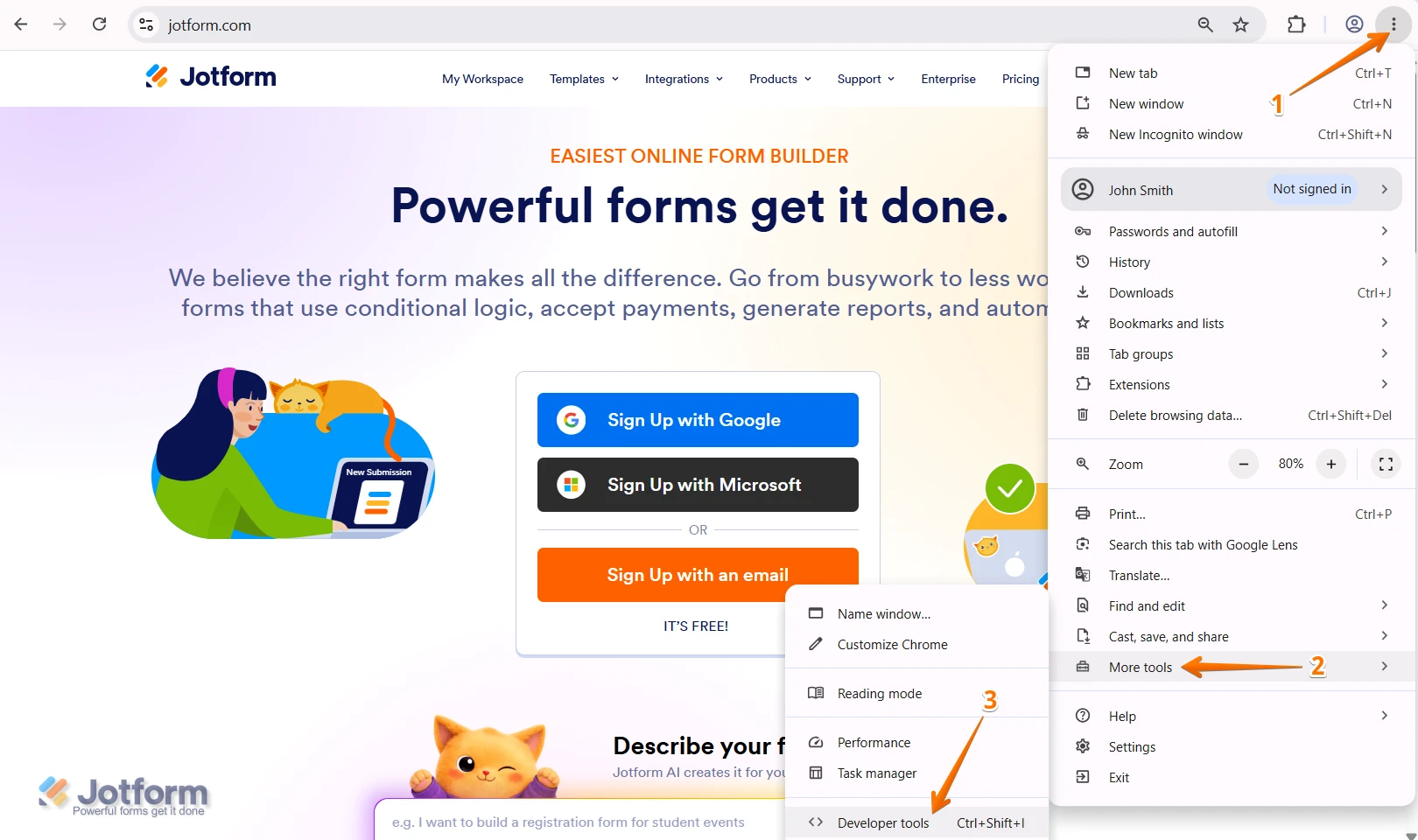
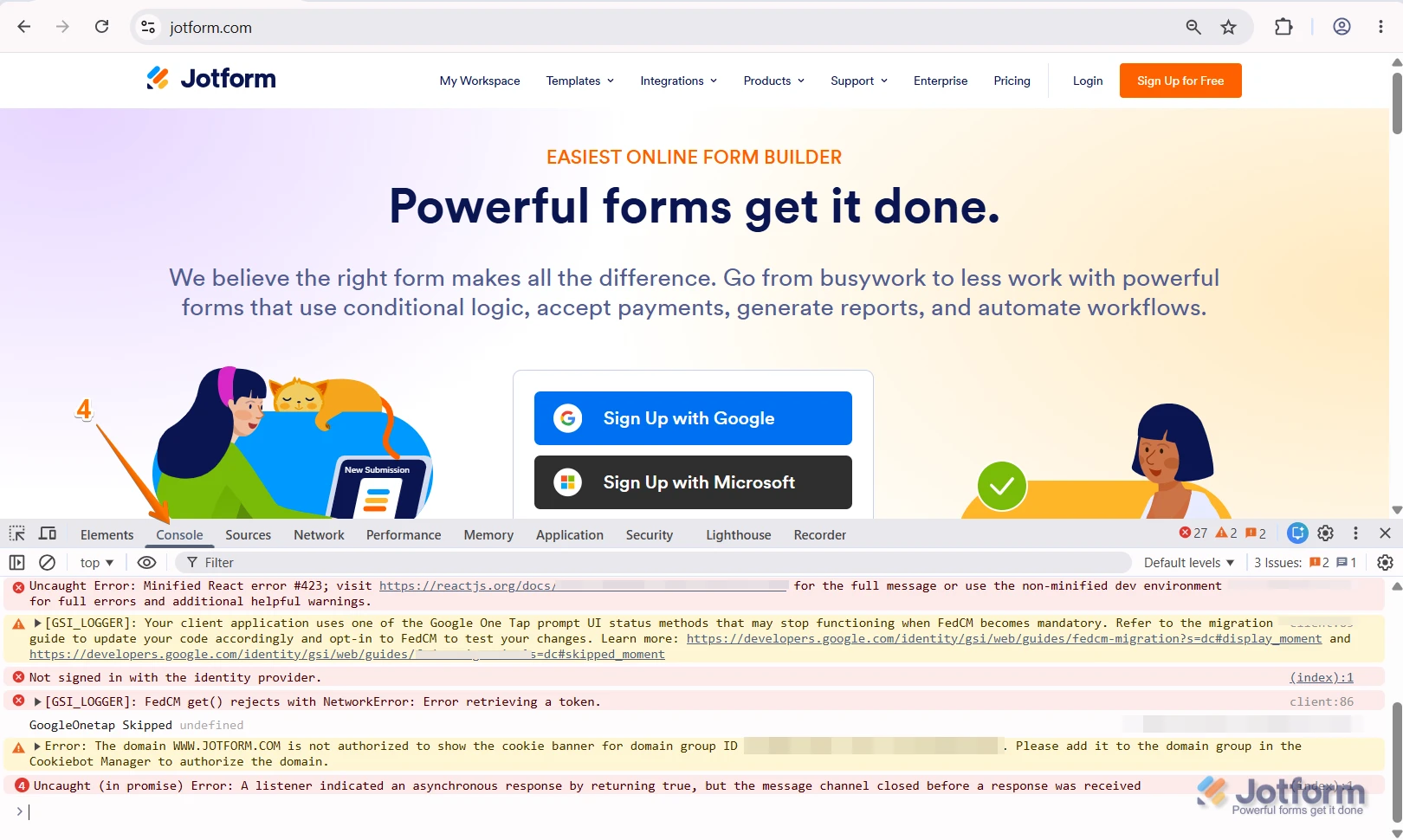
If you'll get the same error when testing the original or clone form on the other account, can you share the console logs with us? It will help us better understand what’s happening in the background. Here’s how to get them in Chrome:
1. On the page where you’re having the issue, click on the Three Dots icon in the top-right corner of the Chrome browser.
2. Then, in the menu that opens on the right side of the page, hover your mouse over More Tools.
3. Next, in the menu that opens, click on Developer Tools.
4. Now, in the Developer Tools window, click on the Console tab and then take a screenshot of everything you see there.
After taking a screenshot of the console log, the next step is to post it in the Help Center. Here’s how to get going:
1. On the Help Center page, scroll down to the Your Answer section and click on the Image icon.
2. Drag and drop your image into the Upload box, or click on it and select your file.
3. Then, click on the Add button in the bottom-right corner of the window.
4. To resize it, click on your screenshot and then click on one of the boxes in the corners, and drag it inward.
5. Once you're finished, click on the Post Answer button at the bottom right of the Your Answer section.
That's it. Once we hear back from you, we can help you sort this out.

 Are you still having issues with the AI Agent deleting these features? If yes, can you capture a video of what’s going on and share it?
Your Reply
Something Went Wrong
An error occurred while generating the AI response. Please try again!