-
 Jorge_Lopez_jrlopez
I am trying to upload multiple documents to SharePoint and use the form fields as properties on those documents.
-
 Podo: Support Specialist
Hi Jorge,
Thanks for reaching out to Jotform Support. I'm an AI assistant here to assist you.
You can connect your form to Microsoft SharePoint and have Jotform automatically send uploaded documents there. However, based on the available information, SharePoint integration currently supports:
- Sending files from your form to a SharePoint Document Library.
- Adding rows to a new or existing SharePoint List, where form fields become list columns.
There is no documented option to map Jotform fields directly as document library column properties/metadata on each uploaded file (for example, setting SharePoint document library columns from form fields). The metadata-style mapping that exists in our documentation is specifically for the Box integration, not SharePoint.
Let me walk you through what you can do with the SharePoint integration:
A. Send uploaded files to a SharePoint Document Library
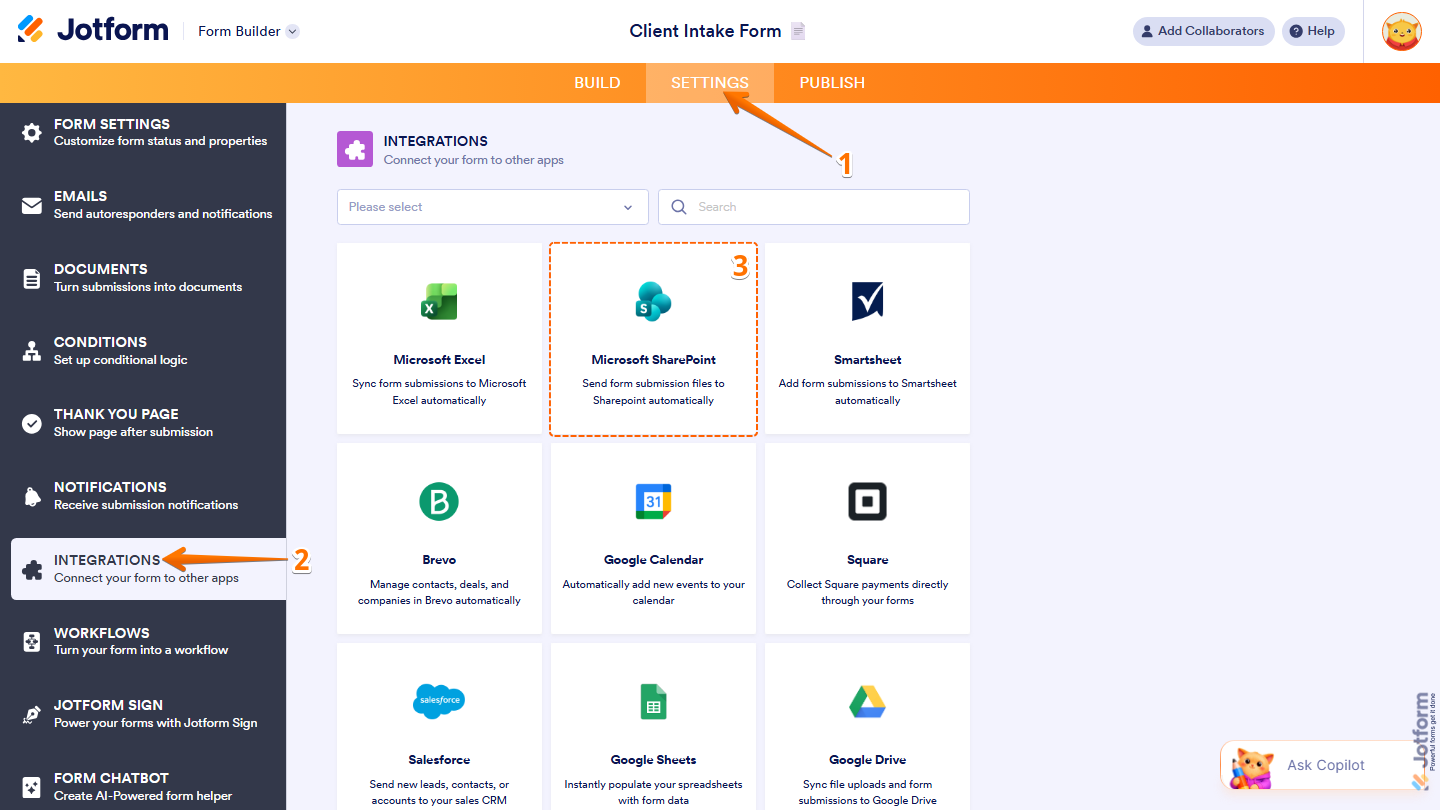
- Go to your form in Form Builder, then click on Settings in the orange navigation bar.
- Select Integrations from the left menu and search for Microsoft SharePoint, then click it.

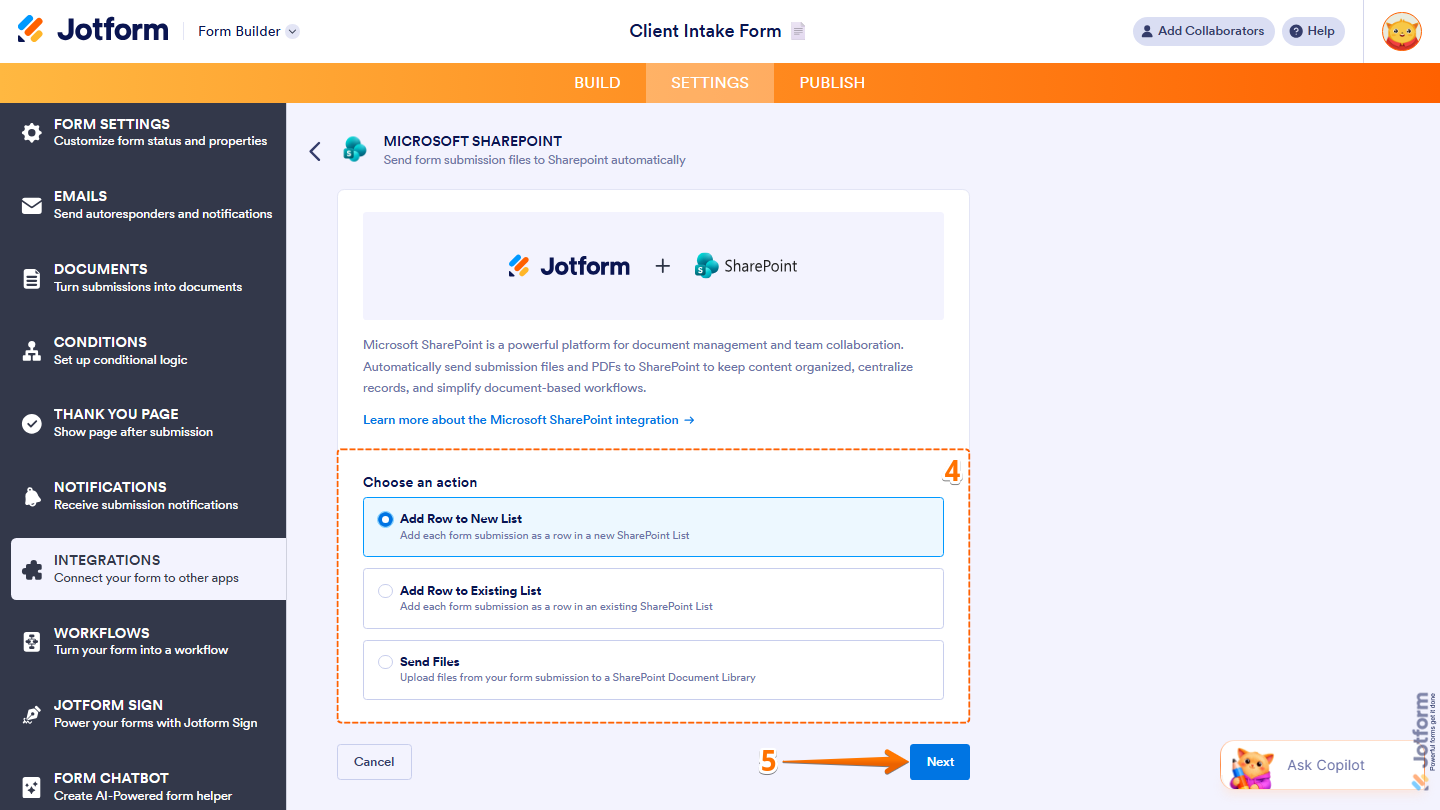
- In the Choose an Action section, select Send Files to upload files from your form to a SharePoint Document Library, then click Next.
B. Authenticate and configure where submissions go
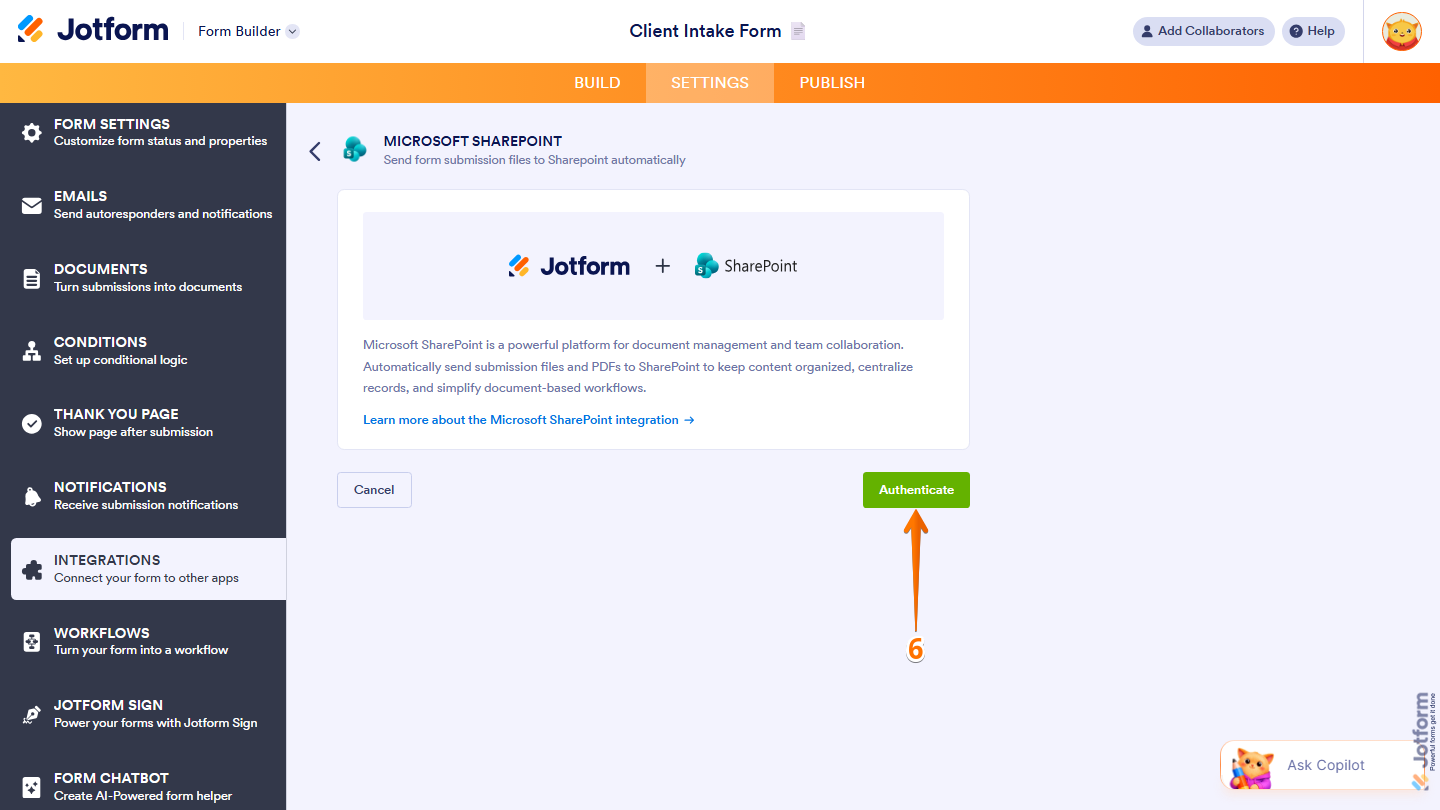
- Click on Authenticate and log in to your Microsoft SharePoint account.
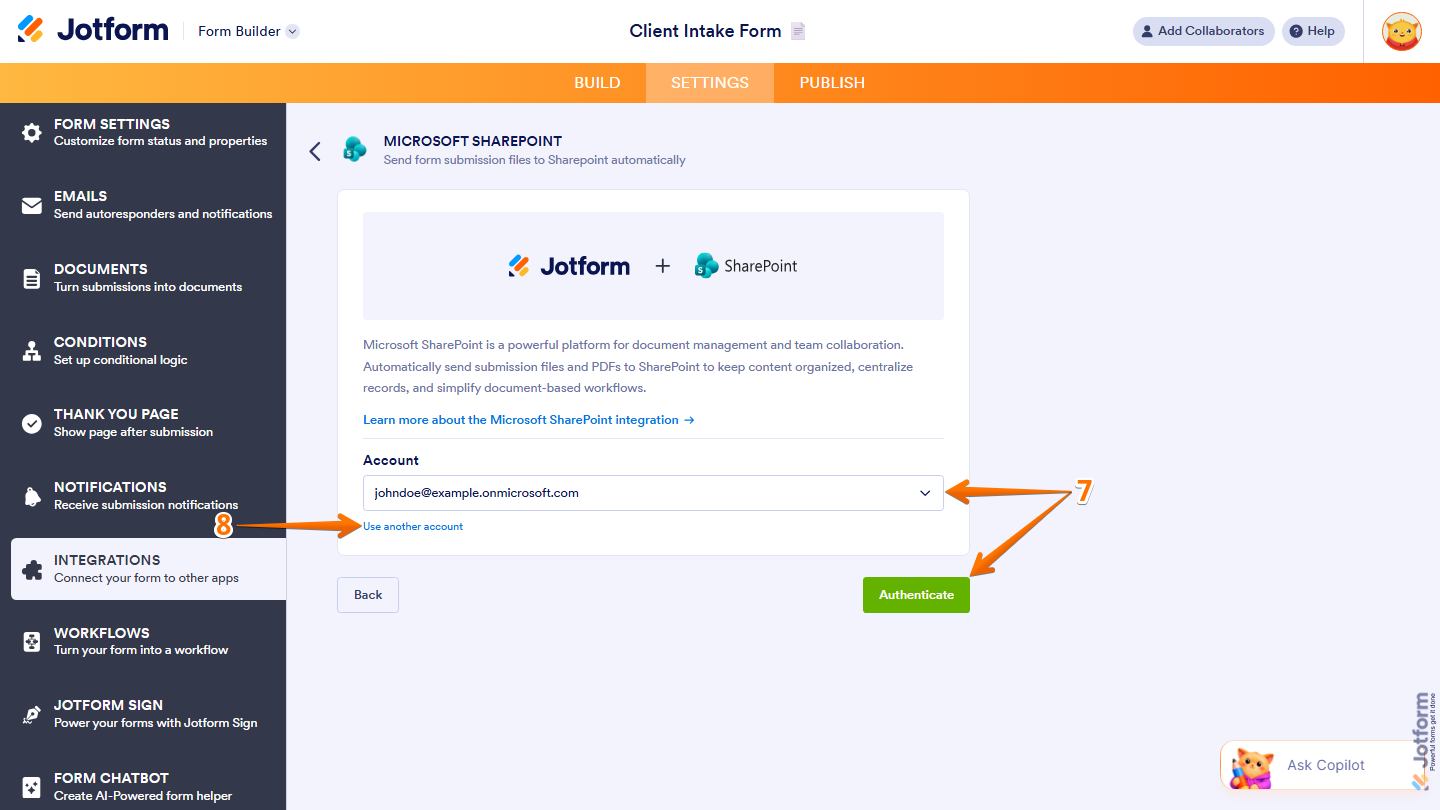
- If you have used SharePoint before in other forms, you can select an existing account from the dropdown and click Authenticate, or choose Use Another Account to connect a different one.
- After authentication, for the Send Files action, configure the target Site and Document Library/Folder where the uploaded files should be stored (the interface will guide you through these options).
C. Use a SharePoint List if you need field-level data
While you cannot map form fields as document properties on each file, you can still capture all form data in SharePoint by using a List:
- In the same integration setup, choose either Add Row to New List or Add Row to Existing List.
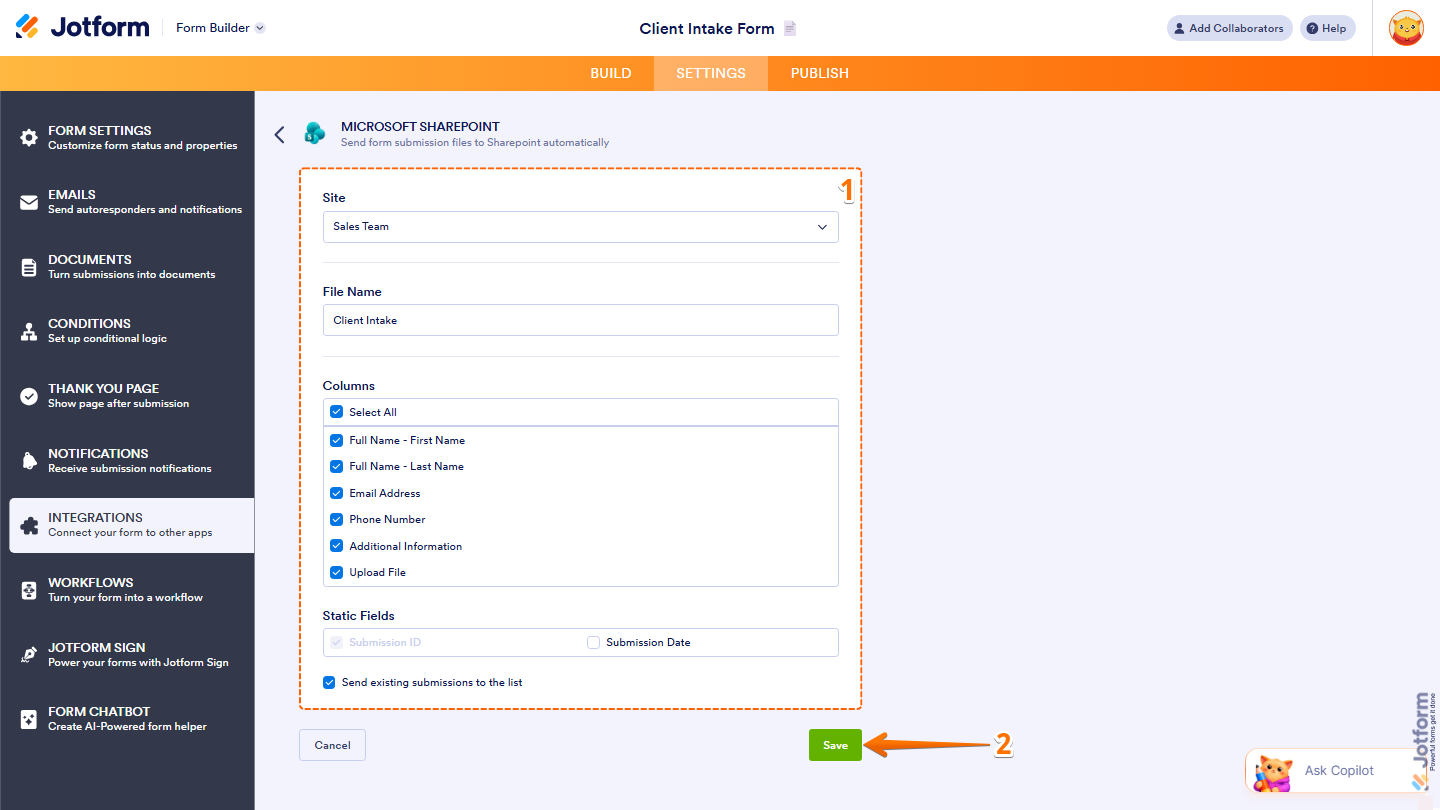
- Select the Site, define the File Name (for the list item), and under Columns, map your form fields to SharePoint list columns. You can select all fields at once if needed.
- Optionally enable Send Existing Submissions to the List if you want previously collected submissions to be sent as well, then click Save.
With this setup, you can:
- Store the files in a SharePoint Document Library via Send Files.
- Store the form field values (which you might otherwise want as document properties) in a SharePoint List via Add Row to New/Existing List.
However, there is no documented waycolumn metadata on each uploaded document within the document library through the integration.
If you can share more about how you need the properties to appear in SharePoint (for example, specific column names and how you plan to use them), we can help you refine the best achievable setup using Lists plus file uploads.
Let us know if you have any other questions.
-
 Keenly JotForm Support
Hi Jorge,
While our AI assistant shared some information on how to set up the Microsoft SharePoint integration, we’d like to ask for more details about what you’d like to do when you mentioned using the form fields as properties on the uploaded documents to SharePoint. Could you also clarify what specific action you want to create? This will help us take a closer look and better understand your setup.
After we hear back from you, we’ll know what’s going on and how to help.

Your Reply
Something Went Wrong
An error occurred while generating the AI response. Please try again!