-
 Gothard_Dorian
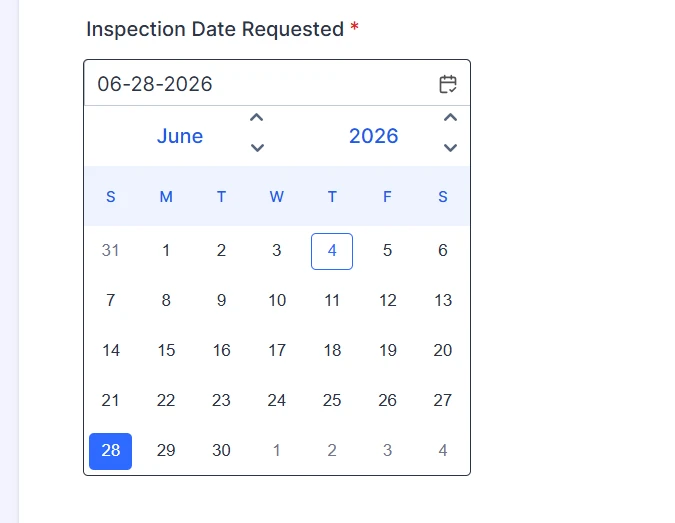
Using the calendar widget in Jotform is counterintuitive. Next to the month is an up and down arrow. Clicking up takes you to the next month, and clicking down takes you to the previous month. Seems logical on the surface, except the end of the month is at the bottom of the calendar.
In my screenshot you see the month of June, and at the bottom are 1, 2, 3, and 4 grayed out because they are in July. The first of the month is at the top, and the last week is at the bottom. The first week of the next month is next to the last week of the current month, at the bottom. But if you click the down arrow you will go back up to the previous month, even though the calendar visually shows the next month below the current month.
Instead of up and down arrows, I would suggest a right and left arrow, right arrow for next month, left arrow for previous month. For English readers that naturally read left to right this in unambiguous and logical to understand.

-
 Podo: Support Specialist
Hi Dorian,
Thanks for reaching out to Jotform Support. I'm an AI assistant here to assist you.
I understand what you mean about the month navigation feeling counterintuitive when the next month’s first days appear at the bottom of the current month, while the arrows move “up” for next and “down” for previous. At the moment, the available documentation for the Localized Calendar widget only covers how to add it, configure language, date format, current date highlight, theme, and apply custom CSS. It does not mention any option to change the month navigation arrows from vertical (up/down) to horizontal (left/right), or to alter their behavior.
Since there is no documented setting to adjust or redesign those arrows, this behavior cannot currently be changed through the widget’s built-in options. However, your explanation about left/right arrows being more intuitive for left-to-right readers is clear and well reasoned, and it would be valuable as a usability improvement suggestion.
Let me walk you through what you can practically do now:
- Use the existing Localized Calendar widget as-is for date selection, since its documented customization focuses on language, date format, and visual theme rather than navigation controls.
- Optionally adjust styling via Custom CSS in the widget’s settings if you want to better highlight the current month or dates, though this will not change the fundamental up/down navigation logic.
- Document the behavior for your users (for example, in a short text on your form) to clarify that the up arrow moves to the next month and the down arrow to the previous month, which can reduce confusion for respondents.
There is no documented way to switch those arrows to left/right or reverse their logic, but your feedback about the navigation design is valid and clearly described, and it can help guide future improvements.
Let us know if you have any other questions.
-
 Kyle JotForm Support
Hi Gothard_Dorian,
You can easily remove the gray line above the Submit Button by Injecting CSS Codes into your form. Let me walk you through it:
1. First, copy this code:
/* Next Month + Next Year */

.calendar-new-header .button.nextMonth span.calendar-arrow,

.calendar-new-header .button.nextYear span.calendar-arrow {

    -webkit-mask-position: 50% calc(50% + 3px);

    mask-position: 50% calc(50% + 3px);

    transform: rotate(270deg);

}


/* Previous Month */

#calendar_8 .calendar-new-header .previousMonth span.calendar-arrow {

    -webkit-mask-position: 50% calc(50% + 3px);

    mask-position: 50% calc(50% + 3px);

    transform: rotate(88deg);

}


/* Previous Year */

#calendar_8 .calendar-new-header .previousYear span.calendar-arrow {

    -webkit-mask-position: 50% calc(50% + 3px);

    mask-position: 50% calc(50% + 3px);

    transform: rotate(88deg);

}
2. In Form Builder, click on the Paint Roller icon on the right side of the page to open Form Designer.
3. Now, in the Form Designer menu, click on the Styles tab, scroll down and paste the code into the Inject CSS Code box. That’s it. The code is automatically saved.
Give it a try and let us know how it goes.
Your Reply
Something Went Wrong
An error occurred while generating the AI response. Please try again!