-
 blingmeout415
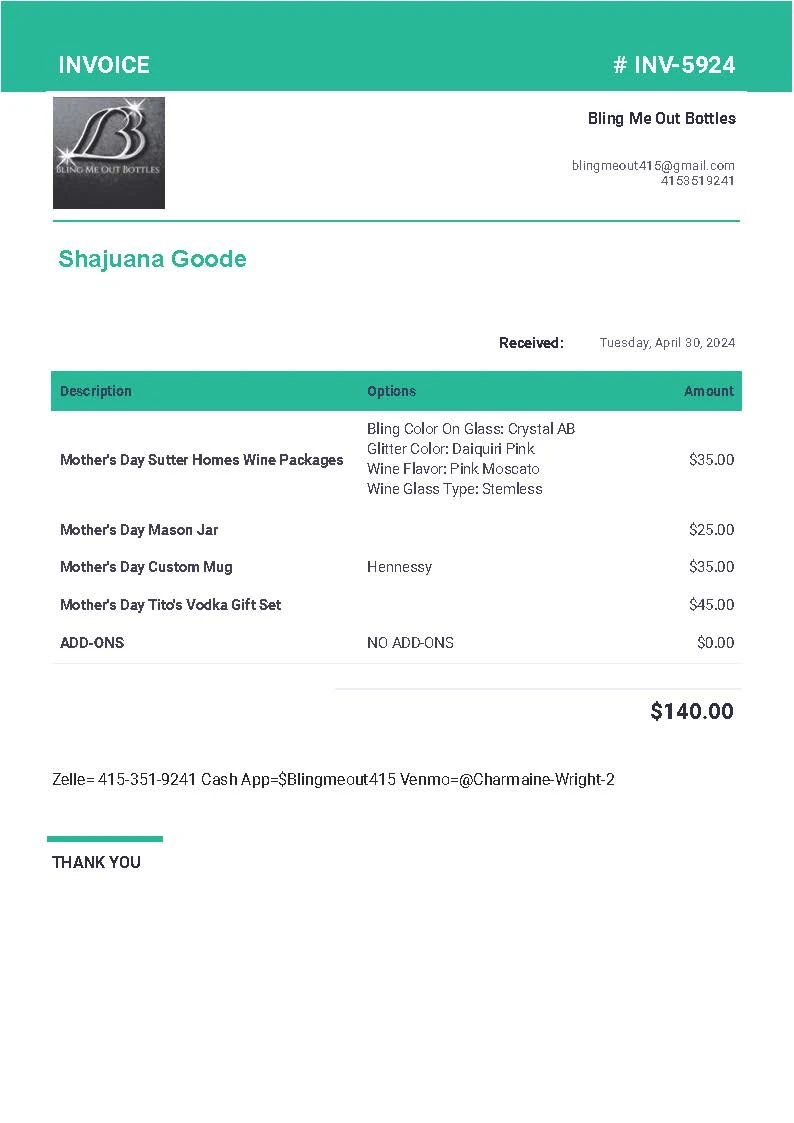
Hello, previously when the invoices would come to me , the PDF would show the details with pricing breakdown, products/items, customer information, for some reason it is no longer showing any of this, and also the invoice copies are not being emailed to customer as they were before. Can we fix this? I have uploaded 2 comparison images how it would show the details before, and how it is doing now. Thank you

-
 Podo: Support Specialist
Hi Bling,
Thanks for reaching out to Jotform Support. I'm an AI assistant here to assist you.
From your description, there are two things going on: the invoice PDF no longer shows the detailed breakdown, and customers are no longer receiving their invoice copies by email. Both are controlled by the invoice feature on your payment form and how it is attached to your emails.
Let me walk you through what to check and how to fix it:
First: Make sure the invoice feature is enabled and configured
- Go to your form in Form Builder.
- Click on your Product List (the field where your products/items are listed).
- Click on the Shopping Cart / Wand icon on the right to open the Payment / Product List settings.
- Open the Invoice tab.
- Check that Enable Invoice is set to Yes.
- Review the sections there (Business Details, Notes, Logo, etc.) and make sure they are filled as you want them to appear on the invoice.
If this was turned off or reset, the generated PDF can become very minimal and lose the product and customer details.
Second: Ensure the invoice PDF is attached to the correct emails
- Still under the Invoice tab in the Product List settings, scroll down to the Attach to Emails section.
- Tick the checkbox for your Notification Email (the one sent to you) so that the invoice PDF is attached again.
- Tick the checkbox for your Autoresponder Email (the one sent to your customer) so that customers receive the same invoice PDF.
- Save your changes.
If the autoresponder is not selected here, the invoice will not be sent to the customer even if the email itself is being sent.
Third: Review and adjust the invoice PDF layout (for missing details)
- In the same Invoice tab, click on Preview the Invoice.
- This will open PDF Editor in a new tab with the automatically created Simple Invoice PDF Document.
- Turn off the Preview PDF toggle (if it is on) so you can edit.
- Check that the fields you expect (products/items, prices, customer name, email, address, etc.) are present in the layout. If something is missing, you can add the corresponding fields from the form fields panel into the invoice.
- Save the PDF document layout.
This step is important if the structure of your form changed (for example, you edited or replaced fields). The invoice template may then no longer be pulling the same fields, which can result in a blank or partial invoice.
Additional notes
• The invoice feature works with the Product List and payment fields that support the Sell Products payment type (e.g., PayPal, Stripe, Square, Authorize.Net, etc.), and there must be at least one product defined for invoices to generate correctly.
• Once everything is set, each new submission should automatically generate a PDF invoice and attach it to the selected emails.If you like, you can also compare the current invoice layout in PDF Editor with how it looked before using your screenshots, and adjust the fields and layout to match the previous version.
Give it a try and let us know how it goes.
Your Reply
Something Went Wrong
An error occurred while generating the AI response. Please try again!