-
CChloe
Hi,
We're paying the subscription for our client, but we don't have access to Jotform or receive any invoice for this. How can we update our contact information and get login access? The last payment we made was $840.76 on 7/31/2025 by using the credit card ending in 5803.
Thank you,
-
 Podo: Support Specialist
Hi Chloe,
Thanks for reaching out to Jotform Support. I'm an AI assistant here to assist you.
Since invoices and billing profile details are tied to the Jotform account that owns the subscription, only the account owner (the person who has the Jotform login) can directly access and update billing information or download invoices.
Let me help you with what can be done from the account side:
1. How invoices and billing contact details are managed
The Jotform account that the subscription is under can:
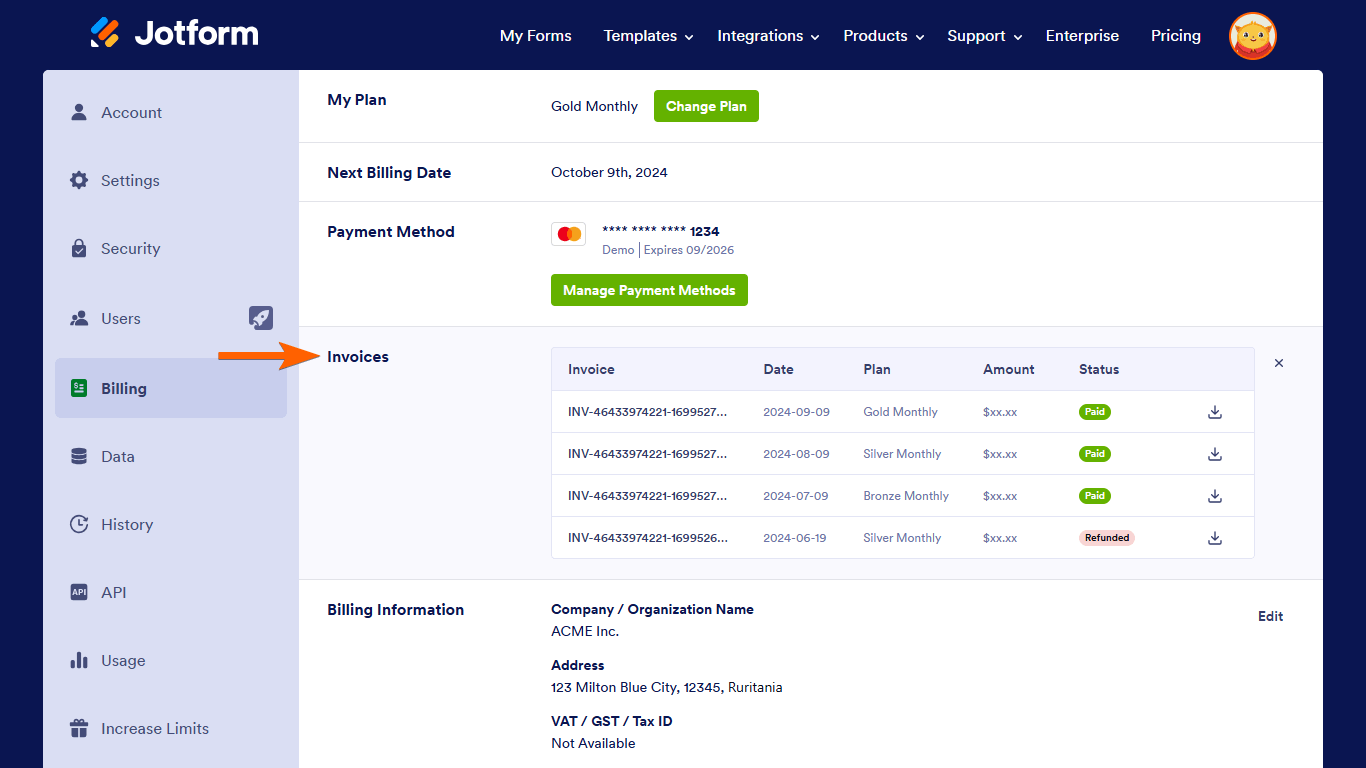
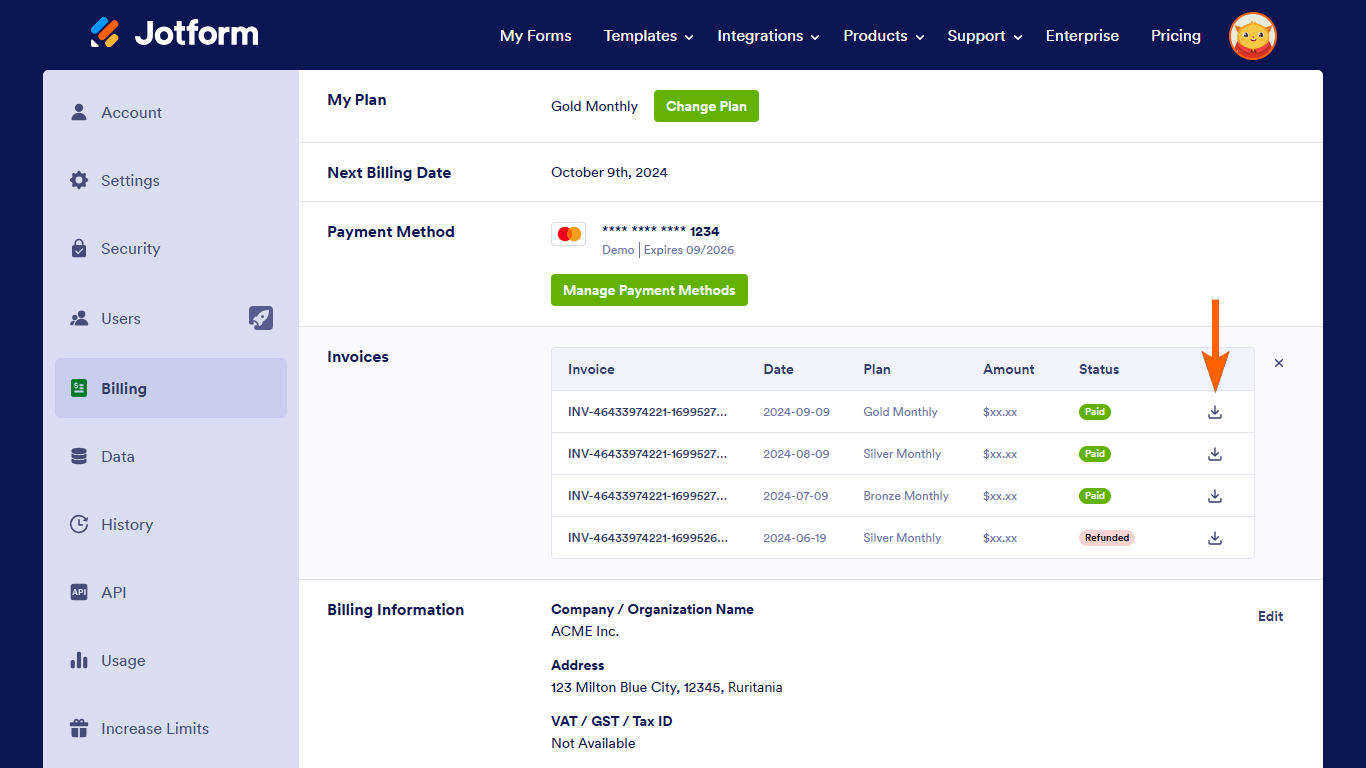
- View and download invoices from the account’s Billing/Upgrade page under Invoices.
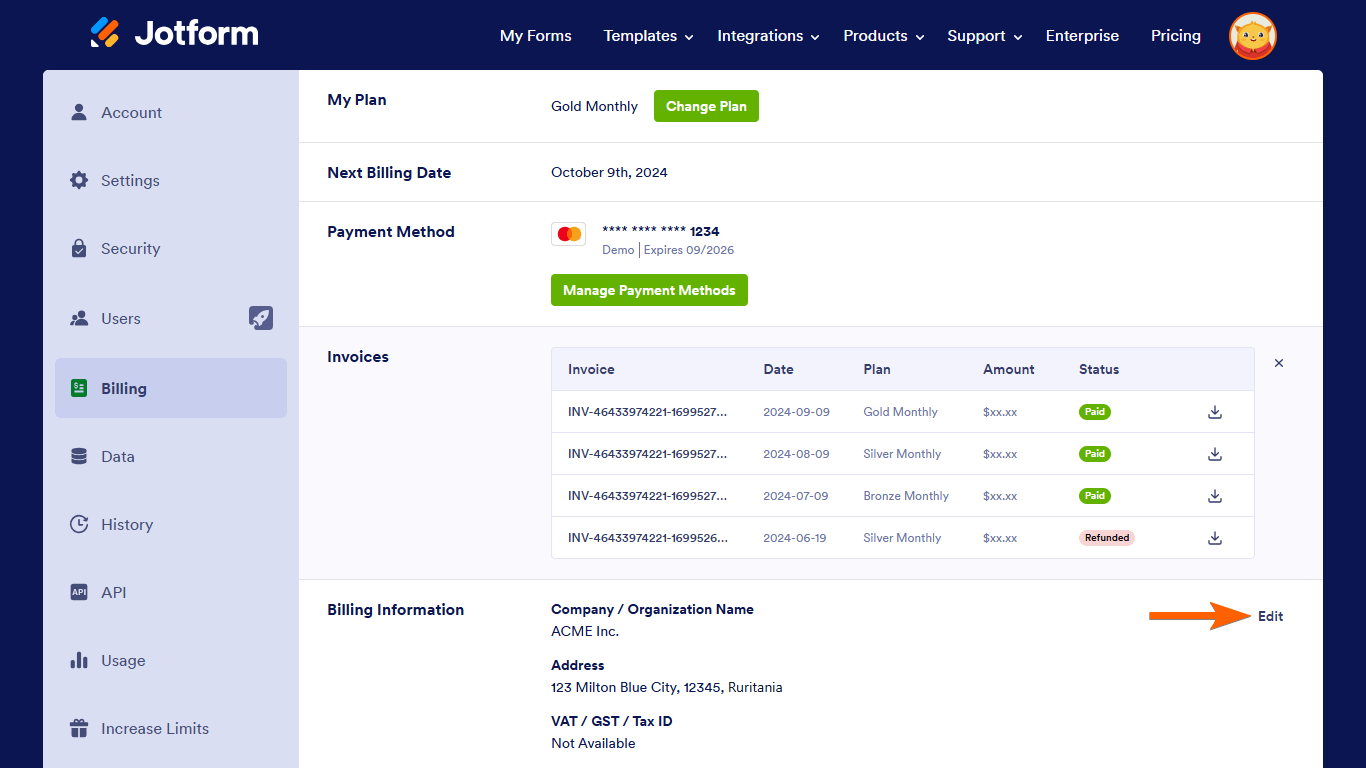
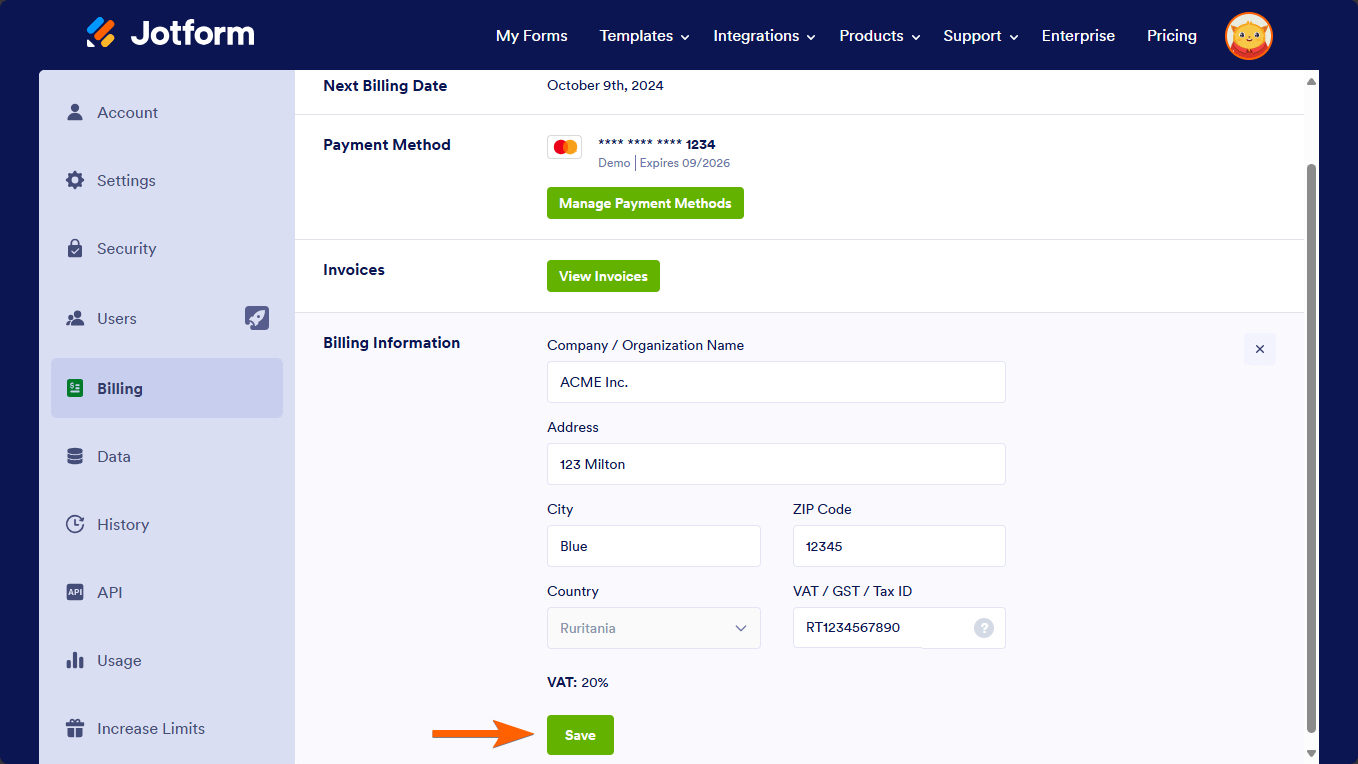
- Edit the billing information (billing name, company, address, VAT details, etc.) that appears on those invoices from the same Billing/Upgrade page under Billing Information.

2. What this means in your situation
Because you are paying on behalf of your client, but the subscription itself belongs to your client’s Jotform account:
- You cannot directly obtain login access to their Jotform account or change its contact email from your side.
- Your client (the account owner) needs to log in to their Jotform account and then:
- Go to their Billing/Upgrade page to download past invoices for your records.
- Edit the Billing Information so that your company’s details (name, address, VAT, etc.) appear on all future invoices.
3. How your client can update the account email (if they want to move ownership to you)
If the goal is for you to fully manage the subscription and receive all account-related emails directly, your client can change the account’s primary email address to yours. Here’s how they can do that from their own login:
- Go to their Jotform Workspace page.
- Click on their Profile Picture/Avatar at the top-right.
- Click on their name to open the Account Page in a new tab.
- Click on Edit next to the current email address.
- Enter the new email address (for example, your billing or shared email) and Save.
Depending on their privacy settings, they may need to confirm the change via codes or verification links sent to the current and new email addresses.
Once the account email is changed to your address:
- You will receive future Jotform account emails (including renewal notices).
- You will be able to log in directly with that email and manage invoices and billing details yourself.
4. Next steps you can take
- Contact your client and share the date, amount, and last 4 digits you mentioned so they can identify the correct Jotform account on their side.
- Ask them to log in to their Jotform account and:
- Download and forward existing invoices to you, or
- Update the Billing Information so your company appears on all future invoices.
- If you should be the ongoing manager, ask them to change the account email to your email so you can log in and handle billing directly.
If you can confirm whether your client is willing to update the account email or just the billing details on invoices, we can clarify the best exact path for your case.
Let us know if you have any other questions.
Your Reply
Something Went Wrong
An error occurred while generating the AI response. Please try again!