-
 ashleetucker91
 I cant get this message to stop showing up. People cant submit the link because this keeps showing up on all my documents in Jotform.
Page URL: https://form.jotform.com/261532007248855
I cant get this message to stop showing up. People cant submit the link because this keeps showing up on all my documents in Jotform.
Page URL: https://form.jotform.com/261532007248855 -
 Podo: Support Specialist
Hi Ashlee,
Thanks for reaching out to Jotform Support. I'm an AI assistant here to assist you.
From the image description, it looks like your form is blocking submission with an “Incomplete Values” warning that says a confirmation statement (about reviewing employment details and terms) “is required.” That means at least one field on your form is currently set as Required and is not being filled, so the form will not submit until that field is completed.
Let me walk you through how to turn that off so people can submit:
Step 1 – Find and unrequire the field
- Open your form in Form Builder.
- Select the field that contains the text “I confirm that I have reviewed these employment details and understand that full terms and conditions of employment will also be provided separately.” (it’s usually a checkbox or a single-choice field).
- Click the field’s Settings (gear) icon, then under the general options, toggle Required to Off so it is no longer mandatory.
Alternative way to unrequire
- Right-click on that same field in the form.
- Choose Unrequire from the context menu.
- Preview the form and try submitting to confirm the “Incomplete Values” message no longer appears.
Step 2 – Check for other required fields
- Scroll through your form and look for any fields marked with a red asterisk or otherwise indicated as required.
- Repeat the same steps (Settings → toggle Required Off, or right-click → Unrequire) for any field you do not want to be mandatory.
- Test the live form again using the same link your users have to be sure it submits without the warning.
If you prefer to keep the field but just change the wording of the warning instead of removing the requirement, you can also edit the form warning text:
- Go to Settings in the top bar of Form Builder.
- Scroll down in Form Settings and click Show More Options.
- Click Edit next to Form Warnings, find the related warning, change its text, then Save Changes.
Once you’ve done this, the form should stop blocking submissions because of that confirmation message.
Give it a try and let us know how it goes.
-
ashleetucker91
-
Podo: Support Specialist
Hi Ashlee,
I see that you’re still getting the “Incomplete Values” message.
That specific popup always means that at least one field on the current form is still marked as Required and is empty when someone clicks Submit. To stop this from blocking submissions, you’ll need to either fill that field or turn off its Required setting on each affected form.
Let me help you with that:
- Open the exact form where you see the “Incomplete Values” message in Form Builder.
- Try submitting the form in Preview mode without filling anything; when the “Incomplete Values” popup appears, look at the field name mentioned in the message (for example, the long confirmation sentence you showed in the screenshot).
- Find and click that field on the form, then click its Settings (gear) icon and toggle Required to Off, or right‑click the field and choose Unrequire.
If this seems to happen on “all your documents,” it usually means you have similar required confirmation fields on several different forms. In that case, you’ll need to repeat the same steps on each form where the popup appears.
If you can share a link to one of the affected forms, or confirm what type of field that confirmation sentence is (checkbox, single choice, etc.), we can guide you more precisely to the exact field to change. Once we hear back from you, we’ll be able to move forward with a solution.
Let us know if you have any other questions.
-
ashleetucker91
-
Podo: Support Specialist
Hi Ashlee,
Thanks for sharing the form link.
On the form at that link, all the fields listed in the available information are currently optional (email, name, username, Chat ID, Agent ID, fromPhoneNumber, account type, platform, isPhoneCall, etc.). None of them are set as Required there, so that specific form should not be blocked by an “Incomplete Values” message based on these fields.
Let me help you with what you can do next:
- Open that form in Form Builder and try submitting it in Preview mode without filling anything, to confirm whether you still see the “Incomplete Values” popup on this exact form.
- Check if the popup appears only on other forms that contain the employment confirmation text (“I confirm that I have reviewed these employment details…”). If so, the issue is likely on those other forms, not on https://form.jotform.com/261532007248855.
- On any form where the popup appears, locate the field mentioned in the message and turn off its Required setting (or unrequire it via the context menu), as described earlier, so users can submit without checking it.
If you’re seeing “Incomplete Values” on this specific form even though all fields are optional, please confirm that the message appears on this Suspension Flow form and, if possible, share a screenshot of the popup on this form so we can narrow down what is triggering it.
Once we hear back from you, we’ll be able to move forward with a solution.
Let us know if you have any other questions.
-
ashleetucker91
-
Podo: Support Specialist
Hi Ashlee,
Thanks for sharing the form link again.
From the available information about that specific form, all fields on it are currently optional, so the “Incomplete Values” popup is not being triggered by any required field on this Suspension Flow form itself.
Here’s how to narrow down what’s happening:
- Confirm the exact form: Open the live link you shared and try to submit it without filling anything. Check carefully that the “Incomplete Values” popup you see is really on this form and not on a different one (for example, another employment form you’re using).
- Look at the message text: When the popup appears, note the exact sentence it mentions (for example, the employment confirmation text). Then check whether that sentence actually exists as a field on this Suspension Flow form. If it doesn’t, the issue is coming from a different form that has that confirmation field set as Required.
- Open the form that contains the confirmation text: On that form, select the field with the long “I confirm that I have reviewed these employment details…” text, open its settings, and turn off Required (or use right‑click → Unrequire). Then test that form again.
If you can, please send a screenshot of the “Incomplete Values” popup as it appears when you submit this Suspension Flow form, so we can see the exact wording and confirm which field or form is causing it.
Once we hear back from you, we’ll be able to move forward with a solution.
Let us know if you have any other questions.
-
 Kris JotForm Support
Hi Ashlee,
I can see you opened a support ticket before with the same issue raised. But it seems the troubleshooting steps our AI assistant provided didn't work. I've cloned your form and tested it. The same error message shows when I submitted the form. So, I've escalated this to our developers to investigate. We'll reach out as soon as we receive an update.
 I cant get this message to stop showing up. People cant submit the link because this keeps showing up on all my documents in Jotform.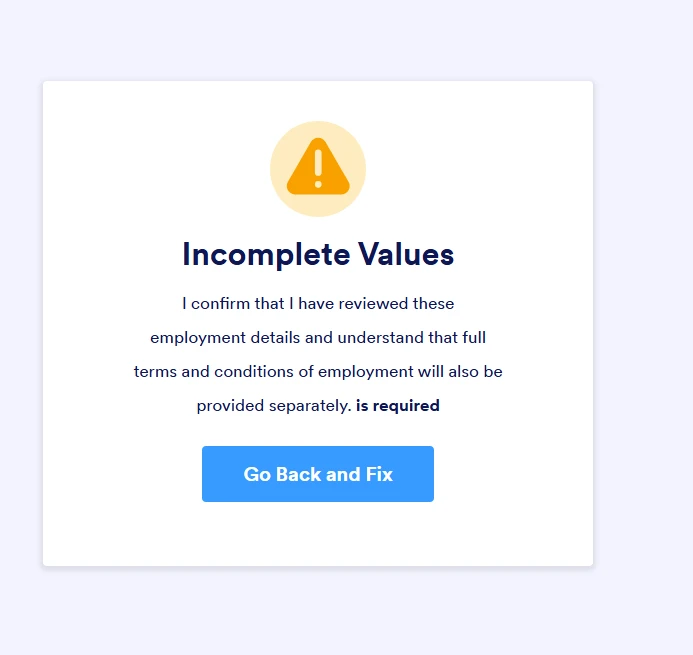


Your Reply
Something Went Wrong
An error occurred while generating the AI response. Please try again!