-
 smilepayllc
Hello,
i'm struggle on how the chatbot is supposed to showup on webpages...
For styles (CSS) reasons and because of iFrame it doesn't work at all on my end.
I'm trying to solve this problem with Claude but even with Ai help seems like we haven't found (yet) the fix. I was wondering if you could have a quick look on the home page.
There, the WP plugin is enabled.
I'm using elementor as block editor, i have a pro envato theme (from QODE theme which is one of the WP theme best seller so i supposed that many people will have same problem i'm facing...)
I already identified that the 'side area' was blocking the CSS and the z-index of the Chatbot. It works a little bit better if i remove all the contents (block) to only have a single 'html' block element filled up with the ai chat bot
<script src='https://cdn.jotfor.ms/agent/embedjs/019e902b4a017a24b0aec186807608333cbe/embed.js'>
</script>)
Unfortunately nothing as really worked for me..... Any idea on a fix or to get the parent class of the iFrame, so i might try to style it ????
Something seems to block the JS ??
 Page URL: https://www.julien-bichard.com/
 -
 Podo: Support Specialist
Hi nicolas,
Thanks for reaching out to Jotform Support. I'm an AI assistant here to assist you.
Let me help you with that:
From what you described, you’re already using the Jotform AI Agent chatbot embed script on your WordPress homepage with Elementor and a QODE/Envato theme, and the issue seems related to layout/CSS or something blocking the script. While I cannot inspect your specific site from here, I can share the supported ways to embed and control the chatbot, which may help you avoid theme conflicts.
1. Make sure you’re using the supported chatbot embed code
- Go to your AI Agent Builder.
- Click on the Publish tab.
- Select either Chatbot (for generic websites) or WordPress (for WordPress-specific embedding) from the menu on the left.
- Click on Copy Code under the appropriate section and use that code instead of a manually modified script.
This ensures you’re using the officially supported embed style and structure.
2. Embed the chatbot in WordPress the recommended way
You have two main supported approaches:
A. Using the WordPress-specific option from AI Agent Builder
- In AI Agent Builder, under Publish → Embed → WordPress, click on Copy Code.
- In WordPress, add that code into a Custom HTML block (Elementor HTML widget or Gutenberg Custom HTML) on your page.
- Update the page and test on the frontend.
B. Using the Chatbot embed style
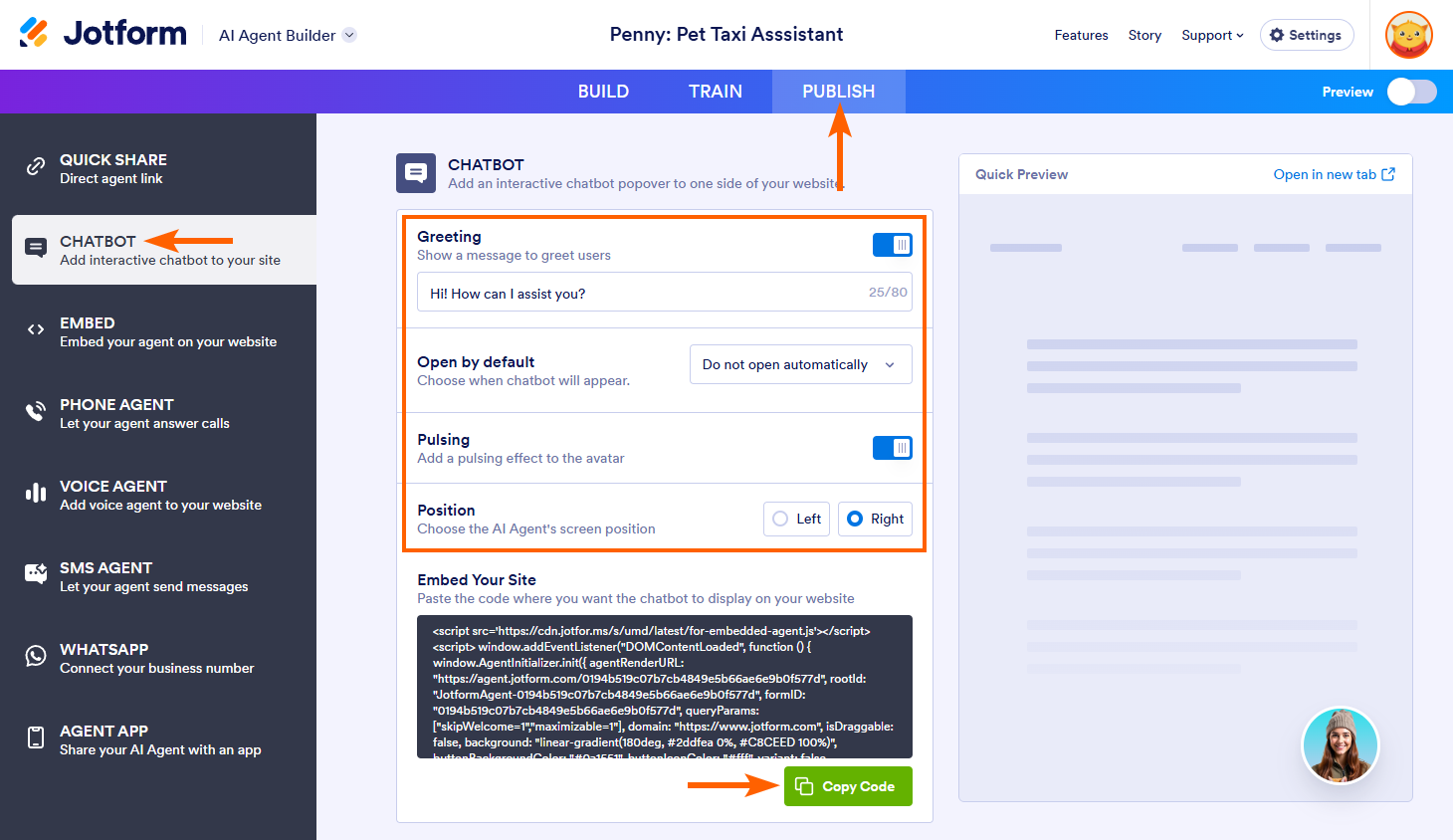
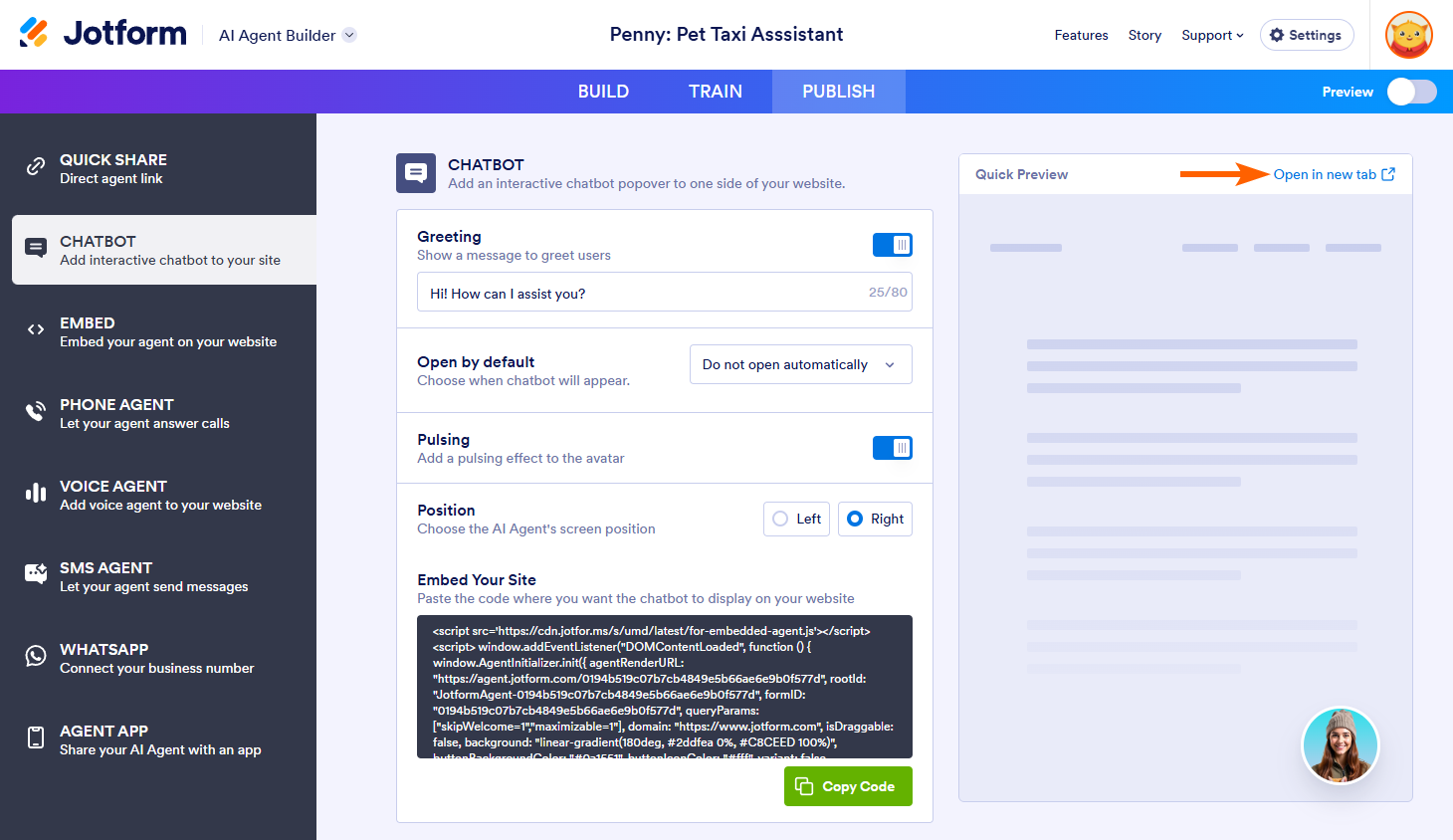
- In AI Agent Builder, go to Publish → Chatbot.
- Configure the chatbot options (Greetings, Open by Default, Pulsing, Position).
- Click on Copy Code under Embed Your Site and paste that code into a Custom HTML block on your homepage.
3. If you’re using the Jotform AI Chatbot WordPress plugin
If you prefer the dedicated WordPress plugin instead of manual embed code, you can use the plugin and its visibility settings instead of relying on theme CSS:
- Install the plugin manually if needed:
- Download the ZIP file from this link: Jotform AI Chatbot plugin ZIP.
- In your WordPress admin, go to Plugins → Add New → Upload Plugin.
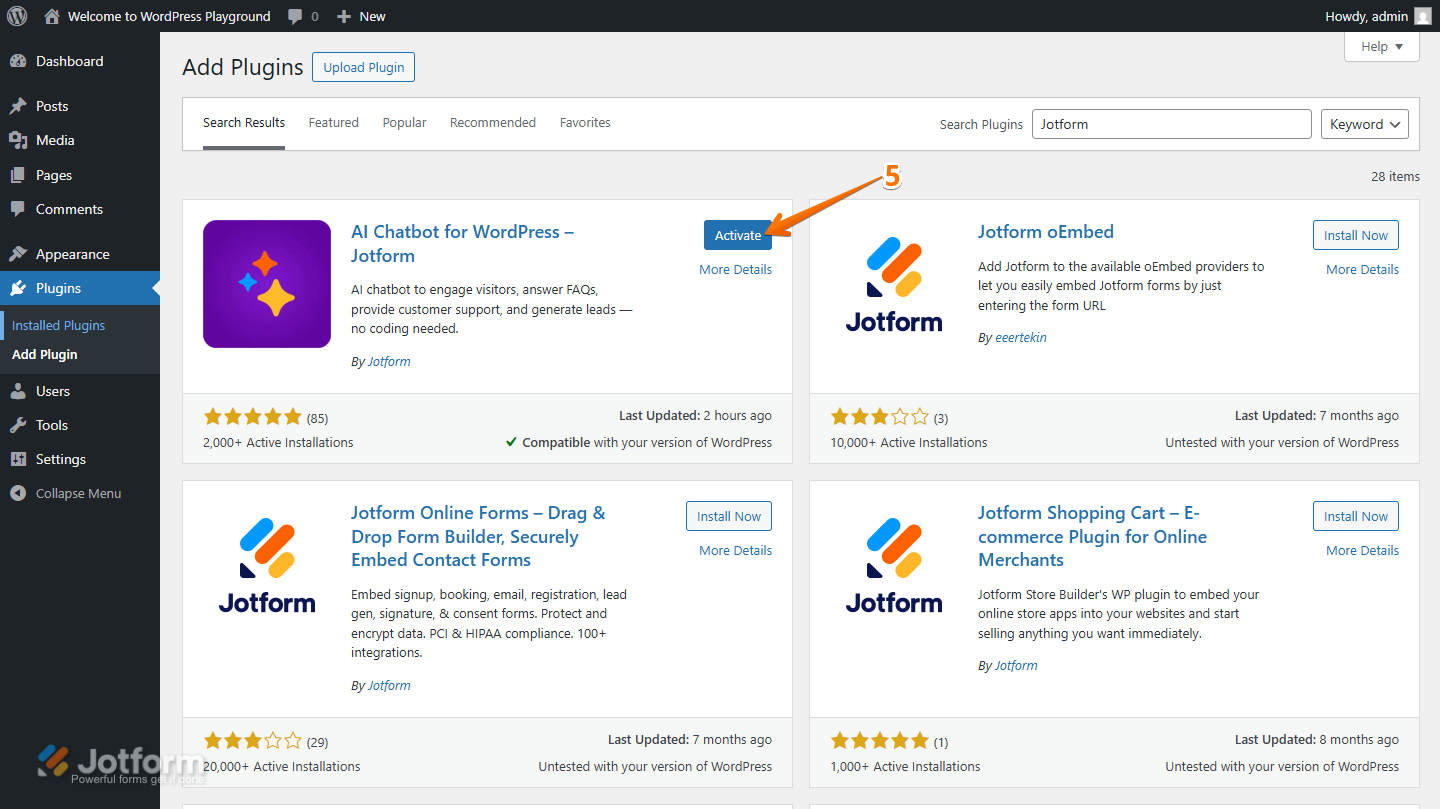
- Upload jotform-ai-chatbot.zip and activate AI Chatbot for WordPress – Jotform.
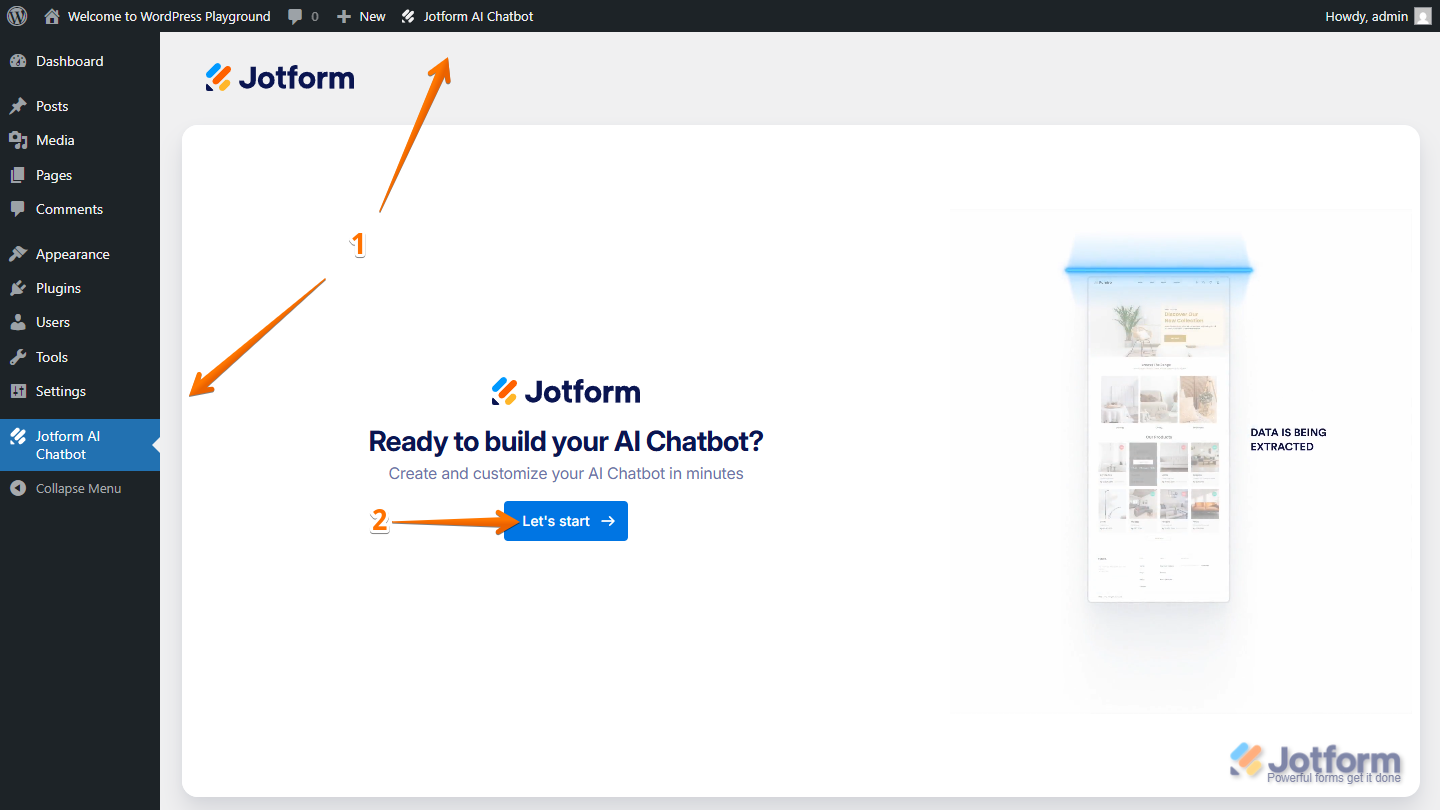
- Open the Jotform AI Chatbot page in your WordPress admin sidebar.
- Under the chatbot’s settings, configure:
- Layout (Minimal or Extended)
- Position (left or right)
- Pulsing and Open by Default behavior
4. Use the plugin’s Visibility controls instead of theme CSS where possible
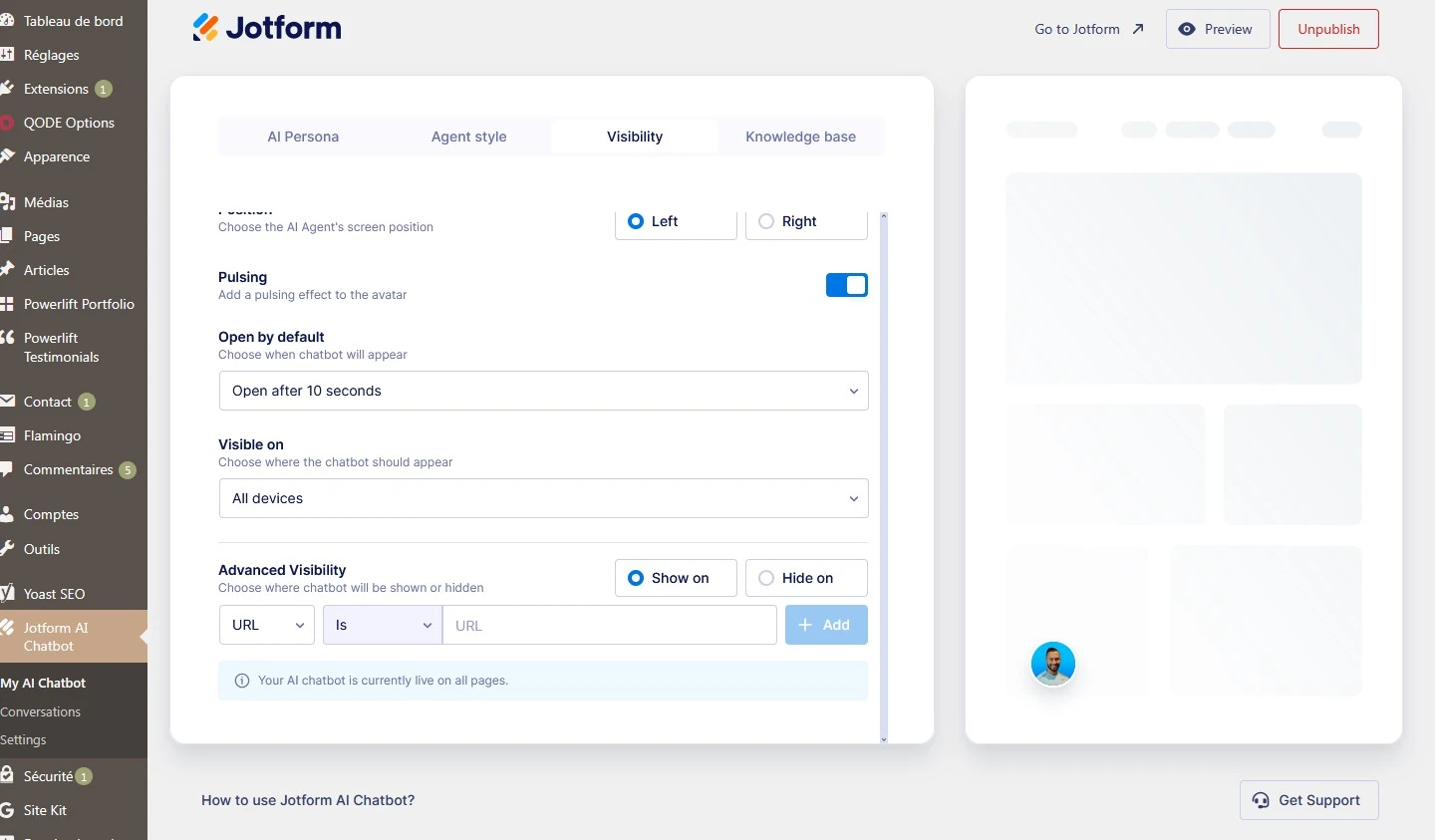
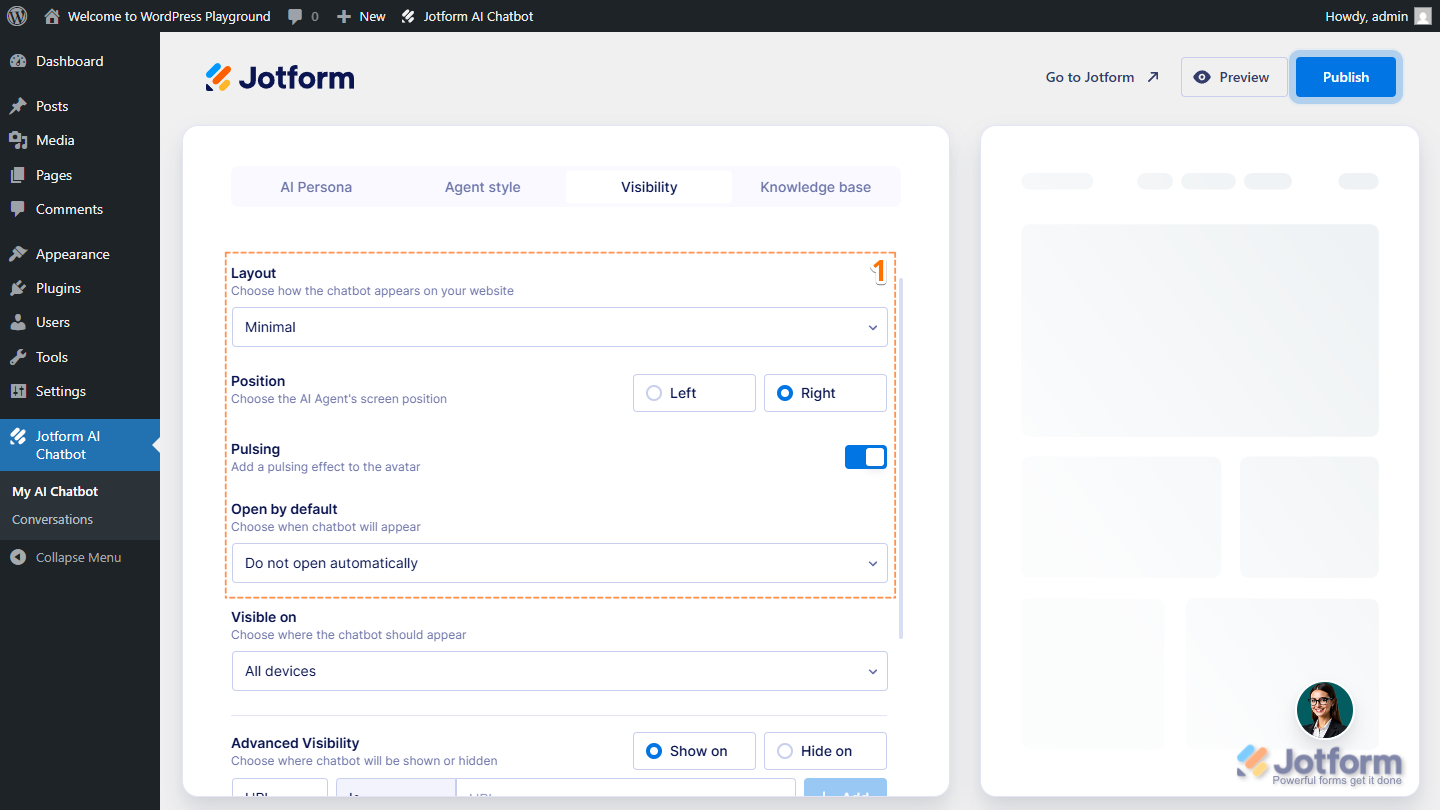
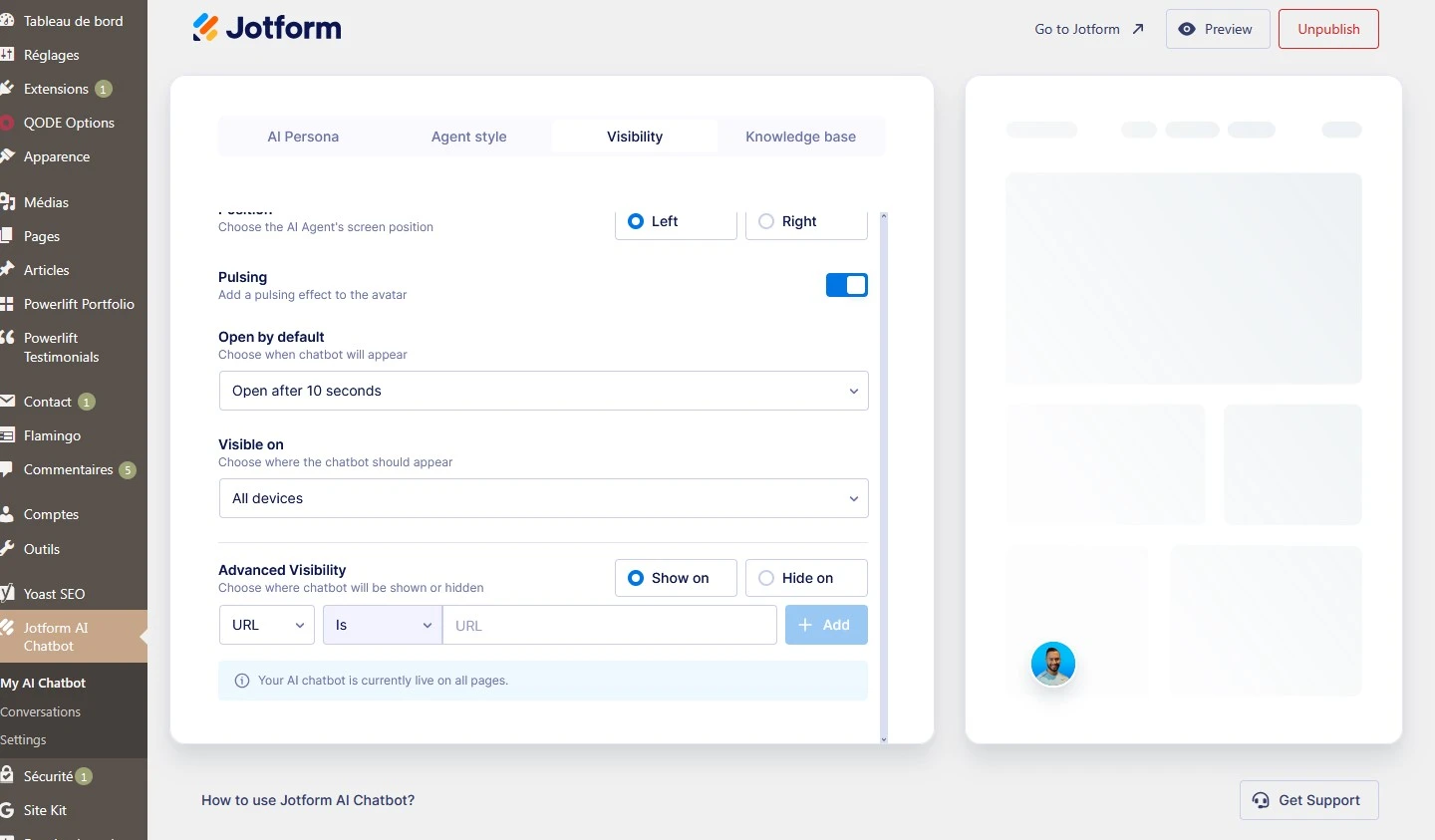
To avoid conflicts with theme “side area” overlays or z-index issues, you can control where and how the chatbot appears from the plugin’s Visibility tab:
- Go to the Jotform AI Chatbot page in WordPress.
- Open the Visibility tab.
- Configure:
- Layout and Position (left/right).
- Pulsing and Open by Default timing.
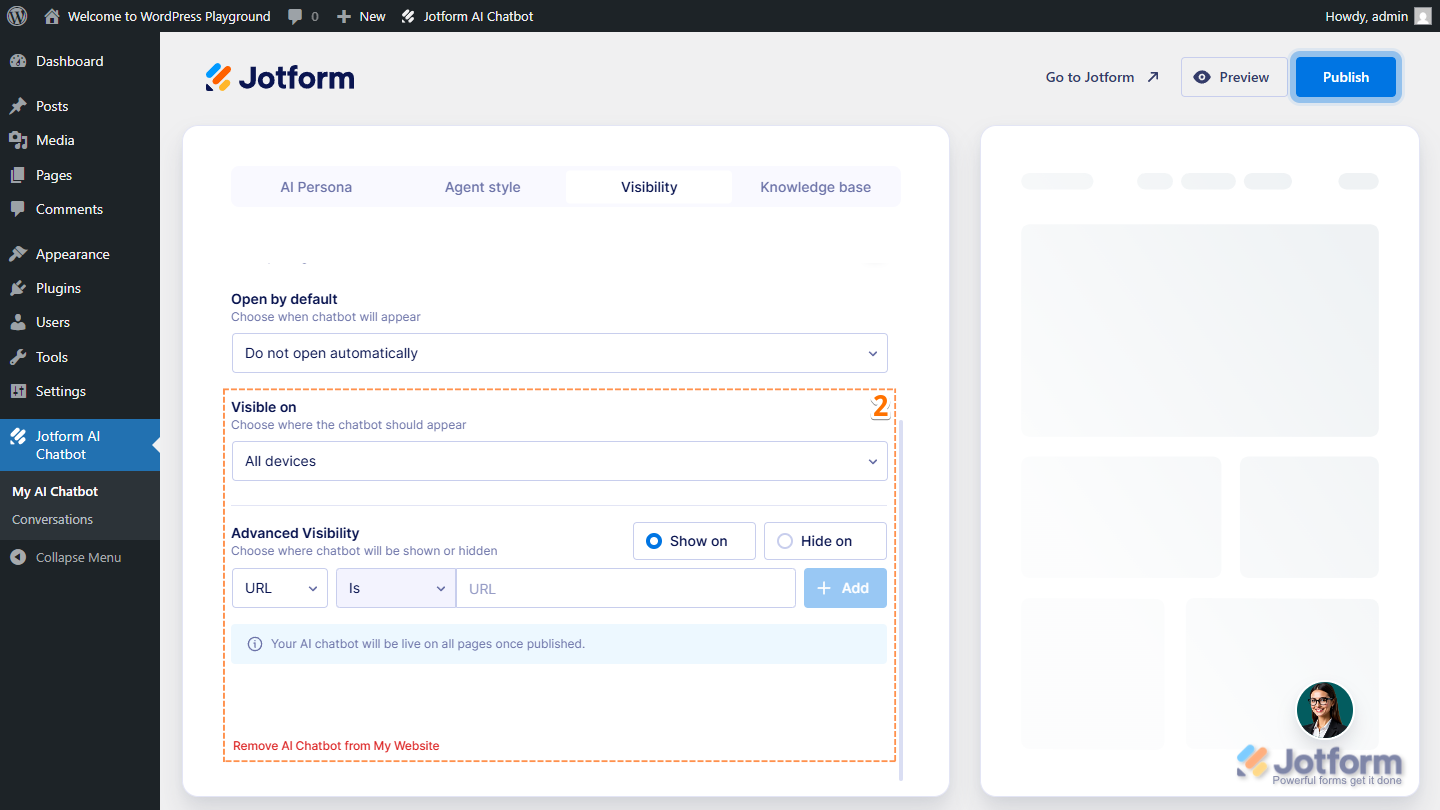
- Visible On (desktop, mobile, or both).
- Advanced Visibility to show/hide the chatbot on specific URLs or pages.
Using these controls can sometimes avoid the need to directly style the iframe or its parent, since the plugin manages placement and visibility.
5. About styling the iframe or parent container
The documentation describes how to configure the chatbot’s behavior and position from within AI Agent Builder and the WordPress plugin, but it does not provide a supported way to target or customize the parent iframe class directly via CSS from your theme. Instead, the recommended approach is:
- Use the built-in position and layout options (in AI Agent Builder’s Chatbot settings or the WordPress plugin’s Style/Visibility tabs) to control where and how it appears.
- Re-embed the chatbot if you change its configuration in AI Agent Builder, since changes there do not automatically update on your site.
If, after following these steps (using the official embed code or the WordPress plugin with its Visibility options), the chatbot still does not appear or seems blocked, that would be an implementation or theme-specific issue that is not covered in the available information.
Let us know if you can share whether you’re currently using the manual embed code from AI Agent Builder or the WordPress AI Chatbot plugin, and what you see on the page (for example, no avatar at all, or just a blank space). After we hear back from you, we’ll have a better idea of what’s going on and how to help.
Give it a try and let us know how it goes.
-
smilepayllc
I have tried all suggested methods above (elementor html block witht the code inside) => no result and also the official WP plugin still it doens't show at all.... no icon to interact with the chat bot. Maybe it is theme specific can you please help ?
-
Podo: Support Specialist
Hi nicolas,
Let me help you with that:
From the available information, there are only documented steps for installing, connecting, and configuring the Jotform AI Chatbot plugin and for embedding the AI agent as a chatbot, but there are no specific documented causes or fixes for theme‑specific issues where the icon does not appear at all on the frontend.
Here is what is covered and supported:
- Install and activate the WordPress plugin correctly
• Install the plugin (from the WordPress directory or via ZIP) and make sure it is activated so that the Jotform AI Chatbot menu appears in your WordPress dashboard. - Connect your Jotform account to the plugin
• In your WordPress dashboard, click on Jotform AI Chatbot and then on Let’s Start.
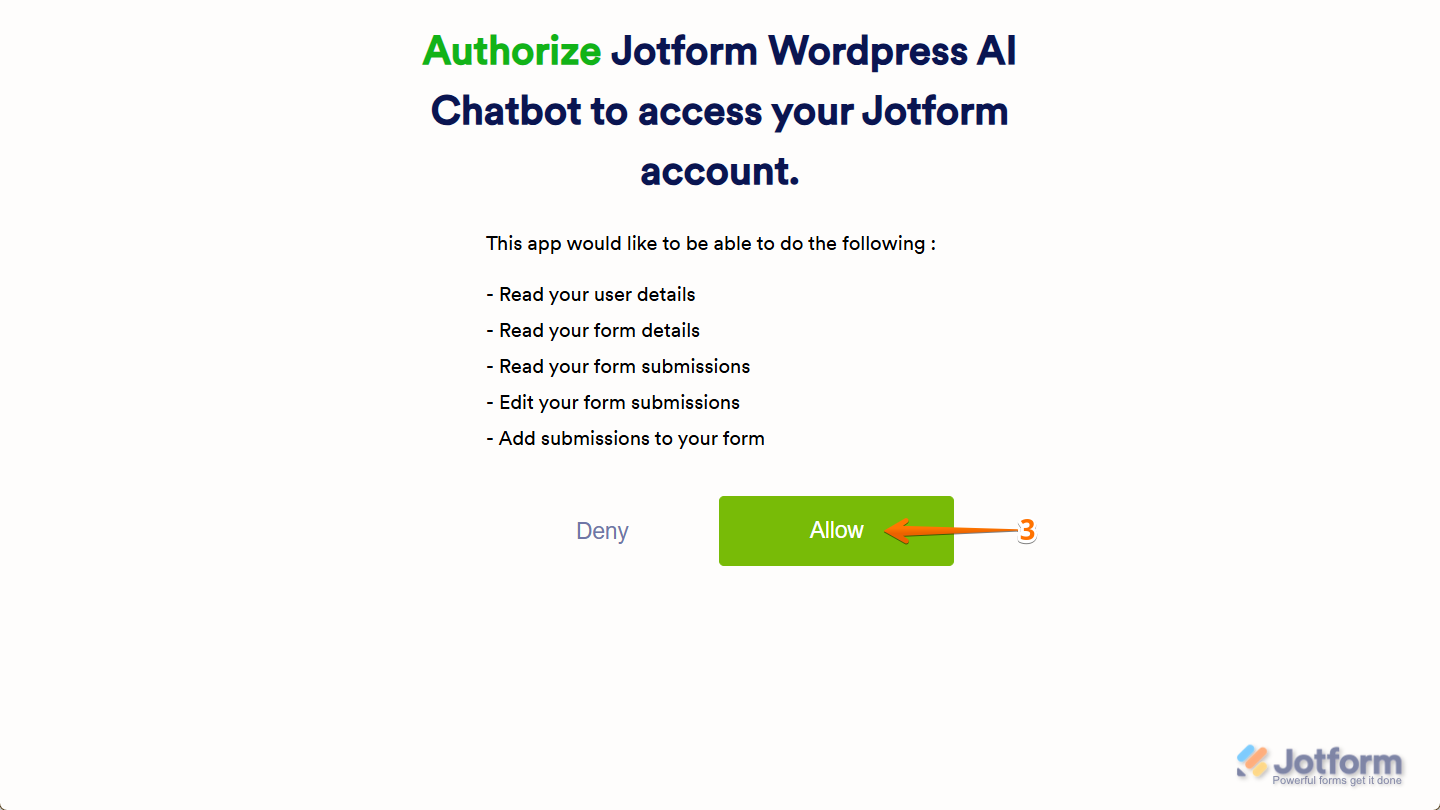
• Authorize by clicking Allow so the plugin can access your Jotform account. - Configure the AI Persona and Style (plugin side)
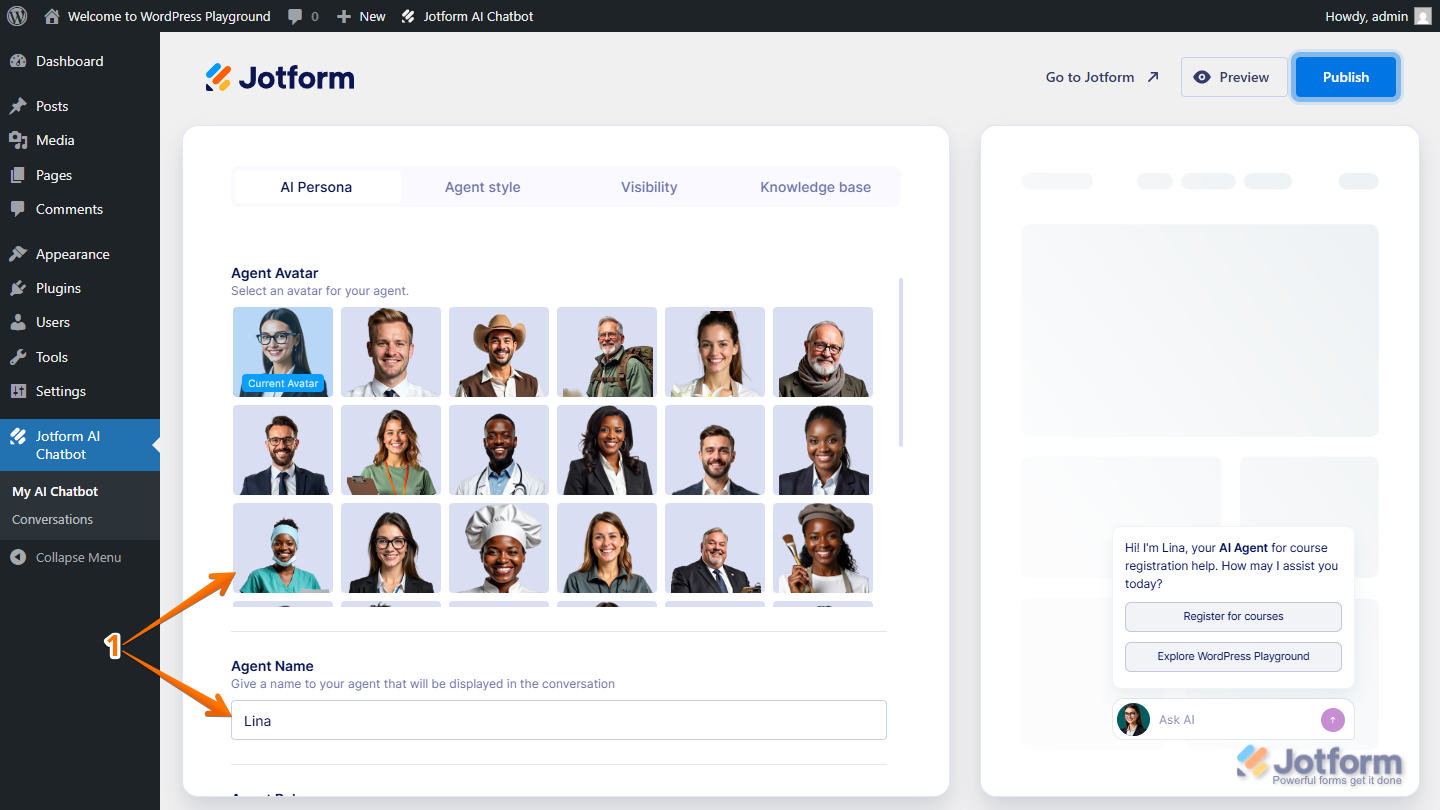
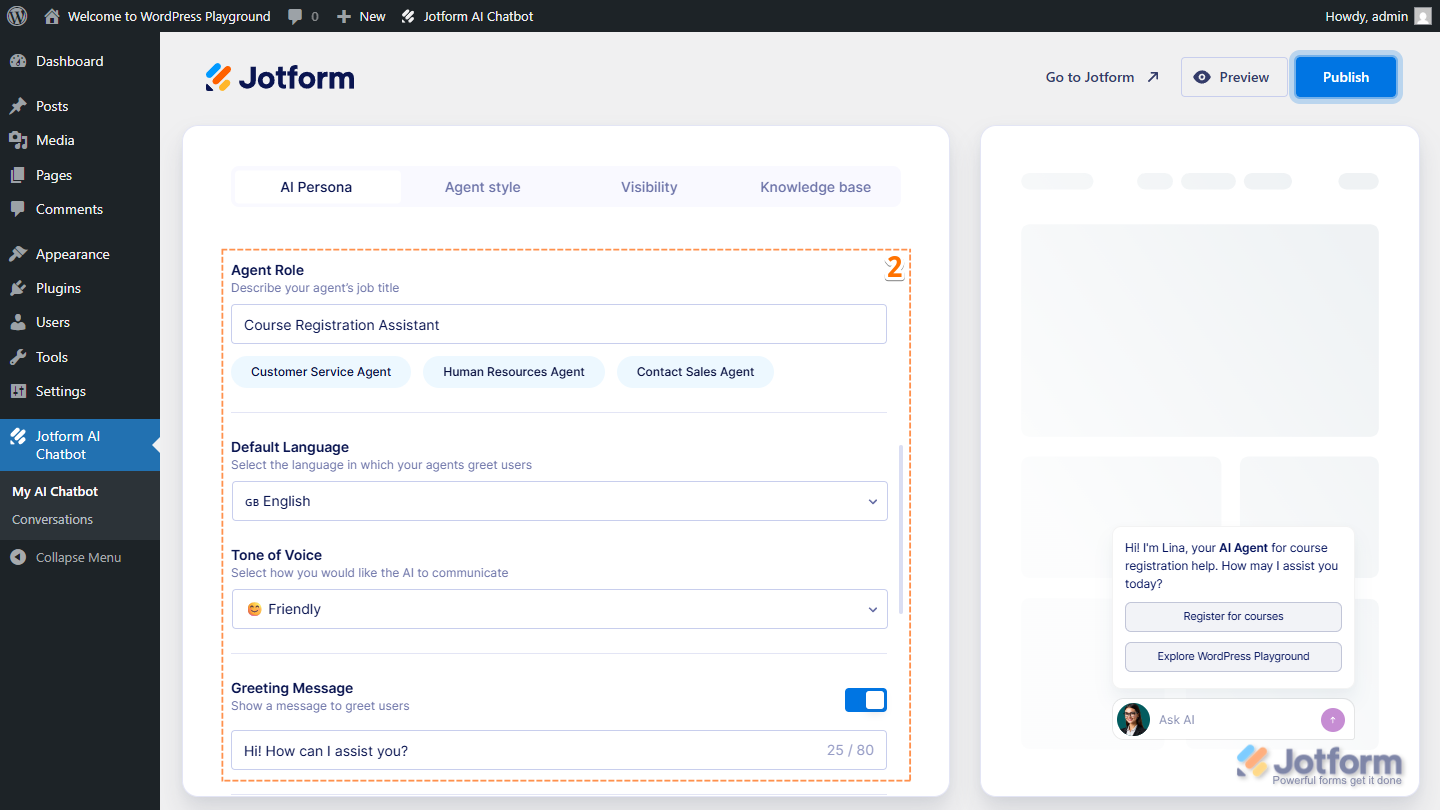
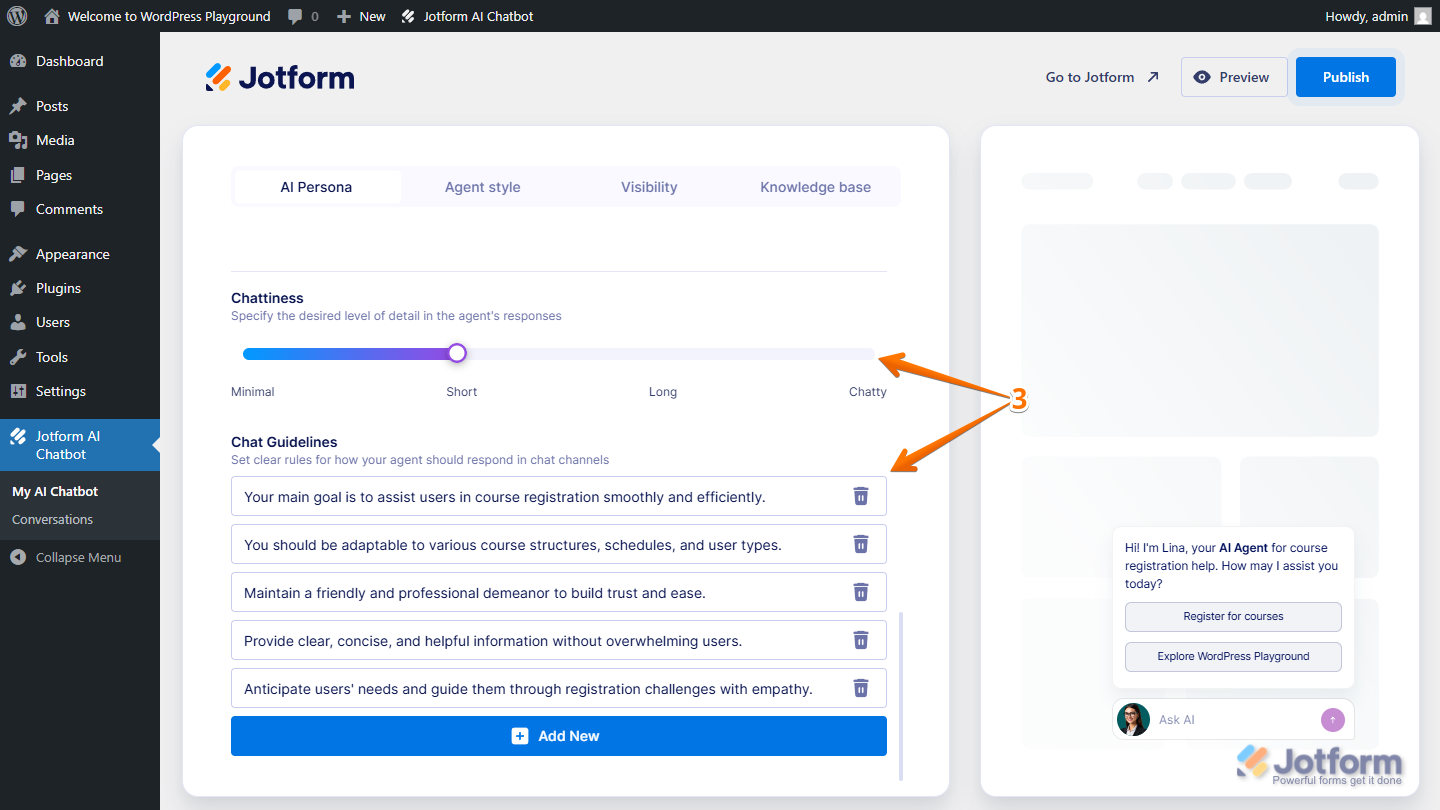
• Under the AI Persona tab, set avatar, name, role, language, tone, greeting, chattiness, and guidelines.
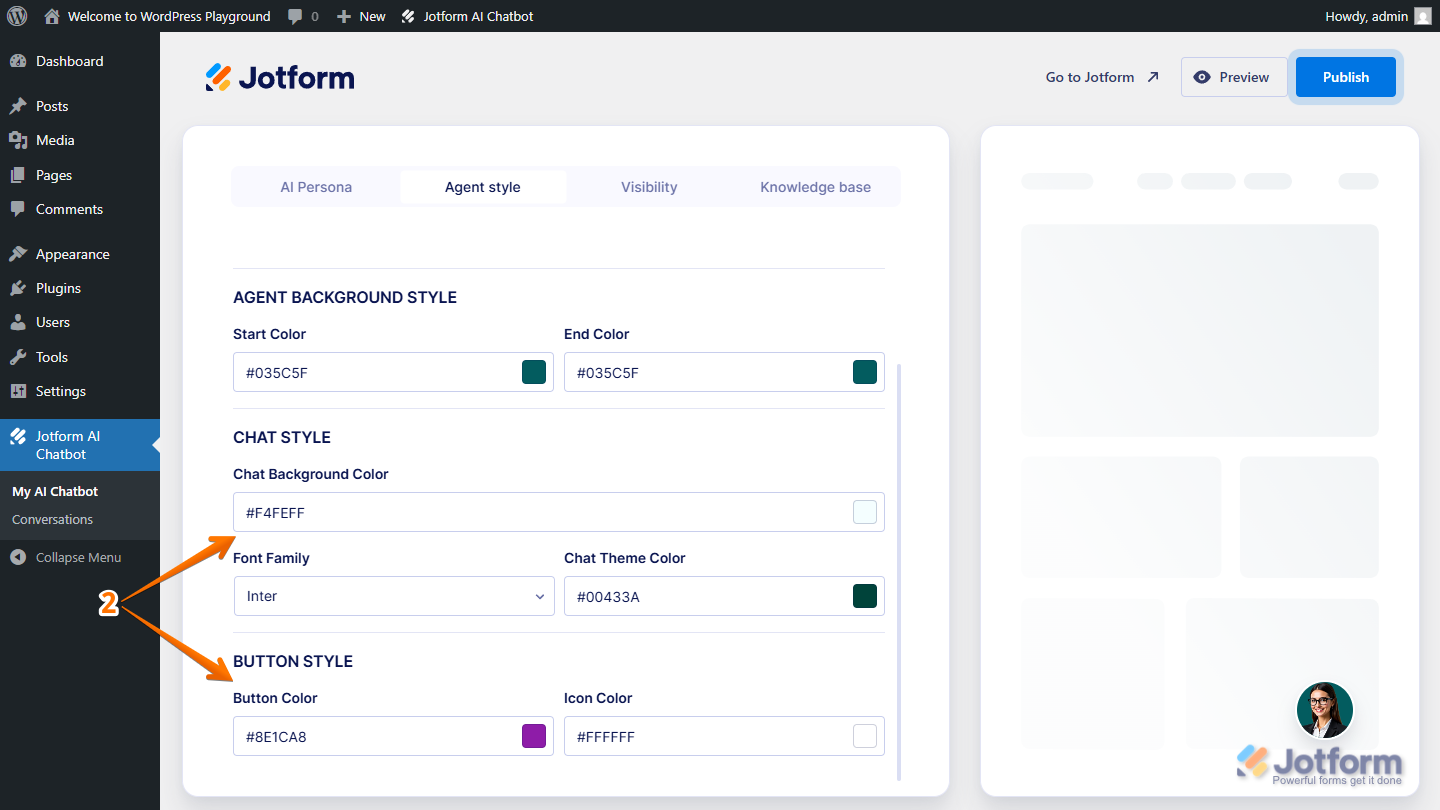
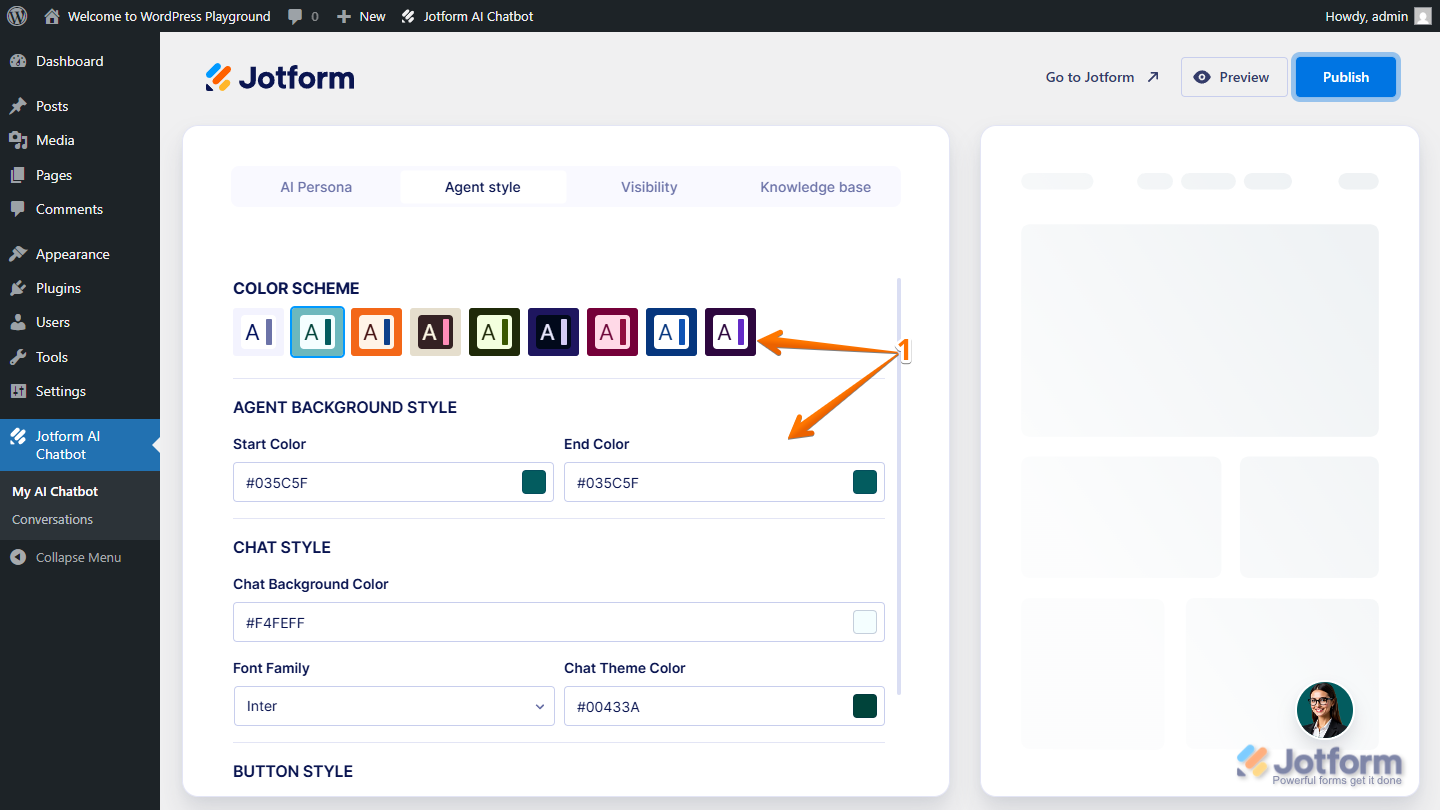
• Under the Agent Style tab, configure color scheme, background style, chat style, and button style. - Check the Visibility tab so the chatbot is actually allowed to show
On the Visibility tab of Jotform AI Chatbot, you can control where and how the chatbot appears:
• Layout: Minimal (default) or Extended.
• Position: Left or right side of the screen.
• Pulsing: Optional pulsing effect (Minimal layout only).
• Open by Default: Show immediately, after 5 or 10 seconds, or only when clicked (Minimal layout only).
Then scroll down and check:
• Visible On: Make sure the device you are testing on (desktop, mobile, or both) is enabled.
• Advanced Visibility: If there are URL conditions (starts with / equals / specific page), verify that your homepage URL matches those conditions; otherwise the chatbot may not appear.
• Remove AI Chatbot from My Website: This lets you remove and start over if needed. - Configure and embed as Chatbot from AI Agent Builder (if you use the script instead of the plugin UI)
If you are embedding via script instead of relying on the plugin’s automatic placement, the supported flow is:
• In AI Agent Builder, click on Publish.
• Click on Chatbot on the left.
• Configure Greetings, Open by Default, Pulsing, and Position, then click Copy Code under Embed Your Site.
• Paste this code into your site’s source (for example, an Elementor HTML widget on the homepage).
However, there is no documented way to:
- Inspect or change the parent iframe class of the chatbot from WordPress or theme CSS.
- Diagnose or fix conflicts with specific themes (like QODE/Envato) that completely prevent the icon from rendering.
- Address JavaScript being blocked by a particular theme or plugin beyond the standard configuration and embedding steps above.
Because of that, the exact theme‑specific issue you are facing (no icon at all even after following all supported steps) is not covered in the available information, so I cannot provide a confirmed fix for your specific setup.
Let us know if you have any other questions.
- Install and activate the WordPress plugin correctly
-
smilepayllc
It doesn't help at all, the chatbot is supposed to show up but it is not, maybe the code not covering pro theme....
-
Podo: Support Specialist
Hi nicolas,
One of our Support Team members will take it from here to follow up shortly.
Let us know if you have any other questions.
-
 Nikola JotForm Support
Hi Nicolas,
I checked your website, but I didn't find the embed code for the AI agent. Did you remove it? Can you try to embed it again? You can also try to embed it on a new blank page just to check if the issue is related to the theme you are using.
Give it a try and let us know how it goes.
-
smilepayllc
The wordpress plugin is enabled.... but sure, i will de activate it for now and juste paste the code on a blank page. Claude also could'nt find any agent with the WP plugin activated. Also please take note that the owner of the website received a fatal error alert when i activated the plugin
-
smilepayllc
So i de activated the jotform chatbot official plugin and embeded the code within an HTML block in elementor
still it doesn't work at all on my end.... LoL.... i have started yesterday around 10pm and now it is 9 am (with Claude support; and it couldn't help either.... LoL)
Here is the test page
https://www.julien-bichard.com/ai_chat_bot_test
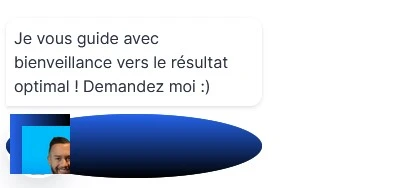
I have to say on this one the chatbot appears but it loads very weird and then stop working ....
-
smilepayllc
-
 Harvey Enterprise Support
Hi Nicolas,
Thanks for getting back to us. Please do test it again by embedding it on a new blank page just to check if the issue is related to the theme you are using. As for the email from wordpress, it indeed indicates that the error with the Jotform AI Plugin, please try to test it without the plugin and using the embed code and check if the AI would appear.
Give it a try and let us know how it goes.
-
smilepayllc
Just for recording purposes i have asked the site owner to send the fatal error message triggered by the plugin activation as follow :
Détails de l’erreur
======================
Une erreur de type E_ERROR a été causée dans la ligne 1303 du fichier /home/julielb/www/wp-content/plugins/jotform-ai-chatbot/classes/JAIC_Core.php. Message d’erreur : Uncaught Error: Class "JAIC\Classes\WpFastestCache" not found in /home/julielb/www/wp-content/plugins/jotform-ai-chatbot/classes/JAIC_Core.php:1303
Stack trace:
#0 /home/julielb/www/wp-content/plugins/jotform-ai-chatbot/classes/JAIC_Core.php(512): JAIC\Classes\JAIC_Core->clearWPCaches()
#1 /home/julielb/www/wp-content/plugins/jotform-ai-chatbot/classes/JAIC_Core.php(102): JAIC\Classes\JAIC_Core->update()
#2 /home/julielb/www/wp-content/plugins/jotform-ai-chatbot/jotform-ai-chatbot.php(746): JAIC\Classes\JAIC_Core->__construct(Array)
#3 /home/julielb/www/wp-includes/class-wp-hook.php(324): jotform_ai_chatbot_register_plugin('')
#4 /home/julielb/www/wp-includes/class-wp-hook.php(348): WP_Hook->apply_filters(NULL, Array)
#5 /home/julielb/www/wp-includes/plugin.php(517): WP_Hook->do_action(Array)
#6 /home/julielb/www/wp-settings.php(555): do_action('plugins_loaded')
#7 /home/julielb/www/wp-config.php(107): require_once('/home/julielb/w...')
#8 /home/julielb/www/wp-load.php(50): require_once('/home/julielb/w...')
#9 /home/julielb/www/wp-admin/admin.php(34): require_once('/home/julielb/w...')
#10 {main}
thrown
-
smilepayllc
Dear harvey,
Thank you very much for reply and support (really appreciated)
And as posted above, nope still it is not working with the code only (without the plugin) you can check the result from this test page link.
https://www.julien-bichard.com/ai_chat_bot_test
-
smilepayllc
Quick note :
Theme is up to date (latest version)
Wordpress 7 (up to date)
Php version is : 8.3.23
-
 Raymond JotForm Support
Hi Nicolas,
The error logs that you shared above, can you confirm if that triggers upon activation of the Jotform AI Chatbot plugin? To isolate the issue further, can you try it with a different browser or try disabling any potential conflicting plugins and enabling the Jotform AI agent plugin again? This will allow us to isolate the issue further and help with a solution.
Keep us updated and let us know if you need any help.
-
Nnicolas
Hi Raymond, yes the error logs were triggered upon the ai chat bot plugin activation but with other plugins activated prior. That means alone, it should just activate without any error. It seems that errors came when a plugin call"WpFastestCache" is also active. At least it has happened under my WP installation.
Between is anyone have an idea on how i can fix and make appearing the Jotform ai chat bot on front end ?
Both the WP plugin and / or the code as standalone in an HTMLelement (in elementor) won't work....
Support is greatly appreciated.
Thank you very much !
-
 Kevin JotForm Support
Hi Nicolas,
Thanks for the detailed info. From what you’ve shared, there are two likely causes. The error confirms a conflict with WpFastestCache. Try disabling it and reactivating the chatbot plugin. If that works, you can either exclude Jotform scripts from optimization or use the embed code instead of the plugin. Since the chatbot partially loads on your test page, it’s likely being affected by JS optimization or your theme (QODE/Elementor).
Try disabling JS minification, defer, or delay in any caching plugin, checking the browser console for errors, testing with a default WordPress theme to confirm if there is a theme conflict, and embedding the script directly before the tag instead of inside Elementor, as this will help isolate what’s blocking the chatbot from rendering properly.
Give it a try and let us know if you have any other questions.

Your Reply
Something Went Wrong
An error occurred while generating the AI response. Please try again!