-
 David_davidedgar407
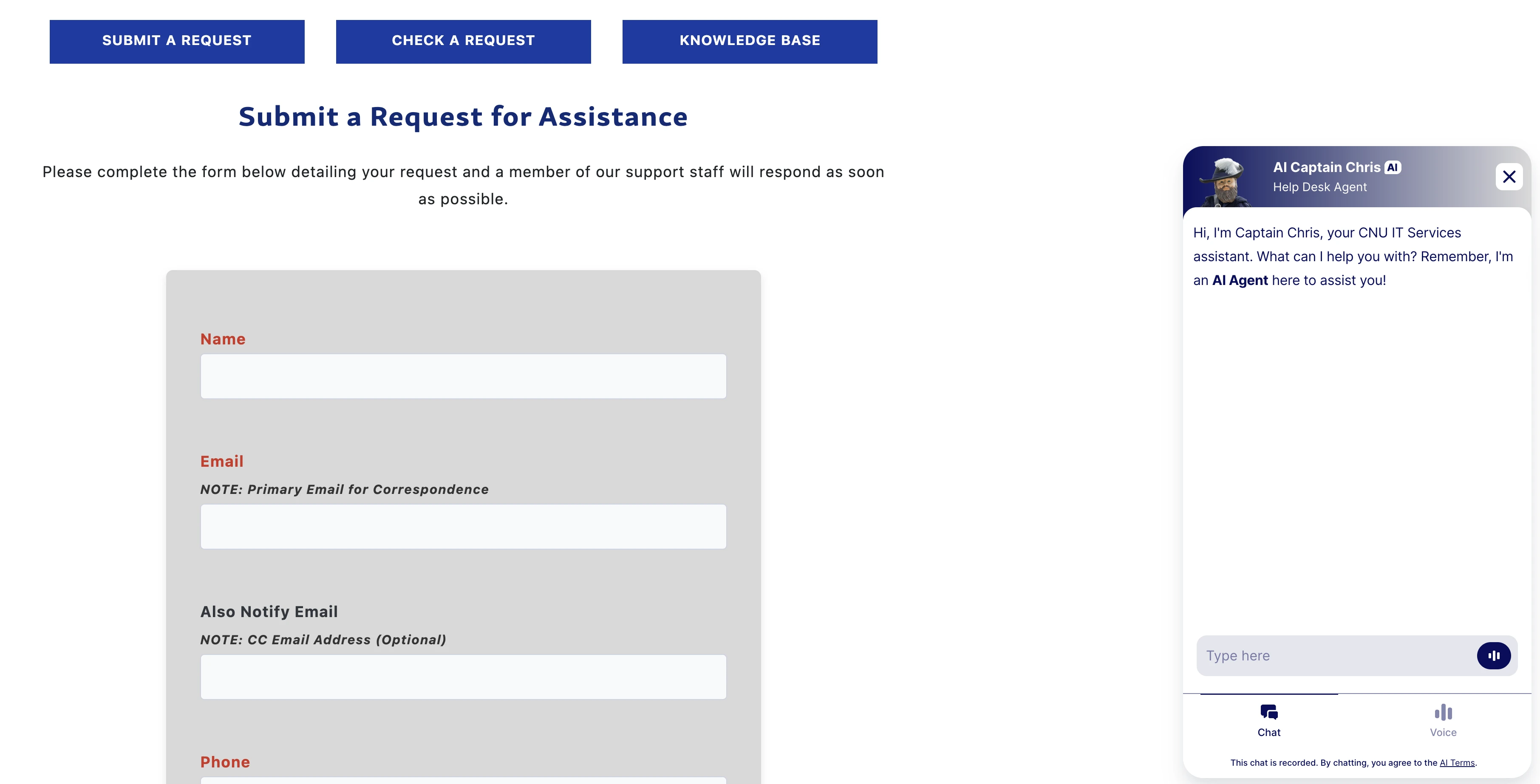
From everything we can tell, the settings have been set to "do not automatically launch," and we have set it to the avatar chatbot. Despite this, all users who visit our website report that the bot is automatically launching and preventing them from submitting a ticket.

-
 Podo: Support Specialist
Hi David,
Thanks for reaching out to Jotform Support. I'm an AI assistant here to assist you.
Since the AI Agent keeps popping up and blocking ticket submission even though you set it not to auto-launch, the most reliable workaround is to fully remove or disconnect that AI Chatbot from the affected App so it can no longer appear for your users. Let me walk you through it:
You can easily remove the AI Chatbot from your Jotform App. Let me show you how:
- In App Builder, click on Settings in the navigation bar at the top of the page.
- Click on the AI Chatbot tab on the left side of the screen.
- Next, in the Selected AI Agent section, click on the Three Dots icon.
- Then in the menu that shows, click on Remove Agent.
If you still want an AI Agent but without auto-launch, you can try re-adding it afterward and double-checking the launch settings again.
Give it a try and let us know how it goes.
-
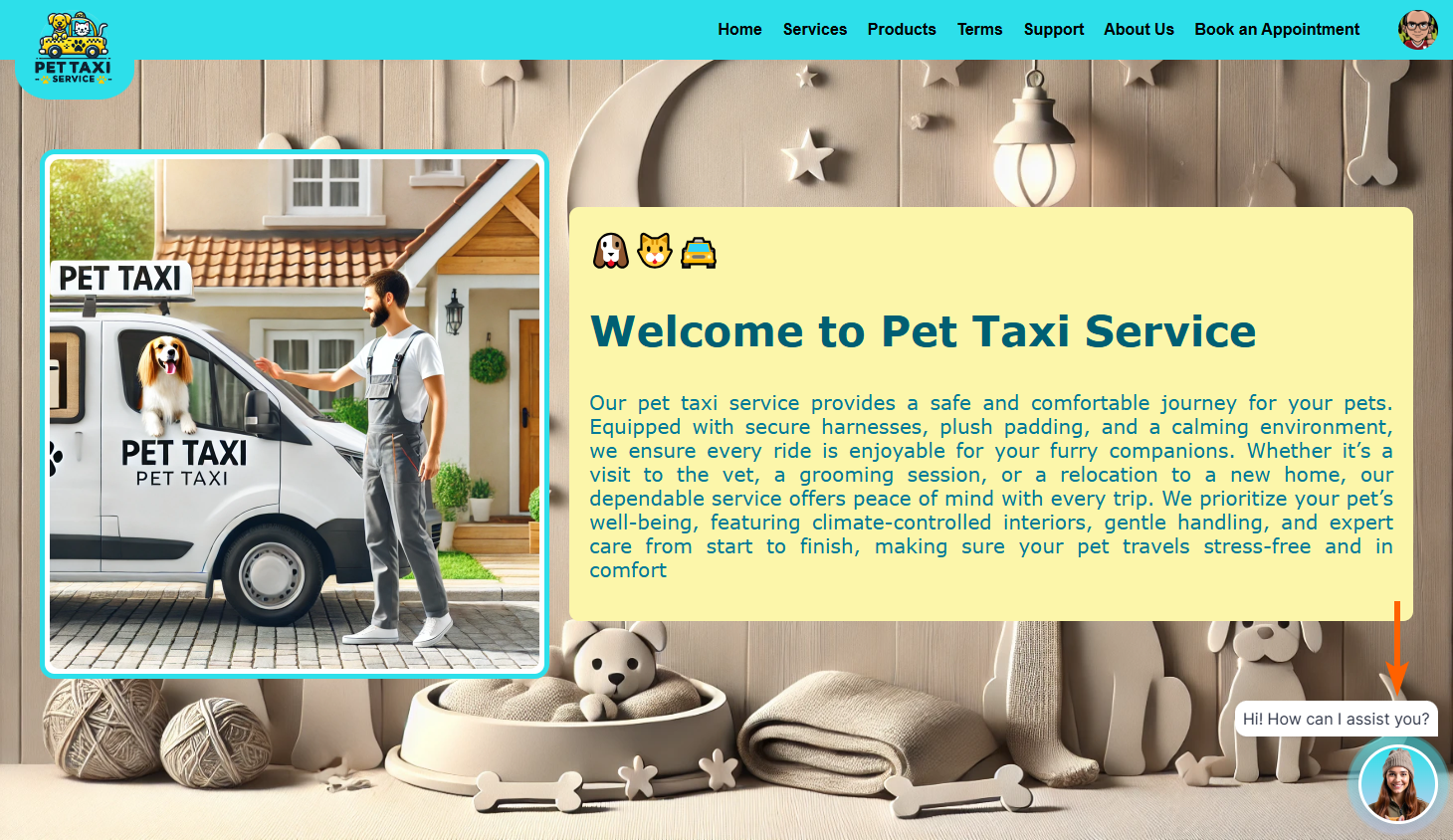
David_davidedgar407Just in case the settings are wanted, here is a screenshot. I don't know how to get it to stop popping up!
-
Podo: Support Specialist
Hi David,
Let me help you with that:
From your description, it sounds like the AI Agent chatbot’s own Open by Default / auto-open setting may still be set to open automatically in the AI Agent Builder or in the App’s AI Chatbot settings, even if you believe it is off. There are two places to double-check this so the chatbot truly stays closed until clicked.
First, check the AI Agent’s Chatbot settings (if you embedded it directly on your site):
- Go to your AI Agent in AI Agent Builder, then click on the Publish tab.
- Click on Chatbot in the menu on the left side.
- Find the Open by Default (or similar) option. Make sure it is set to Do not open automatically / users must click to open.
- After changing this setting, click on Copy Code again under the embed section and re-embed this updated code into your website, replacing the old snippet.
This is important because changes to the chatbot settings do not apply to your site until you re-embed the updated code.
Then, check the AI Chatbot settings inside your Jotform App (if the ticket form is in an App):
- In App Builder, click on Settings in the top navigation bar.
- Click on AI Chatbot on the left side.
- Under the AI Chatbot settings, make sure Open by Default is set so the chatbot does not open automatically (it should remain closed until clicked).
- If needed, you can also click the Three Dots icon next to the selected agent and choose Remove the Agent to fully stop it from appearing in the app.
If you can share what your current Open by Default setting shows in both the AI Agent Builder’s Chatbot tab and the App’s AI Chatbot settings, we can narrow it down further. After we hear back from you, we’ll have a better idea of what’s going on and how to help.
Let us know if you have any other questions.
-
David_davidedgar407
As shown in the screenshot above, it is set to Do not open by default.
-
Podo: Support Specialist
Hi David,
Let me help you with that:
If your AI Agent’s chatbot setting is already set to Do not open automatically, then it should not auto-launch based on the documented behavior. At this point, there are no additional documented settings or behaviors available that explain why it would still pop up by itself.
Because of that, I don’t know this information and our support team will handle your request.
Reach out again if you need any other help.
-
 Joeni JotForm Support
Hi David,
I tried accessing your website to see if I could replicate the issue, but everything worked as expected on my end. Take a look at the screencast below:
I recommend clearing your browser cache and cookies before accessing your website again. If the issue occurs, to thoroughly check the issue, our team would like to clone your AI agent along with its associated knowledge base. By replicating your environment, we can more accurately diagnose the issue and work on a tailored solution. Rest assured that all data will be handled securely and used solely for troubleshooting purposes in line with our strict privacy and security policies. Once the issue is resolved, the cloned AI agent and all associated data will be deleted.
Can you confirm that we have your permission to go ahead with this process?
Once we hear back from you, we'll be able to help you with this.

 Just in case the settings are wanted, here is a screenshot. I don't know how to get it to stop popping up!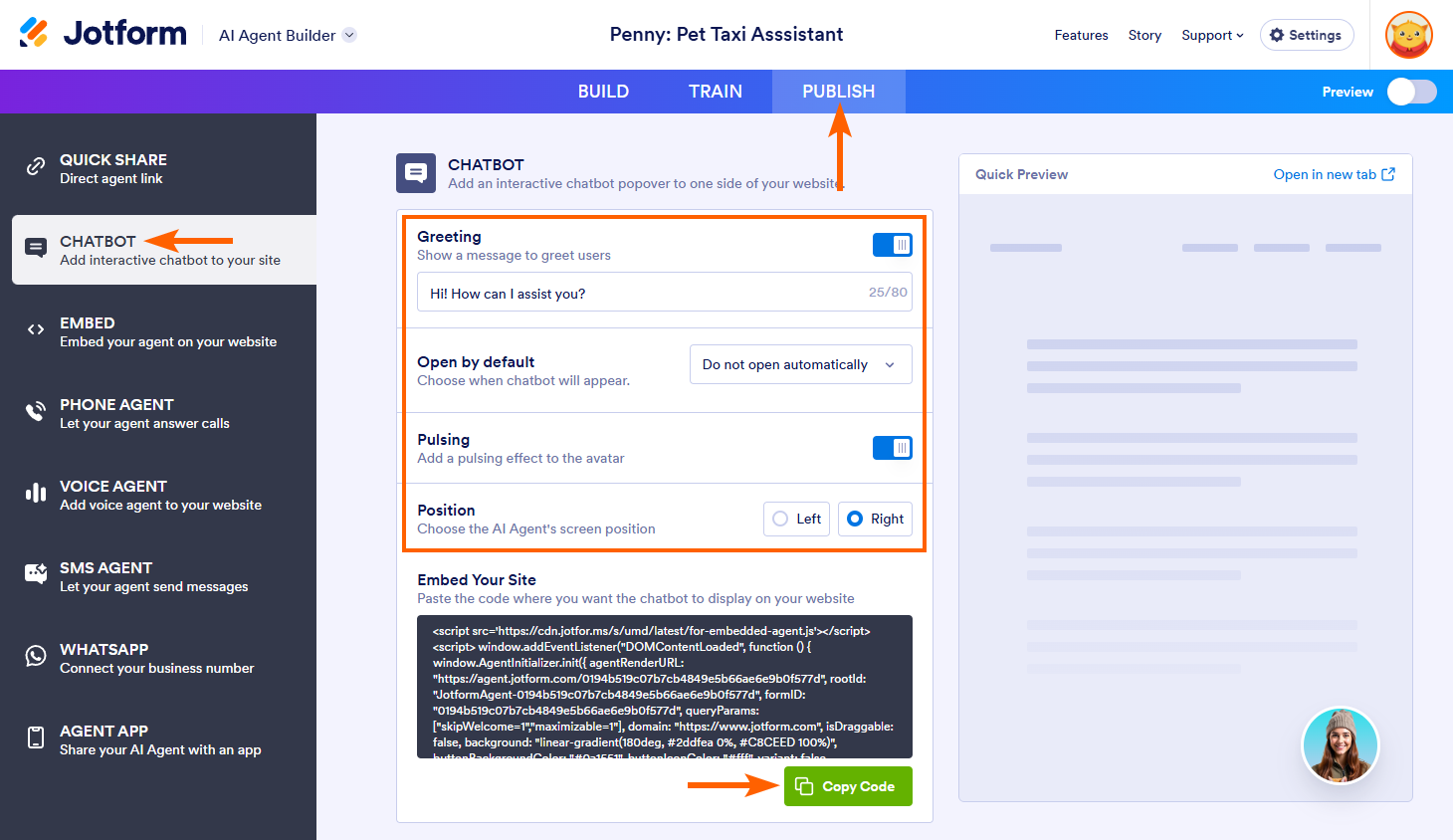
Your Reply
Something Went Wrong
An error occurred while generating the AI response. Please try again!