-
 bensteffens
I just set up a workflow to set up an email response based on box checked on a form, but those are not being sent out correctly. What am I doing wrong?
-
 Podo: Support Specialist
Hi Ben,
Thanks for reaching out to Jotform Support. I'm an AI assistant here to assist you.
It sounds like you want your form to send different email responses depending on which box is checked, but those conditional emails are not going out correctly. Let me help you with that:
First, set up the conditional email sending (Change Email Recipient):
1. In Form Builder, in the orange navigation bar at the top of the screen, click on Settings.
2. In the menu that opens on the left side of the page, click on Conditions.
3. Under the New Condition section, click on Change Email Recipient.

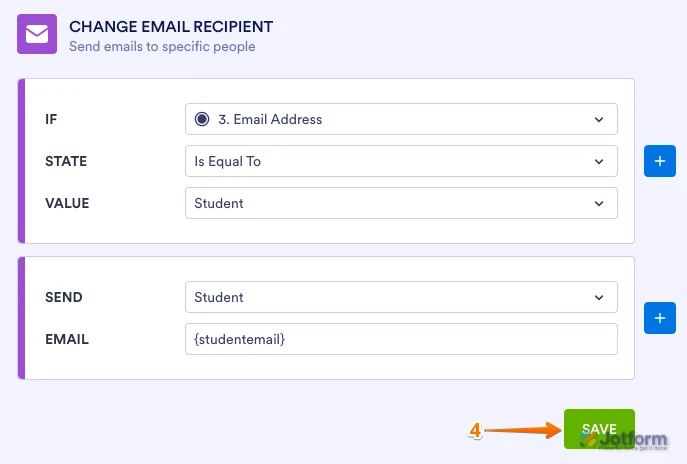
4. Set up the condition so that when a specific box is checked (or a specific answer is selected), the corresponding email (Notification or Autoresponder) is sent, then click on Save.
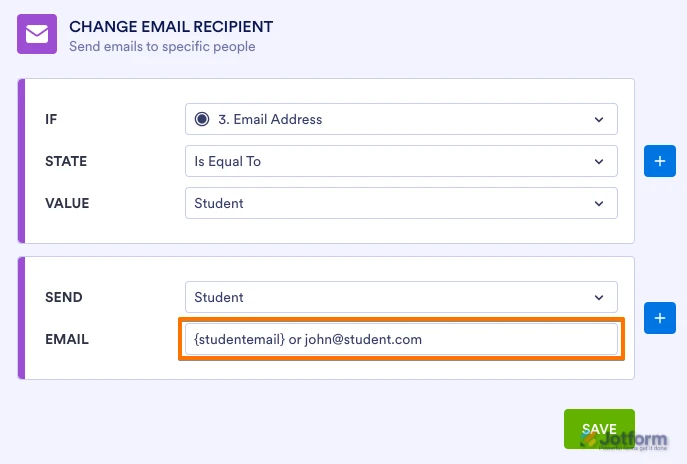
You can either manually enter the desired email address or use the Unique Name of an email field you created, so the respondent’s email address is captured automatically:
Then, make sure you have the correct Autoresponder emails created:
If you don't see different options in the Send section of the conditions, it’s usually because you haven’t created the necessary Autoresponder emails yet. Here’s how to create them:
1. In Form Builder, in the orange navigation bar at the top of the page, click on Settings.
2. In the menu on the left side of the page, click on Emails.
3. Click on Add Email, and select the Autoresponder Email option.
4. Customize the email content and settings the way you want them, then click on Save.
After that, go back to Settings → Conditions → Change Email Recipient and make sure each condition is set to send the correct Autoresponder (or Notification) when the corresponding box is checked.
If it’s still not working after you check these, please share which field you are basing the condition on and which email type (Notification vs Autoresponder) you expect to send, so we can narrow down what’s going wrong.
Give it a try and let us know how it goes.
-
 Joseph Christian JotForm Support
Hi Ben,
I cloned your form and tested it to see if I could replicate the issue, and I ran into the same thing. When I looked at your form, I saw that the Conditional Branch in your Workflow wasn’t configured correctly. Let me show you how to fix it:
1. In Workflow Builder, select the Conditional Branch element and click on the Gear icon.
2. Hover over the Parking Pass Checked branch and click on the Pencil icon to edit.
3. Next, set the condition like you see below and click on Save.
4. Now, hover over the Parking Pass Not Checked branch and click on the Pencil icon to edit.
5. Then, set the condition like you see below and click on Save.
Take a look at the screenshot below to see my results:Give it a try and let us know if you need any help.



 Take a look at the screenshot below to see my results:
 Give it a try and let us know if you need any help.
Your Reply
Something Went Wrong
An error occurred while generating the AI response. Please try again!