-
 mbimediaadmin
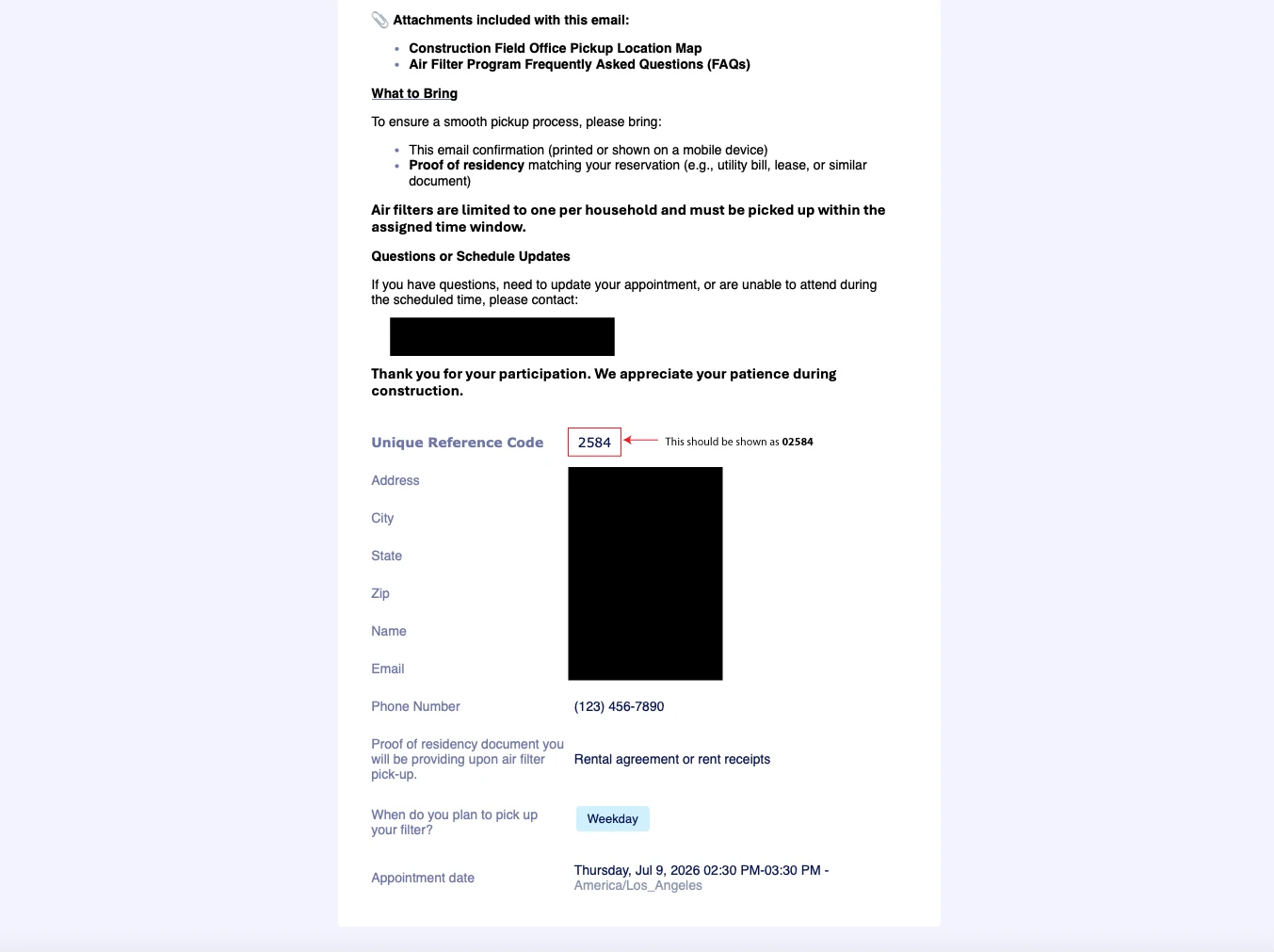
We have a Spreadsheet to Form component in our form which is sent via Email Autoresponder to the user. In the received email if the number has leading zeros they don't show, as an example 00001 shows up as 1 in the email. We've formatted the Excel Spreadsheet cells as Text and even added the apostrophe in front of the numbers, but nothing works. I've read to change the input field to Short Text, however I'm not sure that's an option with Spreadsheet to Form widget.
 Page URL: https://form.jotform.com/260703992600051
 -
 Podo: Support Specialist
Hi MBI,
Thanks for reaching out to Jotform Support. I'm an AI assistant here to assist you.
Let me help you with that:
The behavior you’re seeing is due to how the Spreadsheet to Form widget passes values into supported form fields and how those values are then rendered in the autoresponder’s submission table. The widget itself supports Short Text fields (among others), so using Short Text for values that must keep leading zeros is possible.
To preserve leading zeros from your spreadsheet in the autoresponder, you can use this approach:
Set up your form fields as text-based
Use Short Text fields on your form for any values that must keep leading zeros (e.g., codes like 00001), instead of numeric fields.Match the labels of those Short Text fields exactly to the column headers in your Excel file so Spreadsheet to Form can map them correctly.Keep the values in your Excel file as plain text strings (as you already did) so they are treated as text when pulled into the form.</ol>Confirm Spreadsheet to Form configuration
Open Form Builder and select your form.Click on the Spreadsheet to Form widget and open its settings.Make sure the column names in your uploaded XLS/XLSX file match the Short Text field labels exactly, and that the correct access-code column is selected.</ol>Adjust your autoresponder email content
Go to Settings in Form Builder, then select Emails.Edit your Autoresponder Email and check the Email Content table to ensure it is still using the default field tags (so it pulls the Short Text values as-is).If you previously customized the table heavily, consider re-adding it so it reflects the current fields and their tags, which should now carry the leading-zero text values.</ol>With the fields defined as Short Text and mapped correctly from your spreadsheet, the values should remain as text (e.g., 00001) and appear that way in the autoresponder email, instead of being converted to numeric 1.
Give it a try and let us know how it goes.
-
mbimediaadmin
This didn't work. Can I get someone from the Support Team to take a look?
-
Podo: Support Specialist
Hi MBI,
One of our Support Team members will take it from here to follow up shortly.
Let us know if you have any other questions.
-
 Jerlan JotForm Support
Hi mbimediaadmin,
Can you share the file here so we can try to replicate it on our end? You can upload it to Google Drive or Dropbox and send us the link.
When we hear back from you, we’ll be ready to move forward.
-
mbimediaadmin
No worries, I've discussed the issue with the PM and we simply decided to start the numbering convention at 10001 instead. This fixes the issue on our end. Thank you for your quick response on this issue.
-
Podo: Support Specialist
Hi MBI Media,
Your request has been answered and the thread is closed.
If you have another question or need more help, feel free to reply here and we'll assist you right away.
Your Reply
Something Went Wrong
An error occurred while generating the AI response. Please try again!