-
 LifeLine_Animal
Hello,
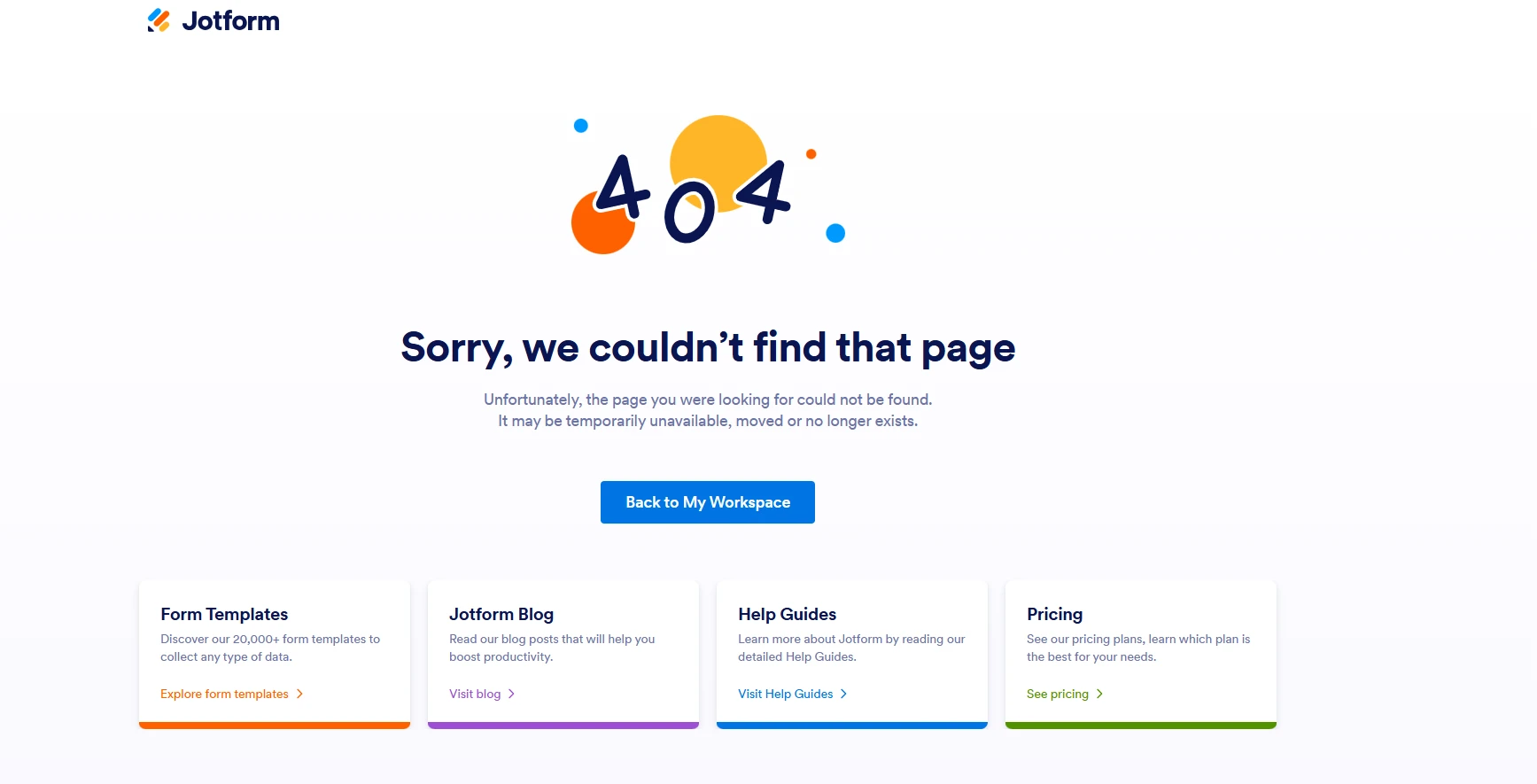
We are unable to view attachments to a form through the email notifications we receive. When the attachment is clicked, we are sent to a 404 error page. Screenshot is attached.This is pertinent to our form titled "DCAES Service Request Form (Primary.)

-
 Podo: Support Specialist
Hi Erin,
Thanks for reaching out to Jotform Support. I'm an AI assistant here to assist you.
From your description, the 404 page you see when clicking the attachment link from the email is most likely caused by your account’s privacy settings that require being logged in before files can be viewed or downloaded.
Let me help you with that:
First, understand how the download links work
When you include uploaded files or a PDF copy of the submission in your emails (either as an attachment or as a download link such as the {pdf-link} tag), clicking that link may redirect to a protected download page. If your privacy settings require login to view files, anyone who is not logged in (or logged into a different account) will see a 404 or access issue instead of the file.
What you can do to resolve the 404 issue
If you want recipients to be able to open/download the files directly from the email without logging in first, you need to disable the login requirement for viewing uploaded files in your account’s privacy settings.
Here’s how to do it:
- Go to your Jotform account settings page.
- Open the section where privacy and file access options are listed.
- Locate the option related to requiring login to view or download uploaded files.
- Disable the setting that requires being logged in to view uploaded files.
- Save your changes.
After you disable that requirement, new clicks on file or PDF download links in your email notifications should open the files directly instead of showing a 404 page, as long as the links themselves are valid.
Additionally, if you are using a PDF download link in your emails, you can insert it using the PDF Link field tag:
- Open your form in Form Builder and go to Settings.
- Go to Emails and edit your notification or autoresponder email.
- Click in the email body where you want the link, then click Form Fields and choose PDF Link to insert the {pdf-link} tag.
- Optionally enable a password for the PDF if you need extra protection.
- Save the email.
Note that if you still have the login requirement enabled in your privacy settings, clicking the PDF link may again lead to a protected page or 404 until that requirement is turned off.
Give it a try and let us know how it goes.

Your Reply
Something Went Wrong
An error occurred while generating the AI response. Please try again!