-
 TaylorHHL
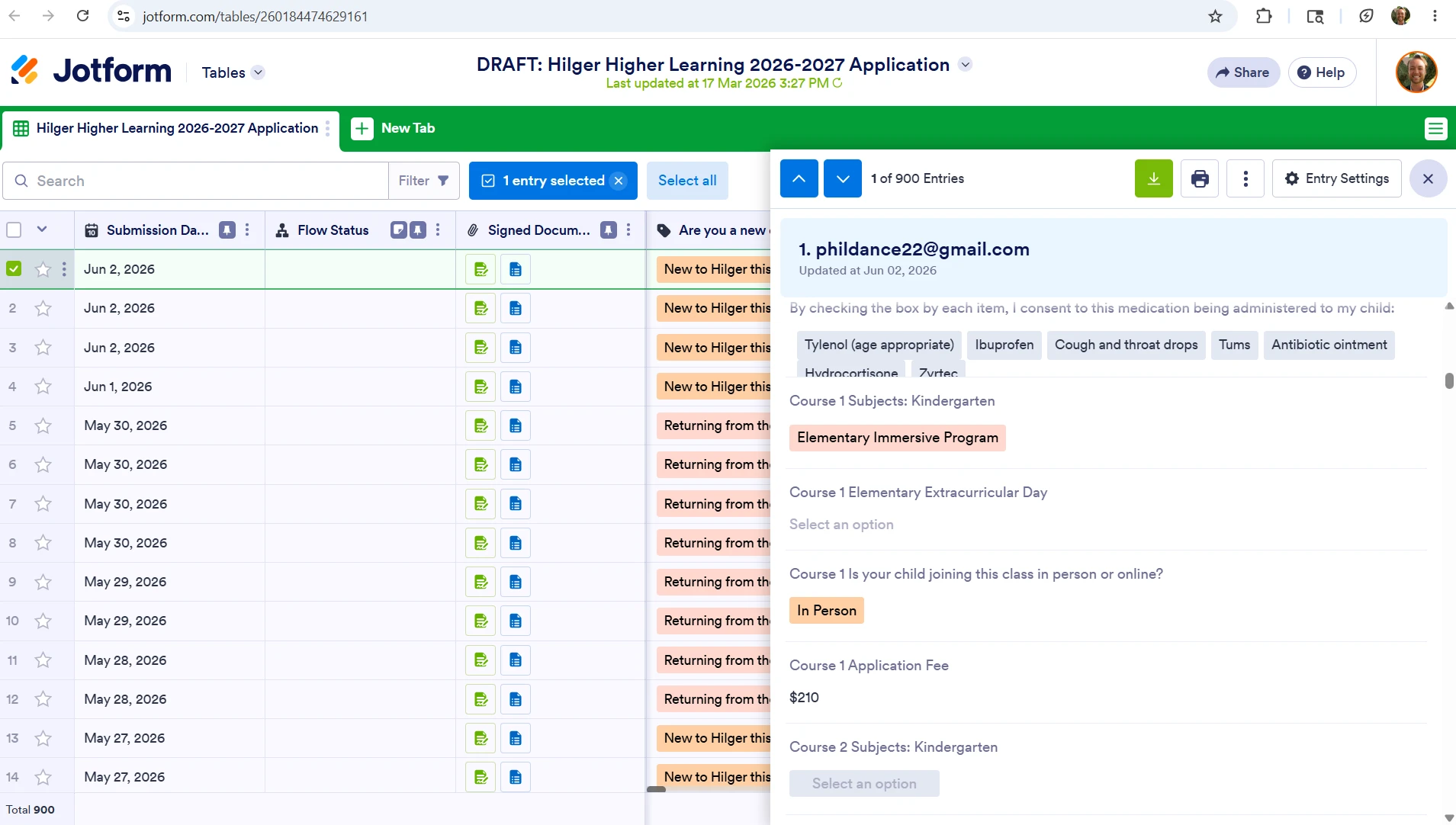
Hello, we had a submission sent in today that was charged the wrong amount. The calculation value of the course selected by the applicant is $105, but $210 populated. Please see attached screenshot. From what I can tell, everything is set up correctly on our end and runs correctly when tested.

-
 Podo: Support Specialist
Hi Taylor,
Thanks for reaching out to Jotform Support. I'm an AI assistant here to assist you.
From your description, the total that reached the payment field was doubled compared to the expected calculation, even though your own tests look correct. This kind of issue usually happens at the point where the Form Calculation widget passes its value into the payment field, or when more than one calculated value is being summed.
Let me help you with that:
First, confirm how the payment field gets its amount
- Check the payment field’s Payment Type: It should be set to something like User Defined Amount (or a similar option that takes a value from another field), not to a product list that also has its own prices defined in addition to your calculation.
- Check the “Get Price From” source: In the payment field’s settings, look for the option similar to Get Price From and make sure it points to the single Form Calculation widget that represents your final total (the one that should be 105).
- Make sure there is only one total feeding the payment: If you have multiple calculation widgets (for example, one per course and another “grand total”), ensure that only the final total widget is selected as the source for the payment field, and that you are not also selling products directly in the payment field at the same time.
Second, review the calculation setup itself
- Open your Form Calculation widget and check the formula to see if the course value is being added twice (for example, the same field included two times, or a condition that adds the same amount again).
- Check that fields are numeric, not text: In the calculation editor, the course field and numeric operators should appear with a dark gray background (numeric). If they appear as text (light gray), the widget may be concatenating values in a way that later gets interpreted incorrectly when passed to the payment field.
- Confirm assigned calculation values: If you are using a Dropdown, Single Choice, or Multiple Choice field with Calculation Values for the course price, open that field’s Options and verify that the course in question has a single value of 105, and that there isn’t another field or condition also adding 105 on top of it.
Third, test the flow that the real user followed
- Reproduce the exact selection the applicant made (same course, same options) and watch the value shown in the Form Calculation widget itself before submission. It should show 105 there if the formula is correct.
- Compare that to the payment amount that appears in the payment field right before submitting. If the widget shows 105 but the payment field shows 210, the doubling is happening at the handoff to the payment field (for example, both a product price and the calculation are being charged).
- Temporarily remove or disable extra price sources (like built-in products in the payment field) and test again to confirm that only the calculation-driven amount is being charged.
Here are some references that may help you verify the setup step by step:
- Guide on using the Form Calculation widget and configuring its options, including how numbers vs. text behave in formulas: How to Perform Form Calculation Using a Widget
- Guide on passing a calculation into a payment field (including selecting User Defined Amount and Get Price From your calculation widget): How to Pass a Calculation to a Payment Field
- Guide on assigning calculation values to selection fields (Dropdown, Single Choice, Multiple Choice): How to Assign Calculation Values
If you can share which field is your final total and which payment gateway you are using, we can narrow down whether the duplication is in the calculation formula or in the payment field configuration. After we hear back from you, we’ll have a better idea of what’s going on and how to help.
Let us know if you have any other questions.
Your Reply
Something Went Wrong
An error occurred while generating the AI response. Please try again!